Imagine looking at a digital image that’s so sharp, every tiny detail pops with incredible clarity. Then, picture another image, same content, but with blurry edges and visible squares. The difference? Often, it comes down to pixel density, a crucial factor known as Pixels Per Inch (PPI). Understanding PPI is fundamental for anyone interacting with digital screens, from casual browsing to professional content creation, as it directly impacts how crisp and clear your visual experience will be. In this comprehensive guide, we’ll dive deep into what pixel density is, how it’s calculated, why it holds such significance for your computer monitor, and how to choose the right PPI for your specific needs.
What is Pixel Density (PPI)?
Pixel Density, universally referred to as Pixels Per Inch (PPI), quantifies the number of individual pixels packed into every single inch of a digital display. Think of it as the granularity of your screen; a higher PPI means more pixels are squeezed into that square inch, resulting in a finer, more detailed image. These tiny light-emitting elements, or pixels, are the building blocks of every visual you see on your monitor, from the sharpest text to the most intricate graphics.
It’s important to distinguish PPI from DPI (Dots Per Inch), which, while related, serves a different purpose. PPI specifically measures pixel density on a digital screen, impacting the clarity and sharpness of digital images. DPI, on the other hand, refers to the density of ink dots used in printed materials. While both relate to visual fidelity, their contexts are distinct: PPI for digital displays and DPI for print.
How is Pixel Density (PPI) Calculated?
Calculating your monitor’s PPI helps you understand its potential for visual sharpness. The formula for PPI takes into account both the display’s resolution and its physical screen size. To be precise, you need the diagonal resolution in pixels and the diagonal screen size in inches.
Here’s the general approach:
- Find your monitor’s resolution: This is usually expressed as width x height (e.g., 1920×1080, 2560×1440, 3840×2160).
- Calculate the diagonal pixel count: Using the Pythagorean theorem, you can find the diagonal number of pixels:
Diagonal Pixels = √(Horizontal Pixels² + Vertical Pixels²). - Divide by the diagonal screen size: Measure your monitor’s screen diagonally in inches (this is typically what manufacturers list as “screen size”).
- The Formula:
PPI = Diagonal Pixels / Diagonal Screen Size (in inches)
For instance, a 27-inch monitor with a 2560×1440 (QHD) resolution would have a diagonal pixel count of approximately 2943. With a 27-inch diagonal screen, its PPI would be around 109. This calculation is crucial for understanding how pixel-dense your display truly is, moving beyond just raw resolution numbers.
The Crucial Relationship: PPI, Resolution, and Screen Size
Pixel density, resolution, and screen size are inextricably linked, forming a triangle that determines your monitor’s visual output. You can’t change one without affecting the others, or at least the resulting PPI.
- Resolution refers to the total number of pixels available on the screen (e.g., 1920×1080). A higher resolution means more pixels.
- Screen Size is the physical diagonal measurement of the display in inches.
The magic happens when these two meet to define PPI. Imagine two monitors, both with a 1920×1080 (Full HD) resolution. If one is 24 inches and the other is 32 inches, the 24-inch monitor will have a higher PPI. Why? Because the same number of pixels are packed into a smaller physical area, making the pixels smaller and less noticeable. Conversely, the 32-inch monitor will spread those same pixels over a larger area, resulting in a lower PPI and potentially a more “pixelated” or “grainy” appearance. Therefore, a larger screen demands a higher resolution to maintain a comparable level of PPI and perceived sharpness.
Why Pixel Density Matters for Your Computer Monitor
Understanding why PPI is important is key to making informed decisions when choosing a monitor or optimizing your current setup. It’s not just a technical specification; it profoundly impacts your daily interactions with your computer.
Visual Clarity and Sharpness
|
Our Picks for the Best Computer Monitor in 2026
As an Amazon Associate I earn from qualifying purchases.
|
||
| Num | Product | Action |
|---|---|---|
| 1 | MNN Portable Monitor 15.6inch FHD 1080P USB C HDMI Gaming Ultra-Slim IPS Display w/Smart Cover & Speakers,HDR Plug&Play, External Monitor for Laptop PC Phone Mac (15.6\'\' 1080P) |

|
| 2 | New! Sceptre 27-inch Gaming Monitor 100Hz 1ms DisplayPort HDMI x2 100% sRGB AMD FreeSync Build-in Speakers, Eye Care Frameless Machine Black 2025 (E275W-FW100T Series) |
|
| 3 | LG 24U411A-B 24-inch Full HD (1920 x 1080) IPS Computer Monitor, 120Hz, HDR10, Reader Mode, Flicker Safe, HDMI, Slim Stand Base, Black |
|
| 4 | Philips 221V8LB 22 inch Class Thin Full HD (1920 x 1080) Monitor, 100Hz Refresh Rate, VESA, HDMI x1, VGA x1, LowBlue Mode, Adaptive Sync, 4 Year Advance Replacement Warranty |
|
| 5 | acer 27 Inch Monitor- KB272-27 Inch FHD IPS (1920 x 1080) Display, Up to 120Hz Refresh Rate, 99% sRGB, Tilt, Adaptive-Sync Support (FreeSync Compatible) 1ms (VRB), HDMI & VGA Ports |
|
| 6 | Samsung 27\" Essential S3 (S36GD) Series FHD 1800R Curved Computer Monitor, 100Hz, Game Mode, Advanced Eye Comfort, HDMI and D-sub Ports, LS27D366GANXZA, 2024 |
|
| 7 | Samsung 32-Inch Flat Computer Monitor, 75Hz, Borderless Display, AMD FreeSync, Game Mode, Advanced Eye Care, HDMI and DisplayPort, LS32B304NWNXGO, 2024 |
|
| 8 | KOORUI 24-inch Computer Monitor Full HD 1920 x 1080p 100Hz VA Display 4000:1 Contrast Ratio with HDMI VGA, TÜV Rheinland Certified, 100 x 100 mm VESA Mountable, Ultra-Slim Design, Tilt, Black, E2412F |
|
| 9 | Amazon Basics 24 Inch (23.8 inch viewable) Monitor, FHD 1080P, Max 100Hz, VESA Compatible, Built-in Speakers, Black |
|
| 10 | KOORUI 22 Inch Computer Monitor Full HD 1080P 100Hz PC Gaming Screen VA Panel Ultra-Slim Display 3000:1 Contrast Ratio with Adpitive Sync (HDMI/VGA/VESA Compatible 100x100mm/Audio Out), Tilt, Black |
|
A higher PPI directly translates to superior visual clarity and sharpness. When pixels are densely packed, individual pixels become imperceptible at a normal viewing distance, making images appear smoother, text crisper, and fine details more pronounced. This reduces the “screen door effect” where you can see the grid lines between pixels. Conversely, a low PPI can result in pixelated graphics and fuzzy text, diminishing the quality of your visual content.
Enhanced User Experience
An optimal PPI delivers a more immersive and comfortable user experience. Whether you’re watching high-definition movies, exploring vast open-world games, or simply browsing webpages, a display with good pixel density makes the content feel more lifelike and engaging. The seamless presentation of visuals can significantly reduce the cognitive load and provide a more natural viewing environment.
Ergonomics and Eye Strain
Believe it or not, PPI plays a role in eye comfort. With a higher PPI, text and icons appear smaller but sharper. While this might necessitate adjusting display scaling settings in your operating system, having very sharp, clear text can reduce eye strain over long periods, as your eyes don’t have to work as hard to discern individual letters. Finding the right balance that suits your personal viewing distance and preferences is crucial for long-term comfort.
Professional Workflows
For professionals in fields like graphic design, photography, video editing, and CAD, pixel density isn’t just a preference; it’s a necessity. These tasks demand meticulous attention to detail, and a high PPI monitor allows for precise manipulation of images and video without needing to constantly zoom in. Designers can ensure their creations are pixel-perfect, and editors can catch subtle imperfections, leading to higher quality output.
Ideal Pixel Density (PPI) for Different Monitor Uses
What constitutes “good” PPI is not a one-size-fits-all answer. It largely depends on your primary usage and typical viewing distance. Here’s a breakdown of recommended PPI ranges for common computer monitor applications:
General Productivity and Office Work
For everyday tasks like web browsing, email, word processing, and general office applications, a PPI between 75 and 110 is generally sufficient. If you often multitask with multiple windows open, aiming for the higher end of this range (95-110 PPI) can provide more usable screen real estate and sharper text without making elements too small. PPI values exceeding 140 might make text and icons appear excessively tiny without proper operating system scaling, which can sometimes introduce its own set of visual quirks.
Gaming
Gaming monitors benefit from good pixel density to showcase game worlds with greater detail and immersion. A range of 95 to 140 PPI is often recommended for gamers. Within this range, an average of 95 to 110 PPI provides enough detail to prevent grainy visuals. For games with expansive environments and intricate textures, like open-world titles, a higher PPI (e.g., 110-140 PPI) can make distant objects and fine graphical elements appear significantly sharper.
Content Creation and Graphic Design
Professionals involved in photo editing, video production, graphic design, and other detail-oriented creative tasks often require higher pixel densities for precision. A PPI between 110 and 140 is highly beneficial here. It allows for zooming into the smallest details, making accurate edits, and ensuring that colors and shadows are adjusted with extreme precision. For the most demanding applications, even higher PPI (like that offered by 4K on a 27-inch display) can be invaluable, though it often requires robust graphics hardware to drive.
Considerations for Very High PPI
While higher PPI generally means better clarity, there’s a point where the human eye can no longer discern individual pixels at a typical viewing distance. Beyond this, increasing PPI further offers diminishing returns visually and can introduce challenges. Very high PPI displays (e.g., 4K on a 24-inch monitor) often necessitate using display scaling in your operating system to make text and icons readable. This scaling can sometimes lead to minor inconsistencies in how applications are rendered, though modern operating systems are much better at handling it.
Understanding Your Viewing Distance
The concept of an “ideal” PPI is subjective because it’s heavily influenced by your viewing distance. The closer you sit to your monitor, the higher the PPI you’ll need to perceive a truly sharp, pixel-free image. Conversely, if you view a screen from further away, your eyes naturally blend the pixels, making a lower PPI appear sharp. This is the principle behind “Retina displays,” a term coined by Apple, which refers to a display where the pixel density is high enough that individual pixels are indistinguishable to the human eye at a typical viewing distance. For example, a smartphone needs a much higher PPI than a large TV to achieve the same perceived sharpness, simply because phones are held much closer to the eyes.
Common Computer Monitor Types and Their PPI Implications
Different combinations of screen size and resolution lead to varied pixel densities, affecting the overall visual experience. Let’s look at how common monitor resolutions manifest across different sizes:
Full HD (1080p) Monitors
- 24-inch 1080p: Offers approximately 92 PPI. This is often considered a good balance for general use, providing crisp text and clear images without being too demanding on graphics hardware.
- 27-inch 1080p: Drops to about 82 PPI. At this size, pixels may start to become noticeable, and text might appear less sharp, especially if viewed up close. Many users find this PPI too low for detailed work.
- 32-inch 1080p: With roughly 70 PPI, a 32-inch 1080p monitor typically results in noticeable pixelation and a grainy image, which is generally not recommended for computer monitors due to the close viewing distance.
Quad HD (1440p) Monitors
- 24-inch 1440p: Delivers an excellent PPI of around 122. This offers superb sharpness, though some users might find text and icons slightly small and may opt for light scaling.
- 27-inch 1440p: With approximately 109 PPI, this is often cited as a sweet spot for many users. It provides a sharp image, ample screen real estate for multitasking, and typically doesn’t require scaling, making it a popular choice for both work and gaming.
4K (UHD) Monitors
- 27-inch 4K: Boasts a very high PPI of around 163. This offers incredible detail and sharpness, making it ideal for content creation. However, scaling is almost always necessary to make text and UI elements readable.
- 32-inch 4K: Provides a high PPI of approximately 139. This is another popular choice for professionals and enthusiasts, offering a large, highly detailed workspace that still requires some level of scaling for optimal usability.
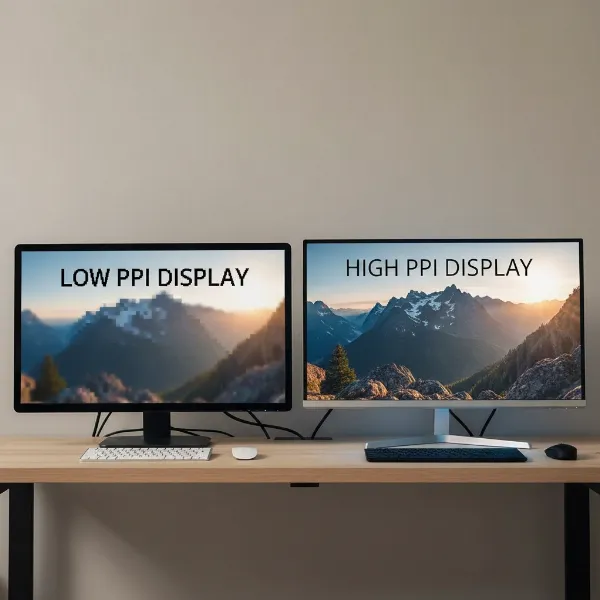 A side-by-side comparison of computer monitors showing different pixel densities and their impact on image clarity and text sharpness.
Bảng so sánh các loại Computer Monitor
While the original prompt requested a table for “types of Computer Monitor” (LED, LCD, OLED, QLED), this article focuses specifically on PPI, which is a characteristic of a display, rather than a display type in the same vein as panel technology. Instead, a comparison table illustrating the interplay between screen size, resolution, and the resulting PPI is far more relevant to the topic.
| Feature / Screen Size | 24-inch Monitor | 27-inch Monitor | 32-inch Monitor |
|---|---|---|---|
| 1080p (Full HD) Resolution | ~92 PPI: Good for general use, sharp text. | ~82 PPI: Pixels noticeable, text less sharp. | ~70 PPI: Grainy, pixelated, generally not recommended. |
| 1440p (Quad HD) Resolution | ~122 PPI: Very sharp, may require light scaling. | ~109 PPI: Sweet spot for sharpness and screen space, often no scaling needed. | ~92 PPI: Good clarity, comfortable for most users. |
| 4K (UHD) Resolution | ~183 PPI: Extremely sharp, requires significant scaling. | ~163 PPI: Incredible detail, requires scaling. | ~139 PPI: Excellent detail, usually requires some scaling. |
How to Choose the Right Computer Monitor Based on PPI
Selecting the perfect computer monitor involves more than just picking the largest screen or the highest resolution. By focusing on pixel density, you can ensure a display that truly meets your needs for clarity and comfort.
1. Assess Your Primary Use
Consider what you’ll be doing most often. If it’s general office work and web browsing, a moderate PPI (around 90-110) will likely suffice. For avid gamers, a balance within the 95-140 PPI range will deliver immersive visuals. Content creators, however, should prioritize higher PPI (110-140+) for the precision required in their craft.
2. Consider Your Viewing Distance
The closer you sit to your monitor, the higher the PPI you should aim for to achieve optimal sharpness without visible pixels. If you’re using a large monitor on a deep desk, a slightly lower PPI might still appear clear. For closer viewing, a higher PPI becomes critical for a comfortable experience.
3. Balance Resolution and Screen Size
Remember the relationship: a larger screen needs a higher resolution to maintain a good PPI. Don’t fall into the trap of getting a very large monitor with a relatively low resolution, as this will result in a low PPI and a pixelated image. Instead, find a pairing that yields a PPI suitable for your use case and viewing distance. For example, a 27-inch 1440p monitor (around 109 PPI) is often considered a great all-rounder.
4. Factor in Budget and GPU Capabilities
Higher resolution, and consequently higher PPI, often comes with a higher price tag for the monitor itself. More importantly, driving a high-resolution display, especially for gaming or demanding applications, requires a powerful graphics card (GPU). Ensure your computer’s hardware can comfortably handle the resolution you’re considering to avoid performance issues. For 4K gaming, for instance, a high-end GPU is essential.
5. Read Reviews and Experiment (If Possible)
Before making a final decision, consult professional reviews that often discuss PPI and user experiences. If possible, see the monitor in person or try out different PPI settings on a similar display to gauge your personal preference for text size and overall sharpness.
Conclusion
Pixel Density (PPI) is far more than just another technical term; it’s a critical specification that profoundly influences the sharpness, clarity, and overall quality of your computer monitor’s display. It determines whether text is crisp and readable, images are vibrant and detailed, or if everything appears soft and pixelated. By understanding how PPI works, how it’s calculated, and its intricate relationship with resolution and screen size, you empower yourself to make a smarter purchasing decision. An optimal PPI ensures a more comfortable, immersive, and productive visual experience, tailored precisely to your specific needs, whether you’re working, gaming, or creating.
So, the next time you consider a new Computer Monitor, ask yourself: What PPI will truly unlock the best visual experience for me?
Frequently Asked Questions
Is higher PPI always better for computer monitors?
While higher PPI generally indicates a sharper image, it’s not always “better” in all situations. At a certain point, the human eye can no longer discern individual pixels, and further increases offer diminishing returns. Very high PPI can also make text and icons too small without scaling, which might introduce minor display quirks. The ideal PPI depends on your viewing distance and specific use case.
What is a “Retina” display in the context of PPI?
“Retina display” is a marketing term coined by Apple for displays where the pixel density is high enough that the human eye cannot distinguish individual pixels at a typical viewing distance. This creates a remarkably smooth and sharp image, making text appear like print on paper and graphics incredibly detailed. The specific PPI for a “Retina” display varies by device, as it’s relative to the expected viewing distance.
Does PPI affect gaming performance?
No, PPI itself does not directly affect gaming performance. What affects gaming performance is the resolution of the display. A higher resolution (e.g., 4K vs. 1080p) requires your graphics card to render significantly more pixels, which demands more processing power and can lead to lower frame rates. Since higher PPI usually comes from higher resolutions on similar screen sizes, it’s the underlying resolution that impacts performance, not the density itself.
What is a good PPI for a 27-inch monitor?
For a 27-inch monitor, a PPI of approximately 109, typically found with a 2560×1440 (QHD) resolution, is widely considered an excellent balance. It provides a sharp, clear image with ample screen real estate for multitasking, usually without the need for display scaling. A 27-inch 4K monitor would have a much higher PPI (around 163), offering even greater detail but almost certainly requiring scaling for comfortable use.