Few things disrupt the immersive experience of a Computer Monitor more than visual anomalies. If you’ve ever noticed blurry trails behind fast-moving objects or bright “halos” surrounding elements on your screen, you’re likely encountering monitor ghosting or overshoot. These frustrating issues can turn a smooth visual experience into a distracting mess, especially for gamers and those working with dynamic content. This guide will demystify both ghosting and overshoot, explaining what causes them and providing actionable troubleshooting steps to help you achieve a crystal-clear display.
Understanding Monitor Ghosting
Monitor ghosting manifests as a lingering “afterimage” or blurry trail that follows moving objects on your screen. Imagine a car speeding across the display, leaving a faint, dark smudge in its wake, much like a specter. This effect is particularly noticeable in high-contrast scenes, such as bright text on a dark background, or during fast-paced action in video games and sports. It can cause significant eye strain and detract from your overall viewing or gaming performance.
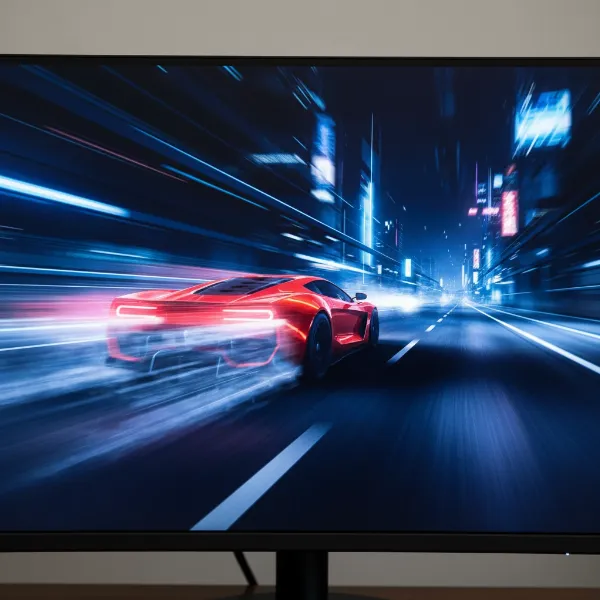 A computer monitor screen displaying a fast-moving object with noticeable ghosting or overshoot effects.
At its core, monitor ghosting stems from a fundamental limitation in how quickly a display’s pixels can transition from one color to another. This is often referred to as a slow pixel response time, specifically the “gray-to-gray” (GtG) response time. When pixels don’t change states fast enough to keep up with the incoming frames from your graphics card, remnants of the previous image persist for a fleeting moment, creating the ghosting effect. VA (Vertical Alignment) panels, while offering excellent contrast and deep blacks, have historically been more susceptible to slower GtG response times, sometimes leading to a specific type of ghosting known as “black smearing” in dark scenes. However, modern VA panels have seen significant improvements in this area.
Understanding Monitor Overshoot (Inverse Ghosting)
While ghosting is about pixels being too slow, overshoot, also known as inverse ghosting, is the opposite problem: pixels changing too quickly. Instead of a blurry trail, overshoot typically appears as a bright, unnatural “halo” or a discolored outline around moving objects. It’s often more jarring than traditional ghosting because it introduces artifacts that are brighter than the intended image, making them highly visible and distracting.
The primary culprit behind monitor overshoot is an overly aggressive “overdrive” or “response time” setting within your monitor’s on-screen display (OSD) menu. Overdrive technology applies extra voltage to pixels to accelerate their color transitions and reduce ghosting. However, when this setting is pushed too high, pixels can “overshoot” their target color value before settling, leading to these inverse ghosting artifacts. Finding the optimal overdrive level is a delicate balance, as too little can cause ghosting, and too much results in overshoot.
“Achieving the perfect balance between response time and overdrive settings is key. Too little and you’ll see ghosting; too much, and inverse ghosting takes over. It’s a continuous calibration dance unique to each monitor.” – Alex Chen, Display Technology Specialist
How to Diagnose Ghosting and Overshoot
Before attempting any fixes, it’s crucial to confirm and visualize the type of issue you’re facing. The industry-standard diagnostic tool is the Blur Busters UFO Motion Test, readily available online. This test displays moving UFO images designed to highlight pixel response issues. By observing the trails or halos behind the UFOs at different speeds and colors, you can easily identify whether you are dealing with ghosting (dark trails) or overshoot (bright halos/inverse ghosting). The test also provides real-time feedback on refresh rate, frames per second, and other display metrics, helping pinpoint potential discrepancies.
Troubleshooting Steps to Fix Monitor Ghosting and Overshoot
Addressing monitor ghosting and overshoot often involves a process of elimination and careful adjustment of your display settings. Here are the most effective troubleshooting steps:
Adjusting Overdrive/Response Time Settings
This is arguably the most critical step. Overdrive (also labeled as “Response Time,” “OD,” “TraceFree,” “Rampage Response,” or “AMA” depending on your monitor manufacturer) directly controls pixel transition speed.
- Locate the Setting: Access your monitor’s OSD menu using the physical buttons on the monitor itself. Navigate through the display or picture settings to find the overdrive option.
- Experiment with Levels: Overdrive typically has multiple settings (e.g., Off, Low, Medium, High, or numerical values). Start by setting it to “Off” or its lowest value and run the UFO test. Then, gradually increase the setting, running the UFO test at each step. You’re looking for the “sweet spot” where ghosting is minimized without introducing noticeable overshoot.
- Observe Carefully: If you see bright halos appearing around the moving UFOs, you’ve likely set the overdrive too high, causing overshoot. Dial it back one level.
- Adaptive Sync Considerations: Monitors with adaptive sync technologies like NVIDIA G-SYNC or AMD FreeSync might have automatic overdrive adjustments. However, these aren’t always perfect, and some users report ghosting or overshoot when adaptive sync is enabled. Test with adaptive sync temporarily disabled to see if it alleviates the issue, then re-enable and adjust overdrive if needed.
Updating Graphics Card Drivers
Outdated or corrupted graphics card drivers can lead to a myriad of display issues, including ghosting.
- Check for Updates: Visit the official website of your graphics card manufacturer (NVIDIA, AMD, Intel) to download and install the latest drivers for your specific GPU model.
- Clean Installation: For best results, consider performing a clean installation of your drivers, which removes previous driver files that might be causing conflicts.
- Reboot: Always restart your computer after updating drivers to ensure changes take full effect.
Checking Display Cables and Connections
A seemingly simple cause can often be overlooked. A faulty or improperly connected cable can degrade signal quality, leading to display artifacts.
- Inspect Cables: Examine your HDMI, DisplayPort, or USB-C cables for any signs of damage, fraying, or bent pins.
- Reseat Connections: Ensure that both ends of your display cable are securely plugged into your graphics card and monitor.
- Try a Different Cable: If possible, swap out your current cable with a known-good replacement to rule out a defective cable.
- Test Different Ports: If your monitor or graphics card has multiple display ports, try connecting through a different port to see if the issue persists.
Optimizing Refresh Rate
While a higher refresh rate generally provides a smoother experience and inherently reduces ghosting by demanding faster pixel transitions, an incorrectly configured refresh rate can still contribute to issues.
- Set to Maximum: Ensure your monitor’s refresh rate is set to its highest supported value in your operating system’s display settings (e.g., Windows: Settings > System > Display > Advanced Display > Choose refresh rate).
- Experiment (Cautiously): In rare cases of severe ghosting on very slow panels, slightly reducing the refresh rate (e.g., from 144Hz to 120Hz or 60Hz) might lessen the appearance of ghosting by giving pixels more time to transition. However, this is generally not an ideal long-term solution as it sacrifices overall fluidity and performance.
Tweaking Other Monitor Settings
Beyond overdrive, several other monitor settings can influence visual clarity and may contribute to or help mitigate ghosting.
- Dynamic Contrast, Motion Smoothing, Noise Reduction, Perfect Clear: These features, often designed to enhance image quality, can sometimes introduce processing lag or unwanted artifacts. Experiment with turning them off one by one to see if they reduce ghosting, especially in darker or complex scenes.
- Brightness, Contrast, Gamma: For VA panels experiencing “black smearing,” adjusting brightness, contrast, or gamma can sometimes help. Increasing brightness or adjusting “Shadow Control” (or “Black Stabilizer”) to make dark areas slightly brighter might lessen the smearing effect, though it can impact overall image quality and contrast.
- Input Lag Reduction: Some monitors have settings like “Low Input Lag” or “Game Mode.” Enabling these can sometimes improve overall responsiveness, which may indirectly help with certain types of ghosting.
Minimizing Device Interference
Electronic interference from nearby devices can sometimes affect monitor performance.
- Proximity Check: Ensure that wireless devices such as Wi-Fi routers, printers, speakers, or even your modem are not placed too close to your monitor, as their electromagnetic fields could potentially interfere with the display signal.
- Power Source: Verify your monitor is connected to a stable power source.
When to Consider Professional Help or a New Monitor
If you’ve diligently worked through all the troubleshooting steps and still experience persistent ghosting or overshoot, it might be time to consider further action:
- Physical Damage: If you suspect a physical issue with your monitor, such as a damaged video port, and it’s under warranty, contact the manufacturer for repair or replacement. Attempting to fix physical issues yourself can void warranties.
- Monitor Limitations: Some older or budget-friendly monitors, particularly those with inherently slow response times, may struggle to completely eliminate ghosting or overshoot regardless of settings. If a clear, artifact-free display is critical for your use case (e.g., competitive gaming), upgrading to a monitor with a low GtG response time (1ms or less) and a high refresh rate (120Hz+) might be the most effective solution. Modern IPS and TN panels generally offer superior response times for fast motion.
Conclusion
Monitor ghosting and overshoot can be incredibly frustrating, but they are often solvable problems. By understanding the underlying causes—slow pixel transitions for ghosting and over-aggressive overdrive for overshoot—you can systematically troubleshoot your display. The key is methodical experimentation with your monitor’s overdrive settings, ensuring your graphics drivers are up to date, and verifying all physical connections. Don’t let digital phantoms haunt your screen any longer. Take control of your display settings and enjoy the crisp, clear visuals you deserve!
What specific content or game types do you find ghosting and overshoot most disruptive for? Share your experiences in the comments below!
Frequently Asked Questions
What is the ideal response time for a gaming monitor to avoid ghosting?
For competitive gaming, an ideal gray-to-gray (GtG) response time is 1 millisecond (ms) or less. While 2-5ms can be satisfactory for casual gaming, a lower GtG value ensures faster pixel transitions, significantly reducing the likelihood of ghosting and providing a smoother visual experience in fast-paced action.
Can a faulty cable cause monitor ghosting?
Yes, absolutely. A damaged, low-quality, or improperly connected display cable (HDMI, DisplayPort, USB-C) can lead to signal degradation, which may manifest as ghosting, flickering, or other visual artifacts. Always inspect your cables and try a different one if you suspect a connection issue.
Is monitor ghosting a permanent issue?
In most cases, monitor ghosting is not a permanent defect and can be resolved or significantly reduced through software settings adjustments, driver updates, or cable checks. It’s usually a byproduct of the monitor’s technology or configuration rather than irreversible hardware damage.
What is “black smearing” and how does it relate to ghosting?
Black smearing is a specific type of ghosting often observed on VA (Vertical Alignment) panel monitors, particularly in scenes with dark backgrounds and moving bright objects. It occurs due to slower pixel transitions when changing from very dark colors to lighter ones, causing a noticeable dark “smear” or blur behind the moving element.