Few things are as frustrating as a tiny, persistent dot marring the otherwise perfect display of your computer monitor. Whether it’s a brightly colored speck stubbornly refusing to change, or a tiny black void, these pixel anomalies can quickly become a significant distraction. While often grouped under the general term “pixel defects,” there’s a crucial distinction between a “stuck pixel” and a “dead pixel,” and understanding this difference is the first step toward a potential solution. This guide will walk you through identifying these pesky imperfections and provide actionable steps to try and restore your display to its pristine condition, focusing on the often-fixable stuck pixel while clarifying the grim reality of dead pixels.
Understanding Stuck and Dead Pixels
Before attempting any fixes, it’s essential to correctly diagnose the type of pixel issue you’re facing. The terms “stuck pixel” and “dead pixel” are often used interchangeably, but they describe two distinct problems with different prognoses.
What is a Stuck Pixel?
|
Our Picks for the Best Computer Monitor in 2026
As an Amazon Associate I earn from qualifying purchases.
|
||
| Num | Product | Action |
|---|---|---|
| 1 | Samsung 32-Inch Flat Computer Monitor, 75Hz, Borderless Display, AMD FreeSync, Game Mode, Advanced Eye Care, HDMI and DisplayPort, LS32B304NWNXGO, 2024 |

|
| 2 | Samsung 27\" Essential S3 (S36GD) Series FHD 1800R Curved Computer Monitor, 100Hz, Game Mode, Advanced Eye Comfort, HDMI and D-sub Ports, LS27D366GANXZA, 2024 |
|
| 3 | KOORUI 24-inch Computer Monitor Full HD 1920 x 1080p 100Hz VA Display 4000:1 Contrast Ratio with HDMI VGA, TÜV Rheinland Certified, 100 x 100 mm VESA Mountable, Ultra-Slim Design, Tilt, Black, E2412F |
|
| 4 | Philips 221V8LB 22 inch Class Thin Full HD (1920 x 1080) Monitor, 100Hz Refresh Rate, VESA, HDMI x1, VGA x1, LowBlue Mode, Adaptive Sync, 4 Year Advance Replacement Warranty |
|
| 5 | New! Sceptre 27-inch Gaming Monitor 100Hz 1ms DisplayPort HDMI x2 100% sRGB AMD FreeSync Build-in Speakers, Eye Care Frameless Machine Black 2025 (E275W-FW100T Series) |
|
| 6 | acer 27 Inch Monitor- KB272-27 Inch FHD IPS (1920 x 1080) Display, Up to 120Hz Refresh Rate, 99% sRGB, Tilt, Adaptive-Sync Support (FreeSync Compatible) 1ms (VRB), HDMI & VGA Ports |
|
| 7 | Amazon Basics 24 Inch (23.8 inch viewable) Monitor, FHD 1080P, Max 100Hz, VESA Compatible, Built-in Speakers, Black |
|
| 8 | MNN Portable Monitor 15.6inch FHD 1080P USB C HDMI Gaming Ultra-Slim IPS Display w/Smart Cover & Speakers,HDR Plug&Play, External Monitor for Laptop PC Phone Mac (15.6\'\' 1080P) |
|
| 9 | LG 24U411A-B 24-inch Full HD (1920 x 1080) IPS Computer Monitor, 120Hz, HDR10, Reader Mode, Flicker Safe, HDMI, Slim Stand Base, Black |
|
| 10 | KOORUI 22 Inch Computer Monitor Full HD 1080P 100Hz PC Gaming Screen VA Panel Ultra-Slim Display 3000:1 Contrast Ratio with Adpitive Sync (HDMI/VGA/VESA Compatible 100x100mm/Audio Out), Tilt, Black |
|
A stuck pixel occurs when one or more of the sub-pixels (red, green, or blue components that make up a full pixel) are constantly “on.” This means the pixel is receiving continuous power, causing it to display a single, unchanging color, such as bright red, green, blue, or even white. Imagine a tiny light switch that’s stuck in the “on” position. These pixels are usually a manufacturing defect where the transistor controlling the sub-pixel isn’t switching correctly. The good news is that because they are still receiving power, stuck pixels often have the potential to be revived.
What is a Dead Pixel?
Conversely, a dead pixel is a pixel where the transistor has failed entirely and is permanently “off.” This results in a completely unlit pixel, which appears as a black dot on your screen, regardless of the image being displayed. Think of a tiny light bulb that has burned out; it simply won’t light up. Dead pixels are typically unfixable because the underlying hardware (the transistor) is broken.
Key Differences Between Stuck and Dead Pixels
The primary difference lies in their appearance and fixability. A stuck pixel is always illuminated with a color, while a dead pixel is always black. This visual cue is vital for determining the appropriate troubleshooting steps. If you see a colored dot, you likely have a stuck pixel with a chance of repair. If it’s a black dot, it’s more likely a dead pixel, and your options are more limited.
Identifying a Stuck or Dead Pixel
Spotting a single defective pixel can be challenging, especially on high-resolution displays. Here’s how to locate them effectively:
Visual Inspection
The simplest method is a thorough visual inspection. Display solid colors on your monitor, one by one. Use full-screen images of black, white, red, green, and blue.
- Black screen: A stuck pixel will glow brightly with its specific color (red, green, blue, or white). A dead pixel will blend in, remaining black.
- White screen: A dead pixel will stand out as a small black dot. A stuck pixel might appear as its solid color or blend in if it’s a white stuck pixel.
- Red, Green, Blue screens: A stuck pixel might be more apparent against a contrasting color. For example, a blue stuck pixel will pop on a red screen.
Move your head around and view the screen from different angles, as sometimes the angle can make a pixel more or less noticeable.
Using Online Tools and Software
Several online tools and downloadable software can help you identify pixel anomalies by displaying a series of solid colors or rapidly flashing patterns. Websites like JScreenFix often include pixel-finding utilities. Dedicated applications like UDPixel or Rizonesoft Pixel Repair can also help pinpoint problematic pixels and sometimes even offer repair functions. These tools make the process systematic and often more reliable than manual inspection alone.
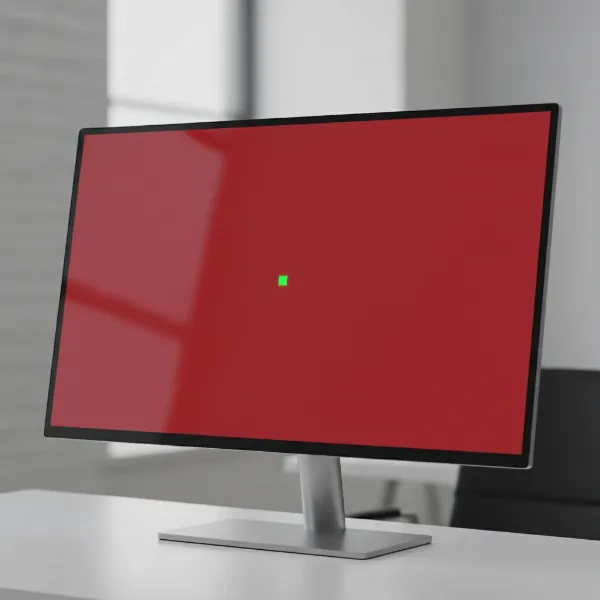 A computer monitor displaying a solid red test pattern with a single bright green stuck pixel in the center.
How to Fix a Stuck Pixel
If you’ve identified a stuck pixel, there are a few methods you can try to revive it. These methods aim to “unstuck” the transistor, allowing the pixel to display colors normally again.
Software-Based Solutions
These solutions involve rapidly flashing colors on the affected pixel, which can sometimes “kickstart” the transistor back into action.
- Pixel Fixer Applications: Programs like JScreenFix (web-based), UDPixel, or Rizonesoft Pixel Repair are designed to fix stuck pixels. They typically provide a small, rapidly flashing window that you drag over the stuck pixel.
- Color Cycling Videos: You can find videos online that rapidly cycle through primary colors. Play these videos in full-screen and position the affected area under the flashing pattern.
Run these software solutions for at least 10-20 minutes, or even a few hours, to see if the pixel unsticks. Some users report success after leaving them running overnight.
Manual Pressure Method
This technique involves gently applying pressure to the stuck pixel, which can sometimes physically dislodge or reset the liquid crystals.
- Turn off your monitor.
- Locate the stuck pixel.
- Protect the screen: Place a soft, microfiber cloth over the stuck pixel to prevent scratching.
- Apply gentle pressure: Using a blunt, soft-tipped object like a stylus or the eraser end of a pencil, apply gentle, targeted pressure directly onto the pixel through the cloth. The pressure should be firm but not forceful—imagine gently tapping a touchscreen. Avoid applying pressure to surrounding areas.
- Power on and release: While maintaining pressure, turn your monitor back on. Once the screen is active and displaying an image (preferably a solid black or white background), remove the pressure. The stuck pixel might now be functioning correctly.
- Repeat if necessary: If the pixel remains stuck, you can repeat the process a few times. However, do not escalate the amount of pressure used, as excessive force can cause permanent damage.
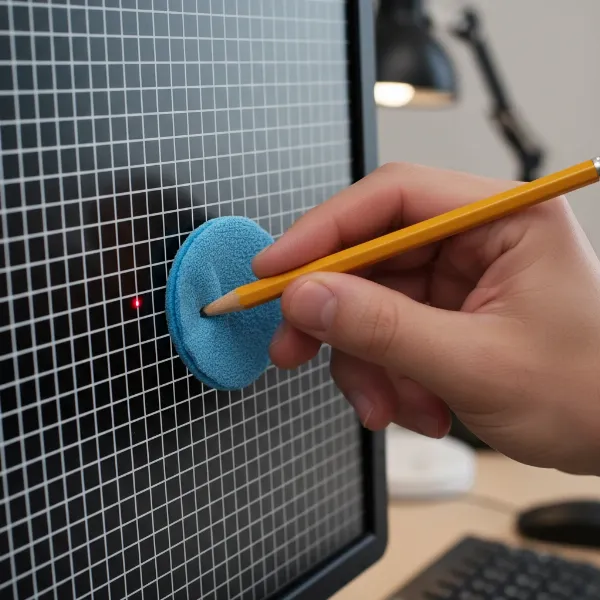 A hand gently pressing a computer monitor screen with a soft cloth and a pencil eraser to fix a stuck pixel.
The Heat Application Method (Use with Extreme Caution)
Some anecdotal evidence suggests that applying gentle heat might help, though this method comes with higher risks and is generally not recommended as a first resort. If you choose to try this, proceed with extreme caution:
- Prepare a warm compress: Dampen a washcloth with hot (but not boiling) water and seal it tightly in a plastic sandwich bag to prevent any moisture from reaching the monitor.
- Apply gently: Hold the sealed bag against the stuck pixel for only a few seconds at a time, applying very light pressure.
- Monitor closely: Do not overheat the area. This method aims to loosen the liquid crystals, but excessive heat can cause irreversible damage to your display.
How to Address a Dead Pixel
Unlike stuck pixels, dead pixels are almost always a permanent hardware failure. The transistor controlling the pixel is fundamentally broken, meaning it cannot be “unstuck” through software or physical manipulation.
The Unfixable Reality of Dead Pixels
While it’s worth trying the “turn off and on” method as a basic troubleshooting step for any display anomaly, the chances of reviving a true dead pixel are incredibly low. Applying pressure or heat to a dead pixel is unlikely to yield results and carries a significant risk of causing further damage to your monitor.
When to Consider a Replacement or Warranty
If you’ve identified a dead pixel, your best course of action is to check your monitor’s warranty policy.
Warranty Policies and When to Seek a Replacement
Manufacturer warranty policies regarding pixel defects vary widely. Many manufacturers do not consider a single dead pixel sufficient for a warranty claim, often requiring a minimum number of dead or bright pixels (e.g., 3, 5, or even 6) within a certain area before offering a replacement or repair.
- Check your manufacturer’s specific policy: Visit the manufacturer’s website and look for their “pixel policy” or “dead pixel policy.” Policies can differ even between different models from the same brand.
- Bright vs. Dark Pixels: Some manufacturers, like Dell with its Premium Panel Exchange, may offer coverage for even a single bright (stuck) pixel, particularly on high-end models. However, policies for dark (dead) pixels are generally more stringent.
- Retailer Return Policies: If your monitor is new, check the return policy of the retailer where you purchased it. This might offer a quicker path to a replacement if you are within the return window.
“Most manufacturers set a threshold for pixel defects, often requiring more than five dead pixels before a warranty claim is honored. It’s vital to read the fine print.” – Tech Monitor Expert, Senior Display Technician.
Preventing Pixel Issues
While it’s impossible to entirely prevent manufacturing defects that lead to stuck or dead pixels, general good monitor care can contribute to its longevity.
Proper Monitor Care
- Gentle Cleaning: Always clean your monitor with a soft, microfiber cloth and a specialized screen cleaner (or distilled water). Avoid harsh chemicals or excessive pressure that could damage the screen surface or internal components.
- Avoid Physical Impact: Protect your monitor from bumps, drops, or impacts that could damage the sensitive internal circuitry.
- Optimal Environment: Ensure your monitor is used in a well-ventilated area with stable temperatures. Extreme heat or cold can potentially impact electronic components over time.
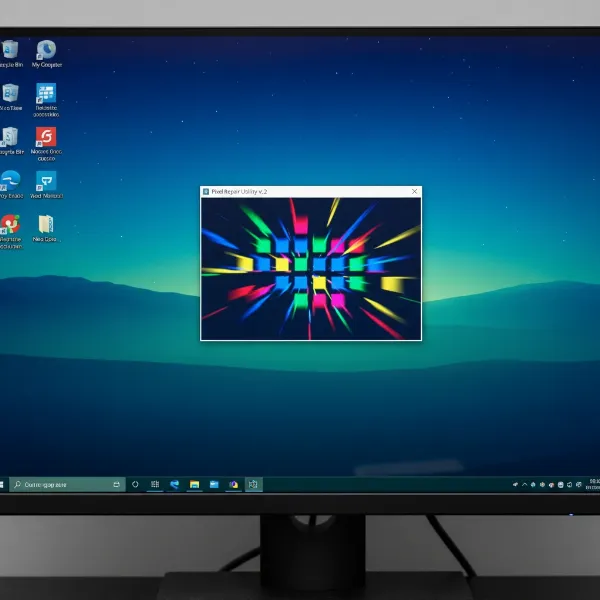 A computer monitor displaying pixel repair software with rapidly flashing colored squares over a small area.
Comparison: Stuck vs. Dead Pixel Fixability
| Feature | Stuck Pixel | Dead Pixel |
|---|---|---|
| Appearance | Always on, single color (red, green, blue, white) | Always off, black |
| Cause | Transistor stuck in “on” state | Transistor failed entirely (“off” state) or physical damage |
| Fixability | Often fixable with software or gentle pressure | Generally not fixable |
| Warranty Coverage | Varies by manufacturer, sometimes covered for one or more | Varies, often requires multiple dead pixels to qualify |
| Urgency to Fix | Higher chance of success, worth attempting fixes promptly | Lower chance of success, focus on warranty options |
Frequently Asked Questions
Can a stuck pixel spread?
No, a stuck pixel typically does not “spread” to other pixels. Each pixel operates independently. If you notice new pixel issues, it’s more likely a new, unrelated defect rather than a spread from an existing one.
Does a dead pixel get worse over time?
A single dead pixel usually remains a single dead pixel. It typically does not “grow” or worsen in size. However, the appearance of one dead pixel could sometimes indicate a batch defect in the panel, potentially leading to other unrelated pixels failing over time.
How do I know if my monitor is still under warranty for pixel issues?
To check your warranty, locate your monitor’s serial number and visit the manufacturer’s official support website. There, you can usually find information on your specific model’s warranty terms, including their pixel defect policy and how to initiate a claim. Keep your purchase receipt handy as proof of purchase.
Conclusion
Encountering a stuck or dead pixel on your Computer Monitor can be an annoying experience, but understanding the difference between these two types of defects is key to finding a solution. While stuck pixels often respond well to software-based solutions or careful manual pressure, true dead pixels are typically a permanent hardware failure, necessitating a look into your monitor’s warranty. Always proceed with caution when attempting any physical fixes, prioritizing the display’s integrity. Don’t let a tiny dot ruin your visual experience; with the right approach, you might be able to restore your screen to its original clarity. Have you successfully revived a stuck pixel using a unique method?