In today’s fast-paced digital world, maximizing screen real estate is no longer a luxury but a necessity for many. Whether you’re a student juggling research papers, a professional managing multiple applications, or a gamer seeking an immersive experience, a second monitor can drastically boost your efficiency. But what if you don’t want to invest in another display or need a portable solution? Your laptop, often overlooked, holds the key to unlocking this enhanced productivity. This comprehensive guide will walk you through various methods to effectively use your laptop as a second monitor, detailing the setup, benefits, and considerations for each approach. Get ready to transform your workspace and supercharge your multitasking capabilities.
Why Use Your Laptop as a Second Monitor?
Utilizing your laptop as an additional display offers a smart and flexible way to expand your digital workspace without the need for dedicated hardware investment. This approach provides several compelling advantages, making it an attractive option for various users.
Firstly, it significantly boosts productivity and multitasking. Imagine having your main work application open on your primary monitor while a related document, communication tool, or research tab lives conveniently on your laptop screen. This eliminates constant alt-tabbing and reduces cognitive load, allowing for a smoother, more focused workflow. Secondly, it serves as a remarkably cost-effective solution. Instead of purchasing an entirely new external monitor, which can range from affordable to expensive, you repurpose existing hardware, saving money and reducing electronic waste. Finally, the inherent portability of a laptop means you can create a dual-monitor setup anywhere you have both devices, offering unparalleled flexibility for remote work, travel, or impromptu collaborations.
Methods to Use Your Laptop as a Second Monitor
Leveraging your laptop as a secondary display can be achieved through several distinct methods, each offering unique advantages and catering to different needs. From wireless convenience to wired performance, understanding these options is the first step to expanding your digital workspace.
1. Wireless Solutions: Leveraging Your Network
|
Our Picks for the Best Computer Monitor in 2026
As an Amazon Associate I earn from qualifying purchases.
|
||
| Num | Product | Action |
|---|---|---|
| 1 | New! Sceptre 27-inch Gaming Monitor 100Hz 1ms DisplayPort HDMI x2 100% sRGB AMD FreeSync Build-in Speakers, Eye Care Frameless Machine Black 2025 (E275W-FW100T Series) |

|
| 2 | Samsung 27\" Essential S3 (S36GD) Series FHD 1800R Curved Computer Monitor, 100Hz, Game Mode, Advanced Eye Comfort, HDMI and D-sub Ports, LS27D366GANXZA, 2024 |
|
| 3 | acer 27 Inch Monitor- KB272-27 Inch FHD IPS (1920 x 1080) Display, Up to 120Hz Refresh Rate, 99% sRGB, Tilt, Adaptive-Sync Support (FreeSync Compatible) 1ms (VRB), HDMI & VGA Ports |
|
| 4 | Amazon Basics 24 Inch (23.8 inch viewable) Monitor, FHD 1080P, Max 100Hz, VESA Compatible, Built-in Speakers, Black |
|
| 5 | KOORUI 22 Inch Computer Monitor Full HD 1080P 100Hz PC Gaming Screen VA Panel Ultra-Slim Display 3000:1 Contrast Ratio with Adpitive Sync (HDMI/VGA/VESA Compatible 100x100mm/Audio Out), Tilt, Black |
|
| 6 | Samsung 32-Inch Flat Computer Monitor, 75Hz, Borderless Display, AMD FreeSync, Game Mode, Advanced Eye Care, HDMI and DisplayPort, LS32B304NWNXGO, 2024 |
|
| 7 | Philips 221V8LB 22 inch Class Thin Full HD (1920 x 1080) Monitor, 100Hz Refresh Rate, VESA, HDMI x1, VGA x1, LowBlue Mode, Adaptive Sync, 4 Year Advance Replacement Warranty |
|
| 8 | KOORUI 24-inch Computer Monitor Full HD 1920 x 1080p 100Hz VA Display 4000:1 Contrast Ratio with HDMI VGA, TÜV Rheinland Certified, 100 x 100 mm VESA Mountable, Ultra-Slim Design, Tilt, Black, E2412F |
|
| 9 | MNN Portable Monitor 15.6inch FHD 1080P USB C HDMI Gaming Ultra-Slim IPS Display w/Smart Cover & Speakers,HDR Plug&Play, External Monitor for Laptop PC Phone Mac (15.6\'\' 1080P) |
|
| 10 | LG 24U411A-B 24-inch Full HD (1920 x 1080) IPS Computer Monitor, 120Hz, HDR10, Reader Mode, Flicker Safe, HDMI, Slim Stand Base, Black |
|
Wireless methods offer the ultimate convenience, freeing your setup from cable clutter. They rely on your network connection to transmit video signals, making them ideal for flexible workspaces.
Windows “Projecting to this PC” (Miracast)
Windows offers a built-in feature called “Projecting to this PC,” which allows one Windows device to act as a wireless display for another. This functionality leverages Miracast technology, enabling a direct Wi-Fi connection between compatible devices for screen mirroring or extending your desktop.
To set up your laptop as a Miracast receiver, first, ensure the “Wireless Display” optional feature is installed on the laptop you intend to use as the secondary screen. Navigate to Settings > System > Projecting to this PC and select “Optional features” to add “Wireless Display” if it’s not present. Once installed, configure your projecting preferences on the same page. On your main PC, press Windows + K or go to Settings > Display > Multiple displays > Connect to a wireless display, then select your laptop from the list. After connecting, use Windows + P to choose “Extend” your display. This method is generally easy to set up and requires no additional software purchases, making it a popular choice. However, it can suffer from noticeable latency, connection instability, and potentially lower image quality compared to wired connections, making it best suited for casual use, presentations, or displaying static information.
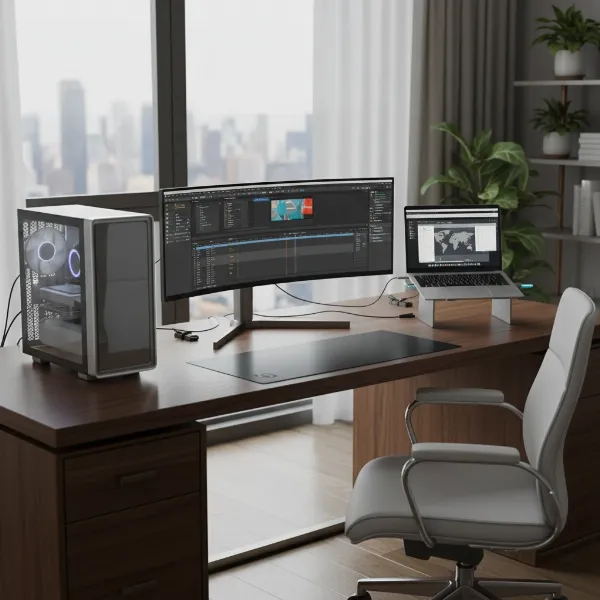 Laptop displaying extended desktop via Windows Projecting to this PC feature, showcasing wireless dual monitor setup for productivity.
Dedicated Wireless Software (e.g., Spacedesk, Duet Air)
For more robust wireless performance or cross-platform compatibility, dedicated software solutions like Spacedesk and Duet Display offer powerful alternatives. These applications typically provide more control over display settings and can offer a smoother experience than built-in Miracast.
Spacedesk transforms almost any Windows, Android, iOS, or web browser-enabled device into an extended display for your Windows primary PC. It’s celebrated for its ability to add multiple monitors, even supporting configurations with up to four screens via an Ethernet network card. Setup involves installing the Spacedesk driver on your main Windows PC and the Spacedesk client app on your secondary laptop or device. While offering significant flexibility and a straightforward setup, users note that Spacedesk can consume high bandwidth and, during its beta phase, was free but is transitioning to a monetization model. Performance is generally good for productivity tasks, though some users report minor lag, advising adjustments to quality settings for optimal results.
Duet Display (Wireless) offers a premium experience for turning your iPad, iPhone, Android, Mac, or PC into a wired or wireless second display. Its “Duet Air” subscription allows for wireless connectivity, offering advanced gesture control and multi-device support. Duet Display is well-regarded for its low latency and cross-platform compatibility, enabling users to extend their display from a Windows PC or Mac to mobile devices or another computer. While it is a paid application, often with a subscription for wireless features, it delivers a reliable and high-quality secondary display experience. It’s particularly praised for supporting older devices that newer built-in solutions like Apple’s Sidecar might not.
General considerations for dedicated wireless software include ensuring both devices are on the same local area network (LAN), whether wired via Ethernet or wirelessly via Wi-Fi. While not always requiring an internet connection for the display extension itself, a stable and fast network connection is crucial for minimizing lag and maximizing performance. Some solutions may also offer advanced features like touch control or Apple Pencil support, enhancing versatility.
2. Wired Solutions: Maximizing Performance
When low latency and high reliability are paramount, wired solutions are often the preferred choice. They bypass network fluctuations and provide a more direct data transfer pathway.
Dedicated Wired Software (e.g., Duet Display via USB)
Dedicated software like Duet Display truly shines in its wired configuration, offering an exceptional balance of performance and ease of use. Connecting your laptop (or an iPad/iPhone/Android device) to your main PC via a USB cable virtually eliminates latency, making the experience feel as seamless as a traditional external monitor.
For Duet Display (Wired), the setup is simple: install the Duet Display application on both your primary computer and the laptop acting as the secondary screen, then connect them with a suitable USB cable. The quality of the USB cable can be critical, with high-quality USB-C or Thunderbolt cables ensuring stable power delivery and optimal display performance. This method is highly favored by professionals and creatives who require precise control and minimal delay, such as graphic designers or video editors. Its ability to extend displays across various platforms—Mac, PC, iOS, and Android—makes it incredibly versatile, and the wired connection provides a stable and high-resolution output. While it comes with a one-time purchase or subscription, many users find the investment worthwhile for the superior performance and reliability it offers.
Using a Video Capture Card (Hardware Solution)
A video capture card presents a unique hardware-based solution for using your laptop as a monitor, particularly when connecting a desktop PC or another device with an HDMI output. Unlike your laptop’s built-in video ports, which are almost exclusively for output, a capture card enables video input.
Here’s how it works: the HDMI output from your main desktop PC connects to the HDMI input of the capture card. The capture card then connects to your laptop via a USB port. Your laptop recognizes the capture card as a video input device, similar to a webcam. To display the video feed, you’ll need software on your laptop, such as OBS Studio or even the built-in camera application. While this method offers broad compatibility, as it can receive video from any HDMI source, it’s crucial to understand its limitations. Capture cards are primarily designed for recording and streaming, and as such, they introduce a noticeable delay or latency between the source and the display on your laptop. Even high-end capture cards will have some inherent lag, making this solution generally unsuitable for fast-paced gaming where milliseconds matter. However, for tasks like monitoring server status, displaying chat during streaming, or general productivity where minor latency isn’t critical, a capture card can be a viable option. The primary costs involve purchasing the capture card itself and ensuring your laptop has sufficient processing power to run the capture software smoothly.
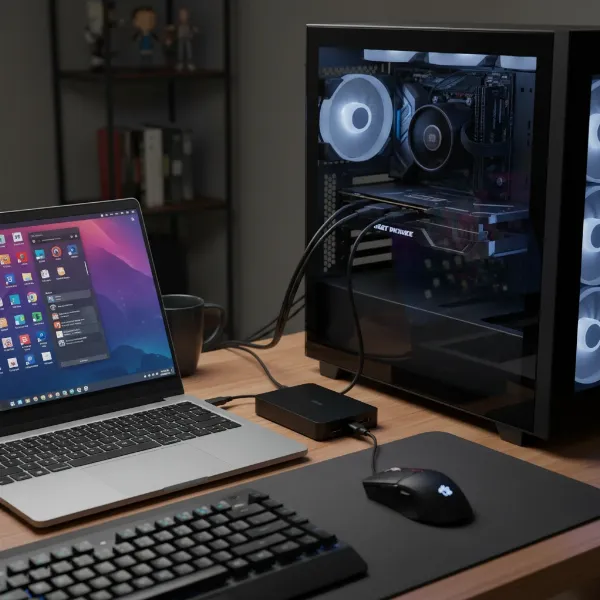 Laptop connected to a main PC via a capture card and HDMI, illustrating a wired second monitor setup for technical users.
Essential Considerations Before You Start
Before diving into setting up your laptop as a second monitor, it’s vital to consider several key factors. These will influence the performance, compatibility, and overall success of your dual-screen experience.
System Requirements and Compatibility
Not all devices are created equal, and understanding the specific requirements for each method is crucial. For instance, using Windows’ “Projecting to this PC” feature demands that both your main PC and the laptop (acting as a display) support Miracast and have the “Wireless Display” optional feature installed. Operating system versions also play a role; newer Windows 10 or 11 features might not be available on older builds. When opting for third-party software like Spacedesk or Duet Display, verify that both your primary computer and secondary laptop/device meet the minimum OS and hardware specifications. Cross-platform compatibility is a significant advantage of these tools, as they often support Windows, macOS, Android, and iOS, but specific versions might be required. Hardware-wise, ensure your devices have the necessary connectivity options—stable Wi-Fi for wireless solutions, or compatible USB ports (e.g., USB-C, Thunderbolt) for wired software connections, and available HDMI output on your main PC if considering a capture card.
Performance Expectations: Latency, Resolution, and Refresh Rate
The performance of your laptop as a second monitor can vary significantly depending on the method chosen. Latency, the delay between an action on your main PC and its appearance on the laptop screen, is a critical factor. Wireless methods like Miracast or most wireless software can introduce noticeable latency, making them less suitable for fast-paced gaming, precise graphic design, or video editing. Wired software solutions, especially those utilizing USB-C, generally offer near-zero lag, mimicking a traditional monitor experience. Video capture cards, while wired, inherently introduce some delay due to the processing involved, so they are not ideal for latency-sensitive applications.
Resolution and refresh rate are also important. While your laptop’s native resolution will typically be maintained, the refresh rate (how many times the image refreshes per second) might be limited by the connection method. For productivity, a standard 60Hz refresh rate is usually sufficient. However, for gaming, a lower refresh rate and higher latency will significantly degrade the experience. Optimizing settings, such as reducing the resolution or color quality in software like Spacedesk, can sometimes mitigate performance issues, especially over wireless connections. Manage your expectations based on your primary use case; a laptop as a secondary display is excellent for productivity, but rarely a perfect substitute for a dedicated gaming monitor.
Network Stability (for Wireless Methods)
For any wireless solution, the stability and speed of your network are paramount. An unreliable or slow Wi-Fi connection can lead to frustrating stuttering, significant lag, and frequent disconnections. Miracast typically uses Wi-Fi Direct for a direct connection between devices, which can sometimes be more stable than routing through a central router, though it’s still susceptible to interference.
Dedicated wireless software like Spacedesk or Duet Air rely on your local Wi-Fi network. For the best experience, ensure both devices are connected to a strong 5GHz Wi-Fi signal, which offers faster speeds and less interference than 2.4GHz. High bandwidth usage, as noted with Spacedesk, means your network needs to be capable of handling the continuous video stream without impacting other network activities. If your network struggles, a wired Ethernet connection for one or both devices (if supported) can significantly improve performance for software-based wireless extensions. Ultimately, a robust and uncongested network environment is key to a smooth wireless secondary display experience.
Choosing the Right Method for Your Needs
Selecting the optimal method for using your laptop as a second monitor depends entirely on your specific requirements and how you plan to utilize the extra screen real estate. Each approach offers a different balance of convenience, performance, and cost.
For Enhancing Productivity and Professional Work
For tasks demanding increased screen real estate to manage multiple documents, spreadsheets, communication apps, or browser tabs, dedicated wired software like Duet Display via USB is often the superior choice. Its near-zero latency provides a seamless extension of your primary desktop, making window management fluid and responsive. This method is highly reliable and ensures consistent performance throughout your workday. Wireless software solutions like Spacedesk or Duet Air can also be excellent for productivity, especially if you prioritize a clutter-free setup and minor latency is acceptable. For Windows users, the built-in “Projecting to this PC” feature offers a free entry point, suitable for displaying static information like emails or a reference document.
For Gaming and High-Performance Tasks
When it comes to gaming, graphic design, video editing, or any other high-performance task where every millisecond counts, the options narrow considerably. Most wireless methods, including Miracast and many software solutions, introduce latency that can significantly hinder the experience, leading to frustrating delays and a lack of responsiveness. While a video capture card is a wired solution, it also introduces inherent processing delay, rendering it unsuitable for real-time gaming.
Therefore, for truly demanding applications, the most viable option is dedicated wired software like Duet Display connected via a high-quality USB cable. This setup can achieve refresh rates and responsiveness close to that of a dedicated monitor. However, even with wired software, it’s crucial to manage expectations; a laptop screen, by its nature, may not offer the same high refresh rates or specialized gaming features as a purpose-built gaming monitor. In many cases, for serious gaming or professional high-performance tasks, investing in a dedicated external monitor remains the optimal solution.
For Casual Browsing and Media Consumption
If your primary goal is casual browsing, watching videos, or simply having an extra screen for social media feeds without heavy demands, wireless solutions offer the most convenience. Windows’ “Projecting to this PC” is a free and easy-to-set-up option for Windows-to-Windows connections, perfect for mirroring a movie or extending your desktop to read articles. Dedicated wireless software like Spacedesk (especially its free tier) can also serve this purpose well, often providing more cross-platform flexibility for devices beyond just Windows PCs. The slight latency inherent in wireless connections is generally negligible for these types of activities. These methods allow you to keep your workspace tidy without additional cables, offering a flexible setup for relaxed use.
For Cross-Platform Use
Users with a mix of operating systems (e.g., a Windows PC and an iPad, or a Mac and an Android laptop) will find dedicated software solutions to be the most accommodating. Applications like Duet Display and Spacedesk are specifically designed with cross-platform compatibility in mind, allowing a wider array of devices to function as secondary displays. Duet Display supports Mac, PC, iOS, and Android, while Spacedesk extends to Windows, Android, iOS, and even web browsers. These tools bridge the gap between different ecosystems, providing a unified solution for expanding your workspace regardless of the device combination. Built-in features like Windows’ “Projecting to this PC” are typically limited to same-OS connections, making them less versatile for mixed environments.
Comparison Table: Laptop as Second Monitor Methods
Choosing the best method means weighing the pros and cons of each. Here’s a comparative overview to help you decide.
| Feature | Windows “Projecting to this PC” | Dedicated Wireless Software (e.g., Spacedesk, Duet Air) | Dedicated Wired Software (e.g., Duet via USB) | Video Capture Card |
|---|---|---|---|---|
| Connection Type | Wireless (Miracast) | Wireless (Wi-Fi) | Wired (USB) | Wired (HDMI In, USB Out) |
| Ease of Setup | Moderate (needs optional feature) | Easy to Moderate | Easy to Moderate | Complex (Hardware + Software) |
| Performance | Variable (latency) | Variable (latency, bandwidth) | Excellent (low latency) | Moderate (some latency) |
| Cost | Free (built-in) | Free/Subscription | Paid App | Hardware Cost |
| Main Use Case | Basic extension, presentations | Productivity, general use | Productivity, design | Specific cases (console to laptop, streaming chat) |
| Compatibility | Windows-to-Windows | Cross-platform (Windows, Mac, iOS, Android) | Cross-platform (Windows, Mac, iOS, Android) | Universal (any HDMI output) |
Where to Find Necessary Software and Hardware
Once you’ve determined the best method for your needs, knowing where to acquire the required software or hardware is the next step.
Operating System Features
For Windows’ “Projecting to this PC” feature, the core functionality is built into Windows 10 and 11. You may need to install the “Wireless Display” optional feature via Settings > Apps > Optional features. No external downloads are required for this basic setup.
Software Download Locations
Dedicated software solutions are typically available through their official websites and respective app stores:
- Spacedesk: Download the driver for your primary Windows PC from the official Spacedesk website. The client app for your secondary laptop or device is available on the Microsoft Store (for Windows clients), Google Play Store (for Android), and Apple App Store (for iOS/iPadOS).
- Duet Display: The Duet Display application for your primary Mac or PC can be downloaded from their official website, while the client app for iOS, iPadOS, or Android devices is found on the Apple App Store and Google Play Store, respectively.
Purchasing Capture Cards and Cables
If you opt for a video capture card solution, these hardware devices can be purchased from major electronics retailers, online marketplaces (like Amazon or Newegg), or specialty computer stores. Look for capture cards that support the resolution and frame rate you desire, typically connecting via USB to your laptop and HDMI to your main PC. Additionally, ensure you have high-quality HDMI and USB cables to support the connection and data transfer. For wired software solutions like Duet Display, investing in a robust USB-C or Thunderbolt cable can significantly enhance performance and reliability.
Conclusion
Transforming your laptop into a second monitor is a powerful way to enhance productivity and streamline your digital workflow without immediate investment in new hardware. We’ve explored various methods, from the convenience of wireless solutions like Windows’ “Projecting to this PC” and dedicated software such as Spacedesk and Duet Display, to the performance benefits of wired software and specialized hardware like video capture cards. Each approach offers a unique set of advantages and considerations regarding setup, compatibility, and performance.
The right method ultimately hinges on your specific needs: prioritize wired software for demanding professional tasks, leverage wireless options for casual use and presentations, and consider a capture card for unique input scenarios. By understanding these options, you can effectively expand your screen real estate, reduce digital clutter, and adapt your workspace to suit any task at hand. Which method will you choose to unlock your laptop’s full potential as a secondary display?
Frequently Asked Questions
Can I use my laptop’s HDMI port as an input?
No, generally, the HDMI ports on laptops are exclusively for outputting video signals to an external display, not for receiving video input from another device. To use your laptop’s screen as a monitor for another PC via HDMI, you would need a video capture card.
What causes lag when using a laptop as a second monitor?
Lag, or latency, is typically caused by the method of connection and the processing required to transmit the video signal. Wireless methods like Miracast and Wi-Fi-based software are prone to network latency and interference. Even capture cards introduce some delay due to the encoding and decoding process. Wired software solutions generally offer the lowest latency.
Is it possible to use a laptop as a second monitor for a Mac?
Yes, it is possible. Dedicated software solutions like Duet Display are highly praised for their cross-platform compatibility, allowing you to use a Windows laptop (or an iPad/Android device) as a second monitor for a Mac via wired (USB) or wireless connection.
Do I need a powerful laptop to act as a second display?
While the laptop itself doesn’t need to be exceptionally powerful to display the content, its processing power, especially for wireless solutions or when using a capture card, can impact performance. A stronger processor and sufficient RAM will help the laptop handle the video stream more smoothly, reducing lag and ensuring a fluid experience.
What are the alternatives if my laptop isn’t compatible?
If your laptop isn’t compatible with these methods, or if the performance isn’t sufficient for your needs, consider alternatives like purchasing an inexpensive portable monitor or a used traditional monitor. For basic screen sharing, remote desktop software can offer a rudimentary solution, although it’s not ideal for extending your display.