In today’s digital age, staring at a computer monitor for extended periods has become an unavoidable part of our daily lives. From professional tasks to entertainment, screens are central to how we work, learn, and connect. However, this increased screen time often comes with an unwelcome consequence: digital eye strain, also known as computer vision syndrome. Characterized by symptoms like dry eyes, blurred vision, headaches, and neck pain, digital eye strain can significantly impact productivity and overall well-being. One of the primary culprits is the high-energy visible (HEV) blue light emitted by these displays. But what if there was a way to mitigate these effects? This comprehensive guide will explore the role of blue light filters and other essential strategies, helping you choose the right computer monitor and accessories to protect your precious eyesight and enhance your digital comfort.
Common Computer Monitor Types and Their Impact on Eye Health
Understanding the different types of computer monitor technologies is the first step in creating an eye-friendly setup. While all modern displays emit blue light, some features and implementations can influence their overall impact on your eyes.
Computer Monitor LED
Light-Emitting Diode (LED) monitors are the most prevalent display technology today, largely replacing older Cathode Ray Tube (CRT) and even traditional LCD screens. LEDs use a backlight composed of tiny light-emitting diodes to illuminate pixels. While energy-efficient and capable of producing bright, vibrant images, LED backlights naturally emit a significant amount of blue light. This consistent blue light emission, especially from the 415-455 nm wavelength range, is often cited as a contributor to digital eye strain and disrupted sleep patterns. Many modern LED monitors, however, now integrate “low blue light” modes or flicker-free technology to counteract these effects, aiming to provide a more comfortable viewing experience.
 A modern LED computer monitor displaying a vibrant image, showcasing its bright and clear display.
Computer Monitor LCD
Liquid Crystal Display (LCD) monitors, though often synonymous with LED (as most LEDs are a type of LCD), traditionally referred to displays using cold cathode fluorescent lamps (CCFLs) for backlighting. While less common now, these older LCDs also emitted blue light. Modern LCDs, which primarily use LED backlights, share the same blue light characteristics as general LED monitors. The key distinction often lies in the panel type (TN, IPS, VA), which influences color accuracy, viewing angles, and, indirectly, perceived visual comfort. Some LCDs offer better control over backlight levels, allowing for adjustments that can reduce overall blue light intensity.
Computer Monitor OLED
Organic Light-Emitting Diode (OLED) technology differs significantly from LED/LCD by illuminating individual pixels, meaning it doesn’t require a separate backlight. This allows for true blacks, infinite contrast, and exceptional color vibrancy. When it comes to eye health, the discussion around OLED is nuanced. Some studies suggest that OLED displays can have a higher intensity of blue light emission compared to certain LCDs, potentially leading to increased eye strain over prolonged use. Conversely, other research indicates that some OLED models may emit less harmful blue light or have a lower “damage index” compared to traditional LCDs. A significant advantage of OLED for eye comfort is its pixel-level dimming, which allows for flicker-free operation even at low brightness levels. Traditional LED/LCDs often use Pulse Width Modulation (PWM) for dimming, which can cause imperceptible flicker that contributes to eye fatigue for sensitive individuals.
Computer Monitor QLED
Quantum Dot Light-Emitting Diode (QLED) monitors are an enhancement of traditional LCD technology. They use a layer of quantum dots to improve color and brightness, essentially acting as a sophisticated filter for the LED backlight. While QLEDs deliver impressive color volume and peak brightness, they still rely on an LED backlight and, therefore, inherently emit blue light. Manufacturers often integrate technologies to manage blue light output, but as with all LED-backlit displays, it’s a factor to consider for eye comfort. Users should look for QLED monitors that specifically feature low blue light modes or certifications to mitigate potential eye strain.
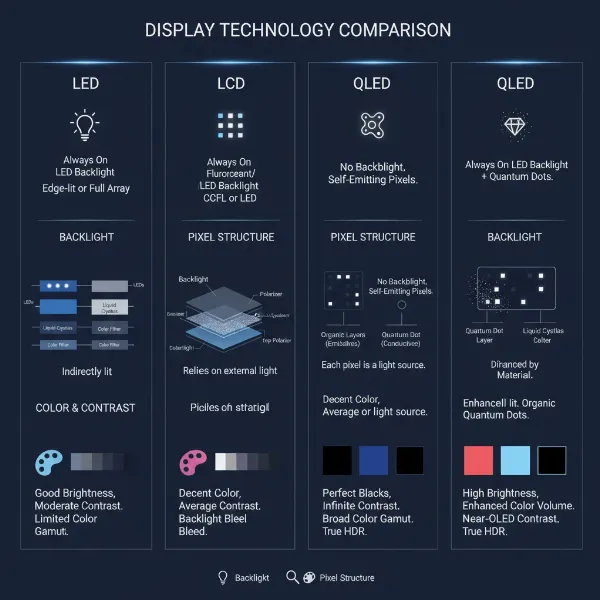 A visual comparison showing different computer monitor technologies like LED, LCD, OLED, and QLED.
Essential Factors for Eye-Friendly Computer Monitors
Choosing a computer monitor goes beyond just screen size and resolution; for optimal eye health, several technical specifications and features play a crucial role. Prioritizing these aspects can significantly reduce digital eye strain and enhance your overall viewing comfort.
Screen Size and Resolution
The right screen size and resolution are fundamental for visual clarity, directly impacting eye strain. A monitor that is too small for its resolution might force you to squint or lean closer, while one that’s too large with low resolution can result in noticeable pixels and jagged edges, both of which strain the eyes.
- Common Screen Sizes: For most users, monitors ranging from 24 to 27 inches diagonal offer a good balance of screen real estate and ergonomic viewing distance. Larger monitors, like 30-34 inches or ultrawide displays, are excellent for multitasking, but ensure you maintain an appropriate viewing distance.
- Resolution (HD, Full HD, 2K, 4K, 8K): Higher resolutions provide more pixels, leading to sharper images and text.
- Full HD (1920×1080): Standard for many users, suitable for smaller screens (up to 24 inches).
- 2K/QHD (2560×1440): A popular sweet spot for 27-inch monitors, offering excellent clarity without the high demands of 4K.
- 4K/UHD (3840×2160): Ideal for 32-inch monitors and larger, providing exceptional detail, especially for creative professionals or those working with high-resolution content.
Higher pixel density generally means less strain, as text and images appear smoother and more defined, reducing the effort your eyes exert to focus.
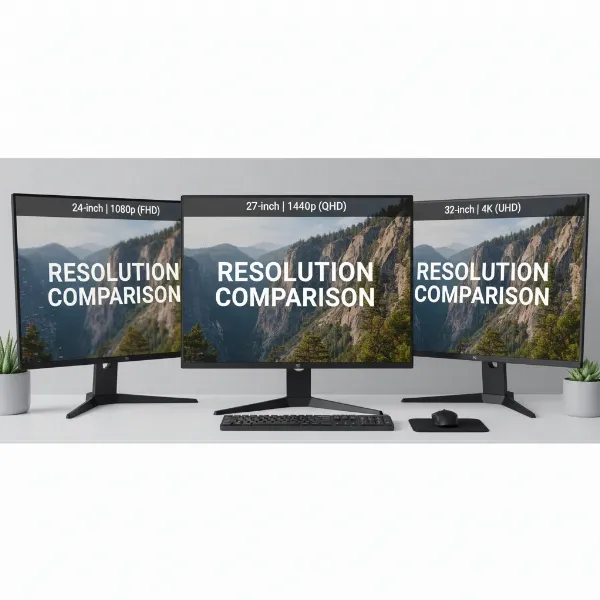 A visual guide illustrating various computer monitor screen sizes and their corresponding optimal resolutions for clarity.
Panel Technology
The type of panel a monitor uses affects color reproduction, viewing angles, and response times, all of which contribute to your visual experience and potential eye fatigue.
- TN (Twisted Nematic) Panels: Known for fast response times and high refresh rates, making them popular for competitive gaming. However, they typically have poorer color accuracy and narrow viewing angles, meaning colors can shift when viewed from the side, which can be less comfortable for general use or color-sensitive work.
- IPS (In-Plane Switching) Panels: Offer superior color accuracy and wide viewing angles compared to TN panels, making them excellent for creative work and general use. While generally having slightly slower response times than TN, modern IPS panels are often fast enough for most gaming. Their consistent color and clarity across angles can reduce eye strain.
- VA (Vertical Alignment) Panels: Provide a good compromise between TN and IPS, boasting excellent contrast ratios (deeper blacks) and decent viewing angles, though usually not as wide as IPS. Response times are generally slower than TN but often comparable to IPS. The high contrast can make text easier to read, potentially reducing strain.
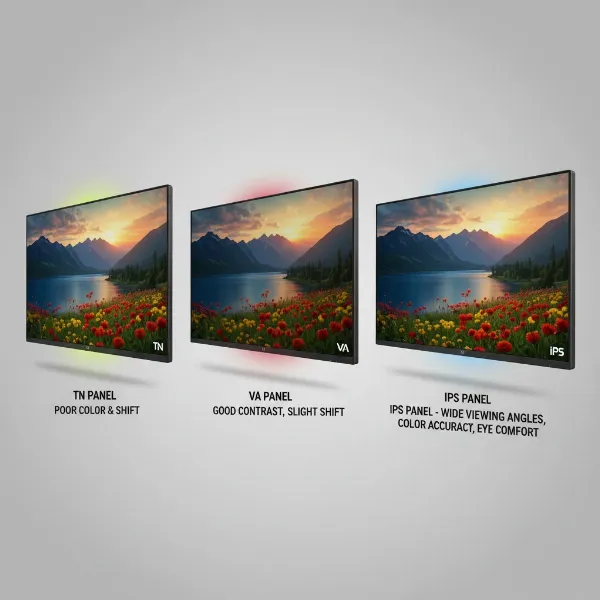 A visual comparison of TN, IPS, and VA monitor panel technologies focusing on viewing angles and color accuracy.
Refresh Rate and Response Time
These two specifications are crucial for the fluidity and responsiveness of motion on your screen, directly influencing eye comfort.
- What is Refresh Rate? Measured in Hertz (Hz), it indicates how many times per second the screen updates its image. A standard monitor has a 60Hz refresh rate, while gaming monitors can go up to 144Hz, 240Hz, or even 360Hz. A higher refresh rate translates to smoother motion, which can significantly reduce eye strain, especially during fast-paced content like gaming or scrolling through documents. It helps to minimize motion blur and gives the eyes more discrete images to process.
- What is Response Time? Measured in milliseconds (ms), it refers to how quickly a pixel can change from one color to another. Lower response times (e.g., 1ms or 5ms) reduce ghosting and blurring, ensuring crisp, clear visuals during fast movement. While extremely critical for competitive gamers, a decent response time (5ms or lower) is beneficial for all users to prevent visual artifacts that can contribute to eye fatigue.
- Optimal for Gaming and General Use: For gaming, a high refresh rate (120Hz+) and low response time (5ms or less) are highly recommended. For general productivity and content consumption, a 75Hz or 100Hz monitor with a 5ms response time provides a noticeably smoother experience than a standard 60Hz display, benefiting eye comfort.
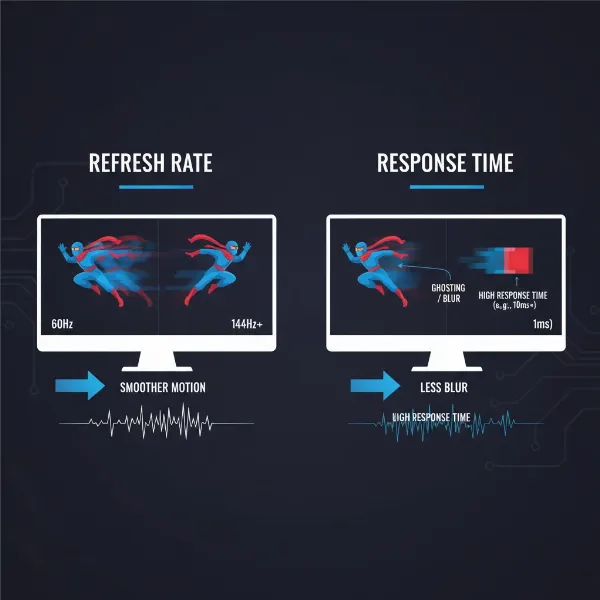 An infographic explaining computer monitor refresh rate and response time with visual examples of smooth vs. blurry motion.
Connectivity Ports
Choosing a monitor with the right connectivity ensures compatibility with your devices and supports optimal display performance.
- Common Port Types:
- HDMI (High-Definition Multimedia Interface): The most widespread digital connection, supporting both video and audio. Modern versions (HDMI 2.0, 2.1) support higher resolutions and refresh rates.
- DisplayPort: Often preferred for PC gaming due to its support for very high refresh rates, resolutions, and adaptive sync technologies like FreeSync and G-Sync.
- VGA (Video Graphics Array): An older analog connection, rarely found on new monitors or graphics cards. Avoid if possible for modern setups.
- DVI (Digital Visual Interface): An older digital connection, still found on some older monitors but largely superseded by HDMI and DisplayPort.
- Choosing the Right Connection: Prioritize DisplayPort for high-performance setups (gaming, multiple monitors). HDMI is excellent for general use and connecting to various devices. Ensure your monitor and graphics card have compatible ports and support the desired resolution and refresh rate. USB-C with DisplayPort Alternate Mode is also gaining popularity, offering single-cable solutions for power, video, and data.
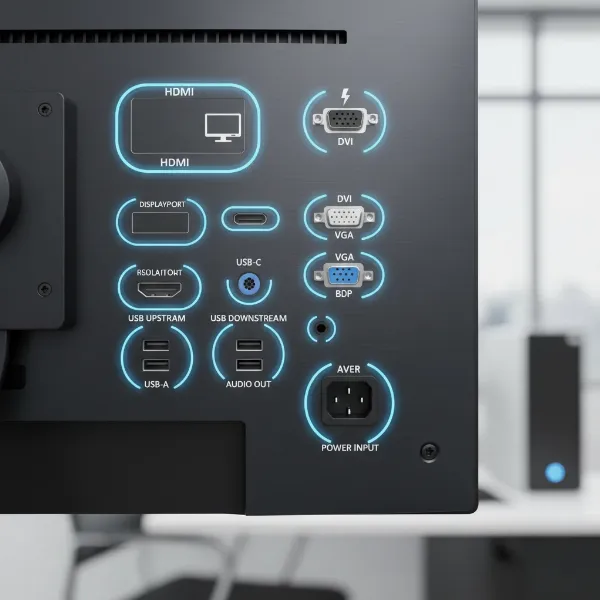 A clear visual guide to common computer monitor connectivity ports like HDMI, DisplayPort, VGA, and DVI.
Other Features for Enhanced Eye Comfort
Beyond core specifications, several advanced features can further elevate your viewing experience and minimize eye strain.
- HDR (High Dynamic Range): HDR technology delivers a wider range of colors, deeper contrast, and higher peak brightness, making images appear more lifelike. While impressive, ensure proper HDR implementation. Overly bright HDR content in a dark room can ironically increase eye strain, so use it judiciously and calibrate your display.
- FreeSync and G-Sync: These are adaptive synchronization technologies developed by AMD and NVIDIA, respectively. They synchronize the monitor’s refresh rate with the graphics card’s frame rate, eliminating screen tearing and stuttering. This creates a much smoother and more fluid visual experience, which significantly reduces the jarring effects that can lead to eye fatigue during gaming and even general desktop use.
- Integrated Speakers: While convenient for basic audio, integrated monitor speakers often lack sound quality. They don’t directly impact eye strain but can reduce desk clutter. For a better audio experience, external speakers or headphones are usually recommended.
- Adjustable Stand: An ergonomic stand is critical for comfortable viewing. Look for monitors with stands that allow for:
- Height Adjustment: To position the top of the screen at or slightly below eye level.
- Tilt: To angle the screen for optimal viewing.
- Swivel: To rotate the screen horizontally.
- Pivot: To rotate the screen vertically (portrait mode), which can be useful for reading long documents.
Proper monitor positioning prevents neck and shoulder strain, which can indirectly contribute to overall digital eye strain.
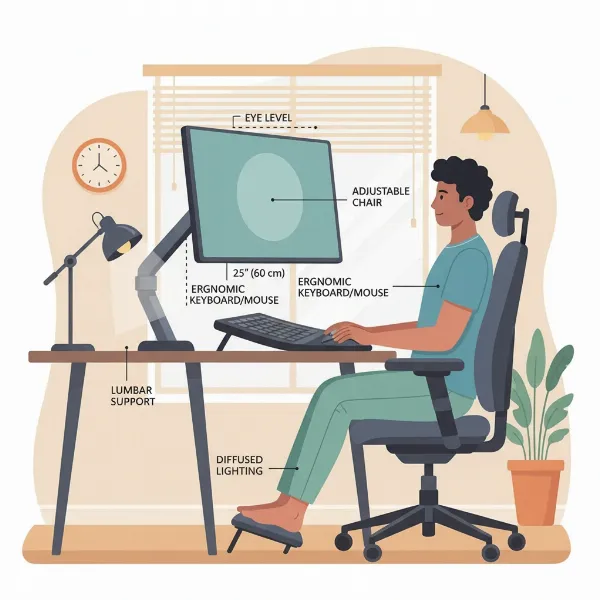 An ideal ergonomic computer monitor setup showing proper height, tilt, and viewing distance for eye comfort.
Comparison Table for Computer Monitor Types
| Feature / Type | LED | LCD | OLED | QLED |
|---|---|---|---|---|
| Backlight | LED diodes (edge or full-array) | CCFL (older) or LED (modern) | Self-emissive pixels | LED backlight + Quantum Dots |
| Contrast Ratio | Good | Good | Excellent (true black) | Very Good |
| Color Accuracy | Very Good | Good to Very Good | Excellent | Excellent |
| Viewing Angles | Good | Good (depends on panel) | Excellent | Very Good |
| Flicker (PWM) | Can use PWM (may cause flicker) | Can use PWM (may cause flicker) | Generally flicker-free at all brightness | Can use PWM (may cause flicker) |
| Blue Light Emission | Moderate to High | Moderate to High | Variable, can be high intensity | Moderate to High |
| Eye Strain & Blue Light Considerations | Many feature “low blue light” modes; look for flicker-free tech. | Older models may lack modern eye-care features. | Often flicker-free, but blue light intensity can vary by model. | Enhances colors but still relies on LED backlight; look for eye-care features. |
| Price Range | Entry to Mid-range | Low to Mid-range | Premium | Mid to High-end |
Where to Purchase Eye-Friendly Computer Monitors
Finding the right computer monitor for your eye health involves knowing where to look for reputable products and reliable information. Whether you prefer the tactile experience of shopping in person or the convenience of online browsing, several avenues offer excellent selections.
Reputable Stores Selling Computer Monitors
Visiting a physical store allows you to see monitors in action, assess their build quality, and test ergonomic adjustments. Staff can also provide personalized recommendations.
- Major Electronics Retailers: Stores like Best Buy, Micro Center, or regional equivalents often have a wide selection of monitors on display. You can compare different brands and technologies side-by-side. Look for displays explicitly advertised with “low blue light,” “flicker-free,” or ergonomic features.
- Specialty Computer Stores: These shops often cater to enthusiasts and professionals, offering a more curated selection of high-performance and ergonomic monitors. Their staff might have deeper technical knowledge regarding eye health features.
Purchasing Computer Monitors Online
Online shopping offers unparalleled convenience, a vast selection, and competitive pricing.
- E-commerce Giants: Websites like Amazon, Newegg, B&H Photo Video, and direct manufacturer websites (Dell, HP, LG, Samsung, Acer, Asus) provide extensive product listings, user reviews, and detailed specifications. When shopping online, pay close attention to product descriptions for terms like “Eye Saver Mode,” “ComfortView,” “Low Blue Light,” “Flicker-Free,” and certifications like TÜV Rheinland for eye comfort.
- Reading Reviews: Online reviews are invaluable. Look for feedback specifically mentioning eye comfort, reduction in strain, and the effectiveness of blue light filtering features from users with similar needs to yours.
Guide to Choosing the Right Computer Monitor for Eye Health
Selecting a computer monitor that prioritizes your eye health requires a thoughtful approach, combining your specific needs with an understanding of available technologies and features.
Determine Your Usage Needs
Your primary use case should heavily influence your monitor choice.
- Office/Productivity: For long hours of text-based work, prioritize monitors with excellent text clarity (higher resolution), stable brightness, good contrast, and crucial ergonomic adjustments. Built-in low blue light modes and flicker-free technology are paramount.
- Gaming: Gamers benefit from high refresh rates and low response times for a fluid experience. However, intense gaming sessions can exacerbate eye strain. Look for gaming monitors that also incorporate flicker-free and low blue light technologies, along with adaptive sync.
- Content Creation (Graphic Design, Video Editing): Color accuracy is key. IPS panels are generally preferred. While blue light filtering might slightly alter color perception, many professional monitors offer adjustable settings or calibration options to mitigate this. Consider features that reduce glare and reflections.
- General Use/Entertainment: A balanced monitor with good picture quality, decent viewing angles, and eye-care features will serve well for browsing, streaming, and casual tasks.
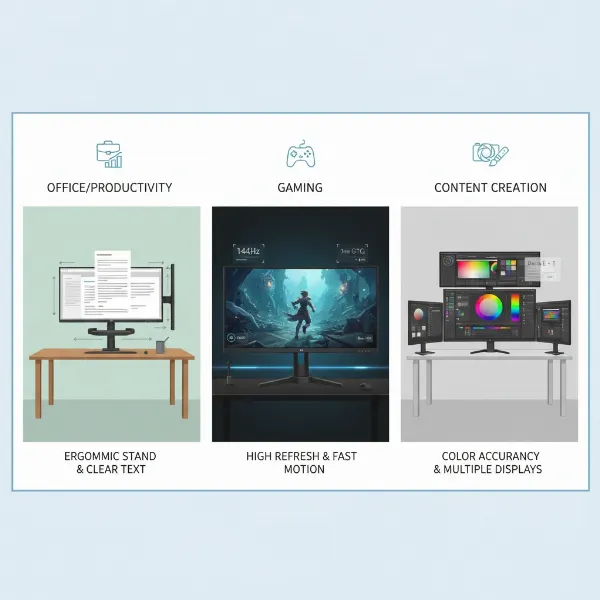 An infographic showing different computer monitor setups optimized for office work, gaming, and content creation.
Set Your Budget
Eye-friendly features are available across various price points.
- Entry-Level (Under $200): You can find basic monitors with some low blue light software modes, but ergonomic stands might be less common. Prioritize flicker-free if possible.
- Mid-Range ($200-$500): This segment offers a good balance of features, including better resolutions, IPS panels, flicker-free technology, dedicated low blue light hardware solutions, and more adjustable stands.
- High-End (Over $500): Premium monitors often boast advanced panels (OLED, mini-LED), higher resolutions, superior color accuracy, sophisticated adaptive sync, and comprehensive ergonomic designs, all contributing to superior eye comfort.
Research Product Information Thoroughly
Don’t rely solely on marketing claims. Dive into the technical specifications.
- Blue Light Reduction: Look for specific certifications (e.g., TÜV Rheinland Low Blue Light) or explicit statements about the percentage of blue light filtered. Understand whether it’s a hardware-based solution or a software mode.
- Flicker-Free Technology: Confirm the monitor uses DC dimming or is explicitly advertised as “flicker-free” at all brightness levels.
- Ergonomics: Check for height, tilt, swivel, and pivot adjustments in the stand. VESA mount compatibility is also a plus for aftermarket ergonomic arms.
- Anti-Glare Coating: A matte screen finish reduces reflections, which can be a major source of eye strain.
Compare Several Products
Create a shortlist of monitors that meet your criteria and compare their specifications side-by-side. Consider the trade-offs. For example, a gaming monitor might have excellent refresh rates but less robust low blue light features than a productivity-focused display. Balance performance with eye comfort features relevant to your primary use.
Read User and Expert Reviews
User experiences can provide invaluable insights into a monitor’s real-world performance regarding eye comfort. Look for long-term reviews. Expert reviews from reputable tech sites can offer objective measurements and detailed analyses of display quality, including flicker and blue light characteristics. Pay attention to how reviewers describe the monitor’s impact on their eyes after prolonged use.
 A visual representation of user ratings and expert reviews for computer monitors, emphasizing eye comfort features.
“While blue light blocking glasses have gained popularity, robust scientific evidence supporting their effectiveness in reducing digital eye strain is still emerging. Focusing on ergonomic setup, regular breaks, and monitors with built-in low blue light and flicker-free technologies offers a more comprehensive approach to eye health.” – Dr. Emily Chen, Optometry Specialist
Conclusion
Navigating the digital landscape without succumbing to digital eye strain is a growing concern for everyone who spends significant time in front of a screen. While blue light is a natural component of visible light, excessive exposure from computer monitors, particularly in the evening, can contribute to eye fatigue and disrupt sleep. Fortunately, advancements in computer monitor technology and complementary strategies offer effective ways to mitigate these challenges.
By thoughtfully selecting a Computer Monitor with features like low blue light modes, flicker-free technology, appropriate resolution, and ergonomic adjustability, you lay a strong foundation for visual comfort. Integrating software-based filters and adopting healthy screen habits such as the 20-20-20 rule, proper lighting, and frequent blinking further bolsters your defenses against eye strain. Remember, your eyes are invaluable, and investing in their protection ensures sustained productivity and enjoyment in our increasingly digital world. What changes will you make to your setup to embrace a more eye-friendly digital future?
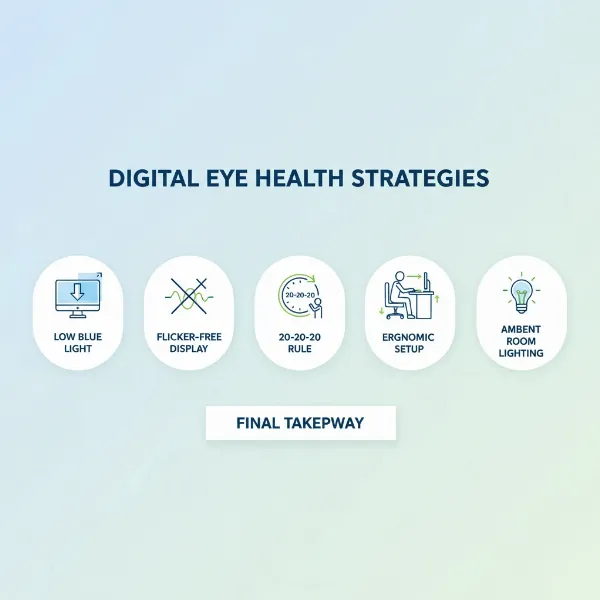 A summary illustration of key tips for maintaining eye health in a digital world, including monitor choice and habits.
Frequently Asked Questions
What is digital eye strain and how does blue light contribute to it?
Digital eye strain, or computer vision syndrome, is a group of eye- and vision-related problems that result from prolonged computer, tablet, e-reader, and cell phone use. Blue light, with its short, high-energy wavelengths, scatters more readily than other colors, creating visual noise that makes eyes work harder to focus, thus contributing to symptoms like dry eyes, headaches, and blurred vision.
Do blue light filter glasses really work for computer eye strain?
Recent systematic reviews suggest that blue light filtering spectacle lenses may not significantly reduce symptoms of digital eye strain in the short term compared to non-filtering lenses. However, they might have some benefits in regulating sleep patterns by reducing blue light exposure before bedtime. It’s recommended to consult an eye care professional for personalized advice.
What are the most effective ways to reduce blue light exposure from my computer monitor?
The most effective strategies include using software-based blue light filters (like your operating system’s “Night Light” or third-party apps like f.lux), applying physical blue light screen protectors directly to your monitor, and choosing monitors with built-in low blue light modes and flicker-free technology. Adjusting screen brightness and taking regular breaks are also crucial.
How does “flicker-free” technology help with eye strain?
Traditional monitors often use Pulse Width Modulation (PWM) to control brightness, which causes the backlight to rapidly turn on and off, creating imperceptible flicker. For sensitive individuals, this flicker can lead to eye fatigue, headaches, and discomfort. Flicker-free technology uses alternative dimming methods (like DC dimming) to maintain a consistent light output, significantly reducing strain.
What is the 20-20-20 rule and how should I apply it?
The 20-20-20 rule is a simple yet effective practice to combat eye strain: every 20 minutes, look away from your screen at an object at least 20 feet away for at least 20 seconds. This helps your eye muscles relax and gives your eyes a much-needed break from continuous near-focusing.
Can adjusting my monitor’s color temperature help reduce eye strain?
Yes, adjusting your monitor’s color temperature to warmer tones (reducing blue light) can help, especially in the evening. Warmer colors are less stimulating and can be more comfortable for your eyes, potentially improving sleep quality. Many monitors and operating systems offer “warm” or “night” modes that do this automatically.
Are there specific monitor features I should look for to minimize eye strain?
Beyond blue light filters and flicker-free technology, consider monitors with anti-glare coatings to reduce reflections, high refresh rates for smoother motion, and highly adjustable ergonomic stands for proper positioning. These features collectively contribute to a more comfortable and less strenuous viewing experience.