Has your stunning display started to show unsightly steps in what should be smooth color transitions? This frustrating visual artifact, known as color banding, can quickly degrade the viewing experience on any computer monitor, from high-end gaming displays to professional workstations. While it might seem like a complex issue, understanding its causes and applying the right solutions can often restore your screen’s pristine image quality. This guide will walk you through the essential steps to diagnose and fix color banding, helping you reclaim the vibrant, seamless visuals you expect from your computer monitor.
Understanding Color Banding on Your Computer Monitor
Color banding is a visual anomaly where smooth color gradients appear as distinct strips or “bands” of color rather than a continuous blend. Imagine a sunset sky that transitions from bright orange to deep blue; instead of a fluid change, you see harsh lines separating different shades. This subtle form of posterization happens when there aren’t enough color shades available to accurately reproduce a gradient.
The primary technical reason behind this lies in bit depth. Digital displays represent colors using bits of information. A lower bit depth means fewer available shades for each color channel (red, green, blue). For example, an 8-bit monitor can display approximately 16.7 million colors (256 shades per channel), which sounds like a lot but can be insufficient for subtle gradients, especially in darker tones or wide color ranges. In contrast, a 10-bit monitor can display over a billion colors (1024 shades per channel), offering a much smoother transition and significantly reducing the likelihood of banding.
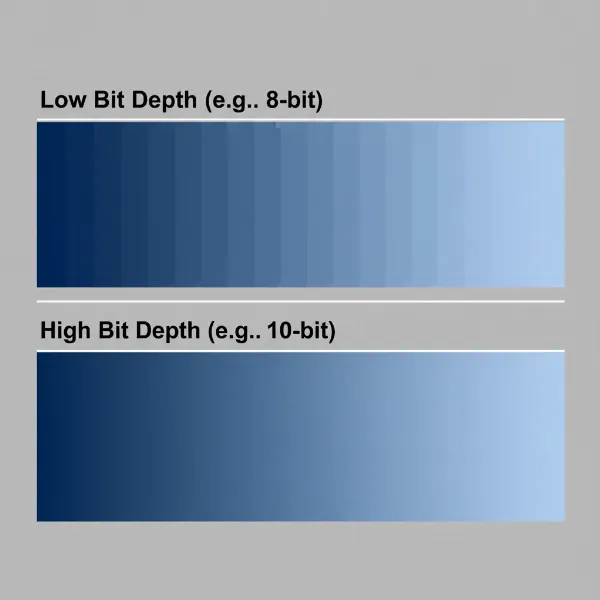 Comparison of color gradients showing banding due to low bit depth versus smooth transition from high bit depth
Another major contributor is media compression. When images or videos are compressed to save space, some color information is discarded. This reduction in data can lead to a lower effective bit depth for the content, causing banding even on monitors capable of displaying a wider range of colors.
Common Causes of Color Banding
Identifying the root cause of color banding on your computer monitor is the first step towards a fix. Several factors can contribute to this issue:
Low Bit Depth Displays
Monitors with native 6-bit or 8-bit panels, especially those without advanced processing techniques like FRC (Frame Rate Control), naturally have a limited number of colors they can display. This limitation makes them more susceptible to showing distinct bands in gradients.
Compressed Media Content
Videos from streaming services, heavily compressed image files (like JPEGs with aggressive compression), or older game assets often contain less color information. When your monitor tries to display this limited data, banding can become visible, regardless of the display’s capabilities.
Graphics Card Settings
Incorrect configuration in your graphics card’s control panel can restrict the color output. If the “Output color depth” or “Dynamic range” settings are set to “Limited” instead of “Full,” your GPU might not be sending the maximum available color information to your computer monitor.
Monitor Calibration Issues
An improperly calibrated monitor, with incorrect gamma, brightness, or contrast settings, can exaggerate color banding. Calibration aims to ensure that colors are accurately represented and gradients appear as intended, so a skewed calibration can work against this.
Connection and Cable Problems
A faulty or low-quality display cable (HDMI, DisplayPort, DVI) or a loose connection can sometimes lead to signal degradation, resulting in color inaccuracies and banding. This is less common but worth checking.
Outdated Drivers and Software
Outdated graphics drivers can lead to rendering issues, including color banding. Similarly, conflicts with color profiles (ICC profiles) or Windows’ built-in calibration loader can sometimes interfere with proper color reproduction.
Step-by-Step Solutions to Fix Color Banding
Once you understand the potential causes, you can systematically troubleshoot and apply fixes to reduce or eliminate color banding on your computer monitor.
Adjusting Graphics Card Settings
One of the most effective initial steps is to ensure your graphics card is configured to send the fullest possible color range to your monitor.
- For NVIDIA Users:
- Right-click on your desktop and open the NVIDIA Control Panel.
- Navigate to Display > Change resolution.
- Scroll down to “3. Apply the following settings” and select “Use NVIDIA color settings.”
- Set “Output color depth” to the highest available (e.g., 10 bpc) if your monitor supports it.
- Set “Output dynamic range” to Full (0-255).
- Additionally, go to Video > Adjust video color settings.
- Under “How do you make color adjustments?”, select “With the NVIDIA settings.”
- Go to the “Advanced” tab and set “Dynamic range” to Full (0-255). Apply the changes.
- For AMD Radeon Software Users:
- Right-click on your desktop and open AMD Radeon Software.
- Go to Display > Color Depth and select the highest option available (e.g., 10-bit).
- Check Pixel Format and choose options that specify “Full RGB” or “YCbCr 4:4:4 Full Range” if available and suitable for your monitor. Apply the changes.
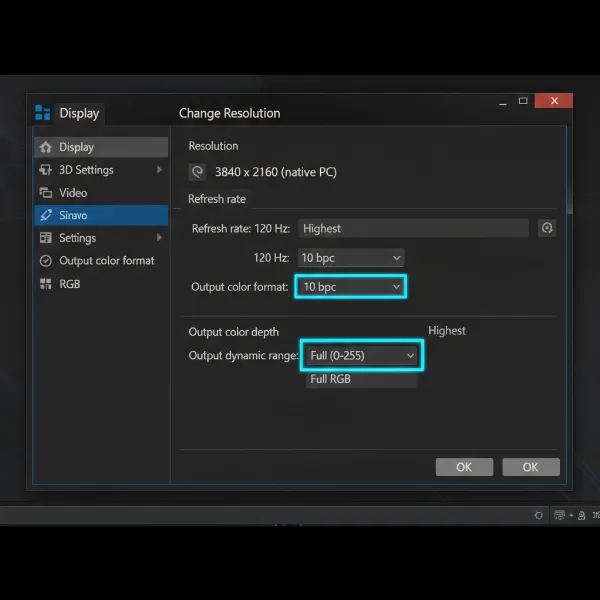 Screenshot of graphics card control panel showing output color depth and dynamic range settings
Optimizing Windows Display Settings
Windows itself can sometimes contribute to color banding if its internal color management or calibration tools are misconfigured.
- Disable ICC Profiles: Conflicting ICC profiles can cause issues.
- Press
Win + S, type “Color Management,” and open it. - In the “Devices” tab, ensure “Use my settings for this device” is checked.
- Select any listed profiles and click “Remove.”
- Reboot your computer.
- Press
- Tweak Calibration Loader: A specific Windows task can sometimes worsen banding.
- Press
Win + S, type “Task Scheduler,” and open it. - Navigate to
Task Scheduler Library > Microsoft > Windows > WindowsColorSystem. - Locate “Calibration Loader” in the right pane.
- Right-click on “Calibration Loader,” select “Properties,” and go to the “Settings” tab.
- Uncheck “Allow task to be run on demand.”
- Click “OK,” then right-click “Calibration Loader” again and select “Disable.”
- Reboot your computer.
- Press
- Using Display Color Calibration: Windows has a built-in tool that can help optimize basic display settings.
- Press
Win + S, type “Calibrate display color,” and follow the on-screen instructions to adjust gamma, brightness, contrast, and color balance.
- Press
Calibrating Your Monitor for Accuracy
Proper monitor calibration can significantly reduce color banding by ensuring your display’s output matches expected color values.
- Software vs. Hardware Calibration:
- Software Calibration: Tools like Windows Display Color Calibration or third-party utilities offer basic adjustments. These rely on your visual perception.
- Hardware Calibration: For critical color work, investing in a hardware colorimeter (like X-Rite or Datacolor Spyder) provides the most accurate results. These devices measure your monitor’s actual output and create a custom ICC profile, ensuring precise color representation.
- Gamma and Contrast Adjustments: Pay close attention to gamma settings during calibration. A gamma value of 2.2 is standard for most content. Adjusting gamma helps distribute shades evenly between dark and light colors, reducing abrupt jumps that cause banding. Ensure brightness and contrast are set appropriately to prevent crushing blacks or blowing out whites.
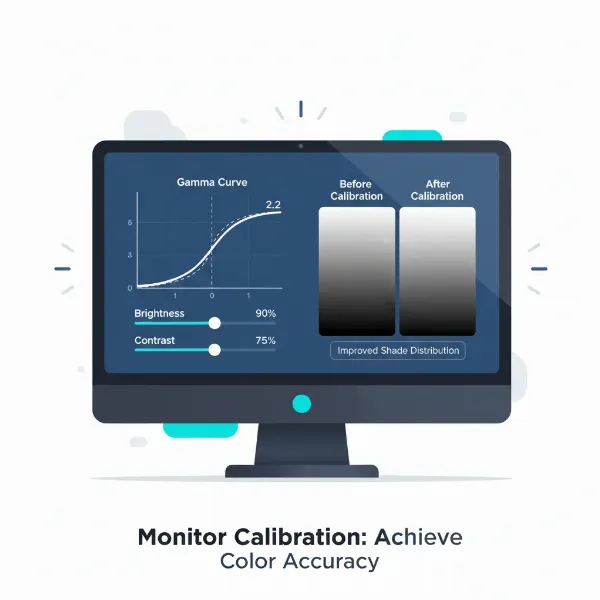 Visual representation of monitor calibration with gamma curve and contrast adjustments
Checking and Upgrading Cables
A quick check of your display cable can rule out a simple hardware issue.
- Ensure your cable is securely connected at both the monitor and graphics card ends.
- If you’re using an older or low-quality cable, consider upgrading to a high-quality, certified DisplayPort or HDMI cable. These can provide more stable bandwidth, which is crucial for higher resolutions and refresh rates, especially when transmitting 10-bit color.
Updating Graphics Drivers
Keeping your graphics drivers up to date is crucial for optimal performance and display stability.
- Visit the official website for your graphics card manufacturer (NVIDIA, AMD, Intel) to download and install the latest drivers.
- Perform a clean installation of the drivers to ensure no lingering issues from previous versions.
Leveraging Dithering Technology
Dithering is a technique that can reduce the appearance of color banding by introducing a small amount of “noise” or random pixel patterns. This tricks the eye into perceiving a smoother gradient than what the limited bit depth might otherwise allow.
- Many graphics cards and monitors use dithering automatically. If you have an 8-bit panel that supports FRC (Frame Rate Control), it simulates 10-bit color by rapidly switching between two similar colors, which is a form of temporal dithering.
- Some third-party software tools like ReShade offer debanding filters, which can apply post-processing dithering to games and other applications, making gradients appear smoother.
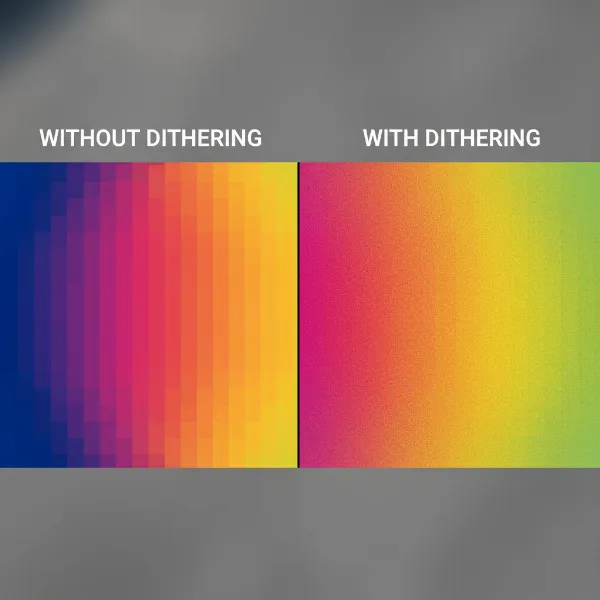 Image illustrating dithering technique to smooth out color banding in a digital display
When to Consider a Computer Monitor Upgrade
Despite all troubleshooting, sometimes the hardware itself is the primary limitation.
Understanding Bit Depth: 8-bit vs. 10-bit Panels
If your current computer monitor is an older model with a true 6-bit or even a basic 8-bit panel without FRC, it might inherently struggle with smooth gradients, especially in demanding applications or high-quality media.
- 8-bit + FRC panels can simulate 10-bit color, offering a noticeable improvement.
- True 10-bit panels (often found in professional-grade or higher-end enthusiast monitors) provide the best performance for color-critical work and reduce banding significantly by offering over a billion shades.
Impact of Monitor Technology (LED, LCD, OLED, QLED) on Color Gradients
While all modern monitor types can exhibit banding, their characteristics can influence its prominence.
- LCD (LED-backlit LCD): Most common. Quality varies widely.
- OLED: Known for perfect blacks and infinite contrast, which can make any banding in content more noticeable if not handled well, but often excel in color reproduction with high bit-depth panels.
- QLED: Enhances color volume and brightness, generally good for color but still reliant on underlying LCD technology, so bit depth and processing are key.
If you frequently encounter banding and have exhausted software fixes, upgrading to a monitor with a higher native bit depth (or FRC) and better color processing can be the ultimate solution.
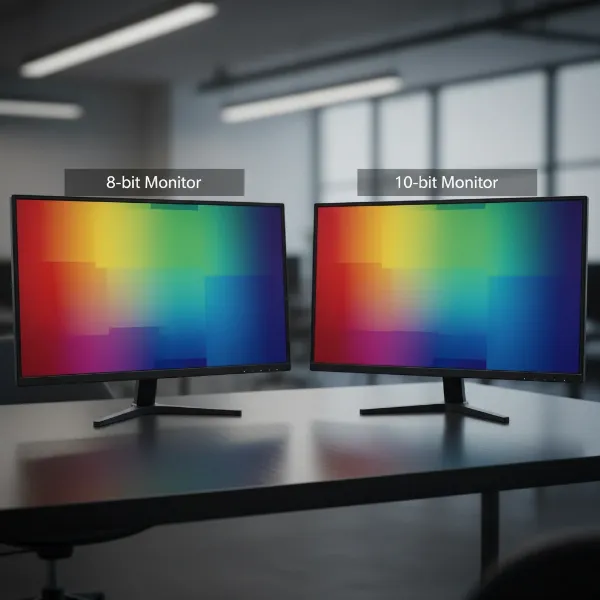 Visual comparison of color gradients displayed on an 8-bit monitor versus a 10-bit monitor
Preventing Future Color Banding Issues
Proactive measures can help keep your computer monitor displaying beautiful, band-free gradients.
Investing in Quality Hardware
When purchasing a new computer monitor, prioritize models with at least 8-bit + FRC or true 10-bit panels, especially if color accuracy is important to you. Research reviews that specifically mention gradient performance.
Using High-Resolution, Uncompressed Media
Whenever possible, opt for high-quality media sources. Choose streaming services that offer higher bit-rate content, use lossless image formats (like TIFF or PNG with appropriate bit depth), and render your own creations in higher bit-depth formats.
Regular System Maintenance
Keep your graphics drivers updated, periodically check your display settings, and consider a routine monitor calibration, even if it’s just using the built-in Windows tool, to maintain optimal color performance.
Conclusion
Color banding on your computer monitor can be an unsightly distraction, but it’s often a solvable problem. By understanding that banding stems from limitations in color bit depth, whether from your display, graphics card settings, or media content, you can effectively tackle the issue. From adjusting graphics card output to optimizing Windows settings, calibrating your monitor, and ensuring high-quality connections, a combination of these solutions can significantly improve your visual experience. Sometimes, a monitor upgrade to a panel with greater color depth is the ultimate answer. With these strategies, you can restore your computer monitor to its full glory, enjoying smooth, seamless color gradients across all your tasks. What steps will you take today to eliminate color banding from your screen?
Frequently Asked Questions
What is the ideal bit depth to prevent color banding?
For most users, a monitor with at least 8-bit + FRC (Frame Rate Control) is good, as it simulates 10-bit color. For professional work or critical color accuracy, a true 10-bit panel is ideal to minimize banding.
Can all monitors be completely free of color banding?
While modern high-bit-depth monitors significantly reduce banding, it’s challenging to be 100% free of it, especially with highly compressed content. The goal is to minimize its visibility to an imperceptible level.
Does HDR impact color banding?
HDR (High Dynamic Range) content typically uses higher bit depths (10-bit or 12-bit) and a wider color gamut, which inherently provides more shades and can help reduce banding. However, if an HDR signal is displayed on a non-HDR or poorly configured HDR computer monitor, banding can sometimes appear or worsen.
How often should I calibrate my computer monitor?
For general use, calibrating your computer monitor every 6-12 months is usually sufficient. For professional photographers, videographers, or graphic designers, more frequent calibration (monthly or even weekly) is recommended to maintain color accuracy.
Can a faulty cable really cause color banding?
Yes, a faulty or low-quality display cable can degrade the signal between your graphics card and Computer Monitor, leading to color inaccuracies, flickering, or visible banding, especially at higher resolutions and refresh rates. Always use high-quality, certified cables.