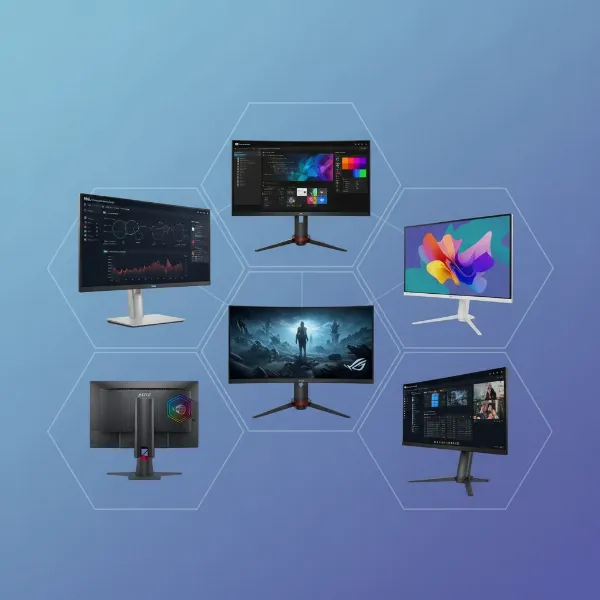
In today’s fast-paced digital world, a single laptop screen often feels like a bottleneck, limiting productivity and hindering multitasking. Imagine seamlessly navigating between applications, referencing documents on one screen while crafting content on another, or immersing yourself in expansive gameplay. Connecting two external monitors to your laptop can transform your workspace, offering unparalleled efficiency and an enhanced visual experience. This comprehensive guide will walk you through various methods, essential hardware, and step-by-step configuration to unlock the full potential of a dual monitor setup, whether you’re a Windows or macOS user.
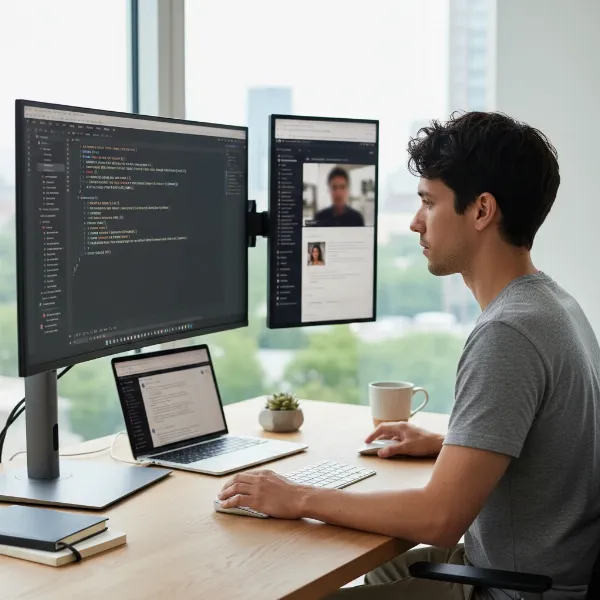 A person working efficiently with a laptop connected to two external monitors, showcasing enhanced productivity and an organized workspace.
Understanding Your Laptop’s Display Capabilities
Before diving into connections, it’s crucial to understand your laptop’s video output capabilities. Not all laptops are created equal, and their ability to support multiple external displays depends heavily on their available ports and internal graphics processing power.
Identifying Available Ports
Modern laptops feature a variety of ports that can transmit video signals. Common types include:
- HDMI (High-Definition Multimedia Interface): A widely used port for both audio and video, found on most laptops and monitors.
- DisplayPort / Mini DisplayPort: Often found on business or professional-grade laptops, supporting higher resolutions and refresh rates.
- USB-C (with DisplayPort Alt Mode or Thunderbolt): A versatile port on newer laptops that can carry video, data, and power. Thunderbolt ports (versions 3, 4, and USB4) offer superior bandwidth, making them ideal for high-performance multi-monitor setups and docking stations.
- VGA / DVI: Older, legacy ports rarely found on new laptops but still present on some older monitors.
Check your laptop’s specifications or consult its user manual to identify the available video output ports. The number and type of these ports will dictate your connection options.
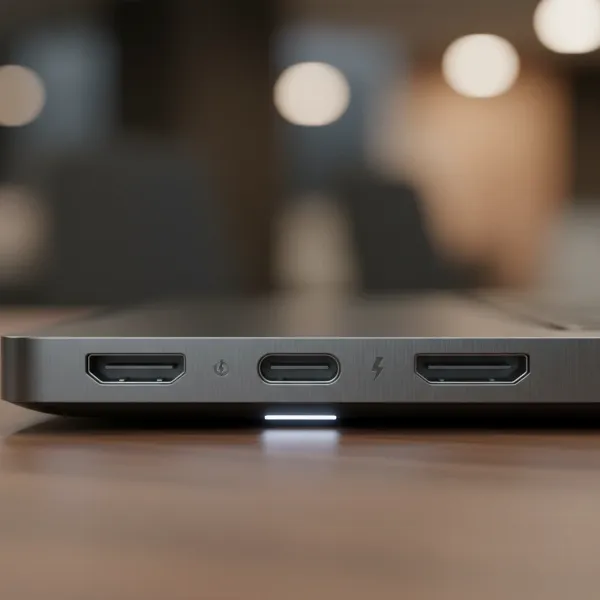 Close-up of a modern laptop's side, showcasing various video output ports like HDMI, USB-C, and DisplayPort.
Graphics Card Support for Multiple Displays
Your laptop’s integrated or dedicated graphics card plays a vital role. Most modern graphics cards are designed to support multiple displays, but there might be limitations on the maximum resolution or refresh rate depending on the card’s power. For most productivity tasks, standard integrated graphics are sufficient for dual monitor setups. For demanding applications like gaming or video editing, a dedicated graphics card will offer a smoother experience across multiple screens.
Essential Connection Hardware for Dual Monitors
Once you know your laptop’s capabilities, you can gather the necessary hardware.
Cables and Adapters
The right cables are fundamental. Ensure you have cables that match your laptop’s output ports and your monitors’ input ports.
- HDMI Cables: For HDMI-to-HDMI connections.
- DisplayPort Cables: For DisplayPort-to-DisplayPort connections.
- USB-C to HDMI/DisplayPort Adapters or Cables: If your laptop has a USB-C port with DisplayPort Alt Mode, these allow direct connection to a monitor.
Docking Stations (USB-C/Thunderbolt)
A docking station acts as a central hub, connecting to your laptop via a single USB-C or Thunderbolt cable. It then provides multiple video output ports (HDMI, DisplayPort), USB ports for peripherals, Ethernet, and often power delivery to charge your laptop. Docking stations are an excellent solution for decluttering your desk and simplifying connections, especially for laptops with limited native video outputs. They are particularly beneficial for Thunderbolt-enabled laptops, offering high bandwidth for multiple high-resolution displays.
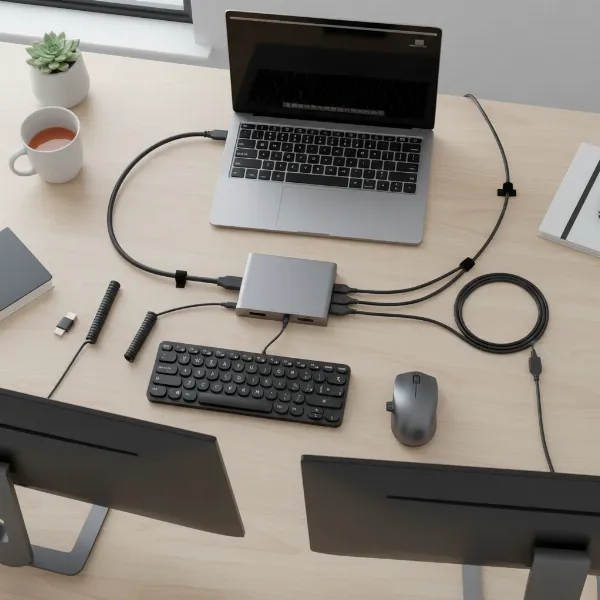 A sleek USB-C or Thunderbolt docking station connecting a laptop to multiple external monitors and peripherals.
USB-C to Dual HDMI/DisplayPort Adapters
These compact adapters connect to a single USB-C port on your laptop and provide two HDMI or DisplayPort outputs, allowing you to connect two external monitors simultaneously. This is a more straightforward and often more affordable option than a full docking station if your primary need is solely for dual video output.
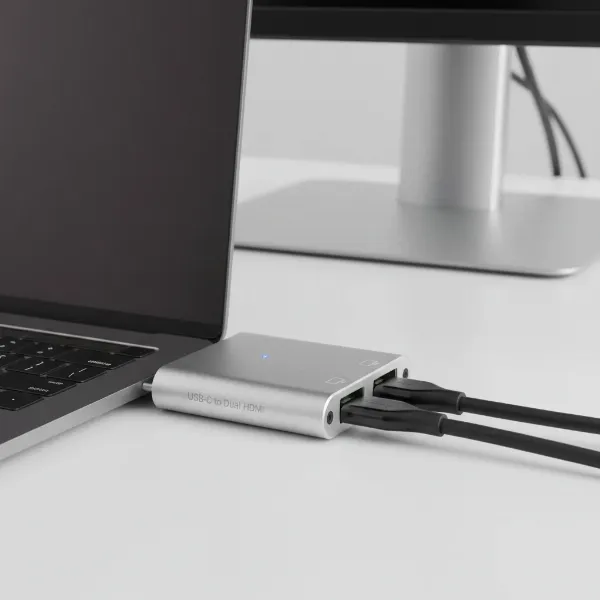 A compact USB-C to dual HDMI/DisplayPort adapter connecting to a laptop, facilitating two external displays.
DisplayLink Adapters
For older laptops, or those with very limited video output options or USB-C ports without DisplayPort Alt Mode, DisplayLink USB adapters are a lifesaver. These adapters connect to a standard USB-A or USB-C port and use software drivers to convert USB data into video signals. While versatile, they might introduce a slight lag compared to direct video connections, making them less ideal for high-refresh-rate gaming but perfectly suitable for general productivity.
MST Hubs (for Daisy-Chaining DisplayPort)
If your laptop and at least one of your monitors support DisplayPort Multi-Stream Transport (MST), you can “daisy-chain” your monitors. You connect your laptop to the first monitor via DisplayPort, then connect the first monitor to the second monitor using a DisplayPort cable. The first monitor acts as a hub, passing the video signal through. This creates a very clean setup with minimal cabling.
Methods for Connecting Two Monitors to a Laptop
Let’s explore the most common ways to connect two external displays.
Direct Connection
If your laptop has two distinct video output ports (e.g., one HDMI and one USB-C with DisplayPort Alt Mode), you might be able to connect two monitors directly without additional hardware like a docking station. Simply connect one monitor to each available video output port using the appropriate cables.
Using a Docking Station
Docking stations are a popular choice for their convenience and expanded connectivity.
- Connect the Dock: Plug the docking station into your laptop’s USB-C or Thunderbolt port using the provided cable. Ensure your laptop is powered on.
- Connect Monitors to Dock: Plug your two external monitors into the available video output ports (HDMI, DisplayPort) on the docking station.
- Power On: Turn on all connected monitors. Your laptop should detect them automatically.
- Install Drivers (if necessary): Some docking stations may require a one-time driver installation, typically found on the manufacturer’s website.
Utilizing a USB-C to Dual Adapter
This method is ideal for modern laptops with a single video-enabled USB-C port.
- Plug in Adapter: Connect the USB-C end of the adapter to your laptop’s USB-C port.
- Connect Monitors: Plug two HDMI or DisplayPort cables from your monitors into the adapter’s output ports.
- Power On: Turn on your monitors.
DisplayPort MST (Daisy-Chaining)
For this method, both your laptop’s DisplayPort output and at least one monitor must support MST.
- Laptop to Monitor 1: Connect your laptop’s DisplayPort (or USB-C with DP Alt Mode) to the DisplayPort input of the first monitor.
- Monitor 1 to Monitor 2: Connect the DisplayPort output of the first monitor to the DisplayPort input of the second monitor.
- Enable MST: You may need to enable MST or “Daisy Chain” mode in the first monitor’s On-Screen Display (OSD) menu.
DisplayLink Adapters
When direct connections or advanced docks aren’t an option, DisplayLink adapters offer a versatile fallback.
- Install Drivers: Download and install the DisplayLink drivers from the DisplayLink website onto your laptop.
- Connect Adapter: Plug the DisplayLink adapter into an available USB-A or USB-C port on your laptop.
- Connect Monitor: Plug your monitor’s video cable (e.g., HDMI, DVI) into the DisplayLink adapter. You will need a separate adapter for each additional monitor.
Step-by-Step Configuration: Windows and macOS
Once the physical connections are made, you’ll need to configure your operating system to properly utilize the dual monitors.
For Windows Laptops
- Access Display Settings: Right-click anywhere on your desktop and select “Display settings.”
- Detect Displays: If your monitors aren’t immediately recognized, click the “Detect” button under the “Multiple displays” section.
- Identify Displays: Click “Identify” to see numbers appear on each screen, helping you match them in the settings.
- Arrange Displays: In the “Rearrange your displays” section, drag and drop the monitor icons to visually match their physical arrangement on your desk. This ensures seamless mouse movement between screens.
- Choose Multiple Display Option: From the “Multiple displays” dropdown menu, select “Extend these displays.” This creates an expanded desktop across all screens. “Duplicate these displays” will mirror your laptop’s screen on the external monitors.
- Set Primary Display: Select the monitor you wish to be your primary display (where your taskbar and main applications will open) and check the “Make this my main display” box.
- Adjust Resolution and Scale: For each monitor, check its recommended resolution and scale to ensure text and icons appear crisp and appropriately sized.
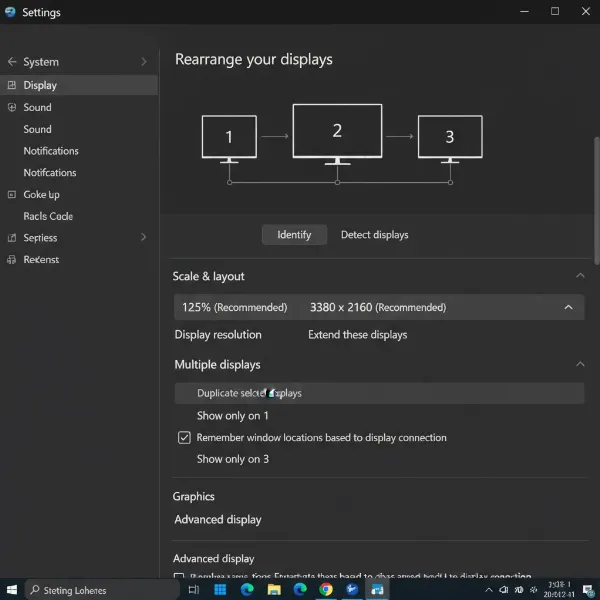 A screenshot of the Windows 11 Display Settings window, showing the arrangement of multiple monitors with numbered screens.
For macOS Laptops
- Access Display Settings: Click the Apple menu () in the top-left corner, go to “System Settings” (or “System Preferences” on older macOS versions), and then click “Displays.”
- Detect Displays: macOS usually detects monitors automatically. If not, on older macOS versions, you might need to hold down the Option key to reveal a “Detect Displays” button.
- Arrange Displays: Click the “Arrangement” tab. Drag and drop the blue monitor rectangles to match their physical positions. The white bar at the top of a display indicates the primary monitor. Drag it to your preferred main screen.
- Choose Display Mode: Ensure “Mirror Displays” is unchecked to extend your desktop. If checked, your displays will show the same content.
- Adjust Resolution: For each display, select the desired resolution. “Default for display” is usually the best option for optimal clarity.
Comparison of Dual Monitor Connection Methods
Choosing the right method depends on your laptop’s capabilities, your budget, and your specific needs.
| Method | Pros | Cons | Ideal Use Case |
|---|---|---|---|
| Direct Connection | Simple, minimal cost, no extra hardware. | Limited by laptop’s native video output ports. | Laptops with two compatible video output ports. |
| Docking Station | Versatile, single cable for laptop, provides power and many ports. | Higher initial cost, compatibility considerations. | Comprehensive workstation, multiple peripherals, power delivery. |
| USB-C to Dual Adapter | Cost-effective, compact, uses a single USB-C port for two displays. | Specific to laptops with video-enabled USB-C, no extra ports. | Simple dual monitor setup with a modern USB-C laptop. |
| DisplayLink Adapter | Wide compatibility (USB-A/C), overcomes limited native video outputs. | May have slight latency, requires driver installation. | Older laptops, limited video-out ports, non-gaming use. |
| DisplayPort MST Hub | Clean setup, utilizes DisplayPort’s daisy-chaining capability. | Requires DisplayPort on laptop and compatible monitors. | Specific setups with MST-compatible DisplayPort hardware. |
Where to Find Your Connection Hardware
You can find all the necessary cables, adapters, and docking stations at various retailers.
- Online Retailers: Websites like Amazon, Best Buy, Newegg, and the official stores of brands like Anker, Dell, HP, and Kensington offer a wide selection with detailed specifications and customer reviews.
- Electronics Stores: Local electronics retailers such as Micro Center, Currys, or similar stores in your region often have a range of options and expert staff who can help with compatibility questions.
Choosing the Right Dual Monitor Setup for Your Needs
Selecting the optimal setup requires careful consideration of several factors:
- Assess Your Laptop’s Ports and Capabilities: This is the most critical first step. What video output ports does your laptop have? Does its USB-C port support DisplayPort Alt Mode or Thunderbolt?
- Consider Your Budget: Direct connections are the most economical. USB-C to dual adapters offer a mid-range solution, while full-featured docking stations represent a higher investment but provide maximum convenience.
- Determine Monitor Types and Inputs: What input ports do your monitors have (HDMI, DisplayPort, DVI, VGA)? Ensure your chosen connection method is compatible.
- Future-Proofing and Additional Peripheral Needs: If you plan to connect other peripherals (keyboard, mouse, external drives, Ethernet) or value a clutter-free setup, a docking station is often the best long-term solution.
- Performance Requirements: For high-refresh-rate gaming or professional graphic design, prioritize direct connections or Thunderbolt docks for the best performance and lowest latency.
“Expanding your digital real estate with dual monitors isn’t just about more screen space; it’s about optimizing your workflow and creating a more immersive, efficient computing environment.” – Alex Chen, Lead Hardware Engineer at Tech Innovations
Troubleshooting Common Issues
Even with the right hardware, you might encounter minor hiccups. Here are some common issues and their solutions:
- Monitor Not Detected:
- Ensure all cables are securely plugged in.
- Try a different port or cable if available.
- Update your laptop’s display drivers (visit your laptop manufacturer’s website).
- In Windows Display Settings, click “Detect.” On macOS, try restarting your Mac or putting it to sleep and waking it.
- Incorrect Resolution or Scaling:
- In your display settings, verify that each monitor is set to its native (recommended) resolution.
- Adjust the “Scale” setting to make text and apps readable without being too large or too small.
- Flickering or Poor Display Quality:
- Check for damaged cables or replace them with higher-quality ones.
- Ensure your graphics drivers are up to date.
- If using a DisplayLink adapter, ensure the drivers are current.
- Lower the refresh rate or resolution if your hardware is struggling to keep up.
- Mouse Cursor Gets Stuck Between Screens:
- Adjust the arrangement of your monitors in the display settings to accurately reflect their physical placement.
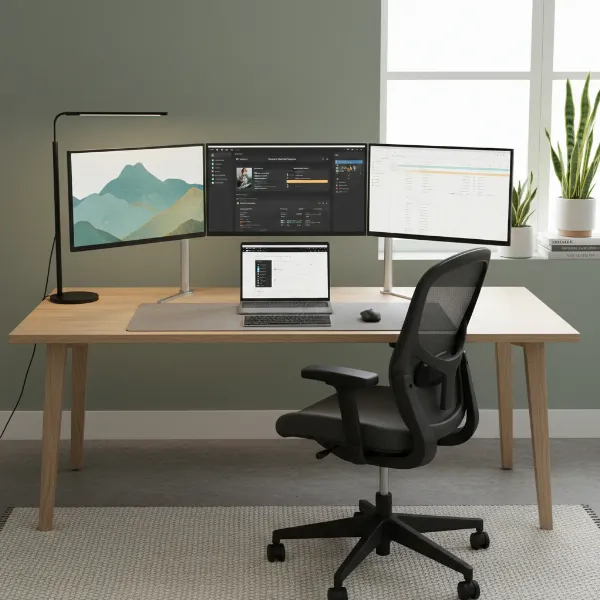 A tidy home office setup featuring a laptop connected to two external monitors, bathed in soft, inviting light.
Conclusion
Connecting two monitors to your laptop is a game-changer for anyone seeking to boost productivity, streamline workflows, or simply enjoy a more expansive digital workspace. By understanding your laptop’s capabilities, choosing the right connection method—whether direct cables, a versatile docking station, or a clever USB-C adapter—and properly configuring your display settings, you can effortlessly transform your single-screen setup into a powerful multi-monitor powerhouse. Embrace the efficiency and immersion of dual screens and redefine how you interact with your digital world. What incredible new workflows will you unlock with your expanded view?
Frequently Asked Questions
Can I connect two monitors to a laptop with only one HDMI port?
Yes, it’s often possible. You can use a docking station, a USB-C to dual HDMI adapter (if your laptop has a video-enabled USB-C port), or a DisplayLink USB adapter. These devices effectively add more video outputs to your laptop, allowing you to bypass the single HDMI port limitation.
Do I always need a docking station for dual monitors?
No, not always. If your laptop has two separate video output ports (e.g., an HDMI and a DisplayPort or a video-enabled USB-C), you can connect two monitors directly. Docking stations are most beneficial when your laptop has limited ports, or you need extra USB ports, Ethernet, and power delivery through a single connection.
How do I “extend” my desktop instead of “duplicating” it?
In Windows, right-click your desktop, go to “Display settings,” scroll to “Multiple displays,” and select “Extend these displays” from the dropdown. On macOS, go to Apple menu > System Settings > Displays > Arrangement, and ensure “Mirror Displays” is unchecked. This will allow you to have different content on each screen.
What is DisplayPort Alt Mode on USB-C?
DisplayPort Alternate Mode (Alt Mode) allows a USB-C port to directly output video signals compatible with DisplayPort standards. This means a single USB-C port can transmit high-resolution video, often along with data and power, making it a powerful and versatile connection for external monitors or docking stations.
Why is one of my monitors not showing the correct resolution?
This can happen due to outdated graphics drivers, a faulty cable, or incorrect settings. First, ensure your display drivers are updated. Then, check your display settings to confirm the monitor is set to its native resolution. If the problem persists, try swapping cables or using a different port to rule out hardware issues.