Understanding your monitor’s manufacturing date might seem like a minor detail, but it can provide crucial insights into its warranty status, potential lifespan, and the technology it incorporates. Whether you’re troubleshooting an issue, planning an upgrade, or simply curious about your display’s history, knowing how to pinpoint this information is incredibly useful. This comprehensive guide will walk you through various straightforward methods to uncover your monitor’s production date, from examining physical labels to delving into its internal settings and beyond.
Why Knowing Your Monitor’s Manufacturing Date Matters
The manufacturing date of your monitor offers more than just a timestamp; it’s a key piece of information that can serve several practical purposes.
Warranty Eligibility
The most immediate benefit of knowing your monitor’s manufacturing date is its relevance to warranty coverage. Manufacturers typically base their warranty periods from the date of production or shipment. If you need to make a warranty claim for repairs or replacement, having this date readily available can help you determine if your monitor is still under coverage, saving you time and potential repair costs.
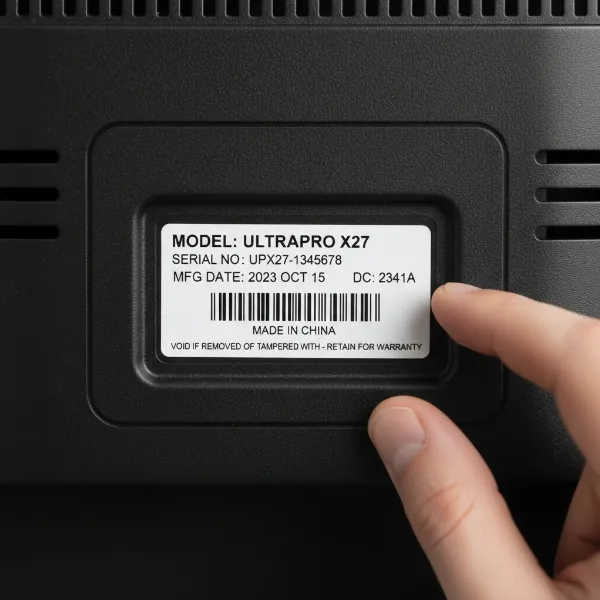 Computer monitor label showing manufacturing date for warranty eligibility and lifespan assessment
Assessing Monitor Lifespan and Wear
Like all electronics, monitors have a finite lifespan. Older monitors, especially those used extensively, may start to show signs of wear and tear, such as dead pixels, backlight bleed, or color degradation. The manufacturing date provides a baseline for understanding how old your monitor truly is, helping you anticipate potential issues and plan for future upgrades. It also aids in evaluating the remaining service life of a used monitor if you’re considering a purchase.
Understanding Technology Generation
Display technology evolves rapidly. A monitor manufactured a few years ago might incorporate different panel types, refresh rates, or connectivity standards compared to newer models. The production date helps contextualize your monitor within its technological era, offering clues about its expected performance, features, and compatibility with contemporary hardware.
Resale Value and Troubleshooting
If you plan to sell your monitor, providing the manufacturing date can build trust with potential buyers, assuring them of its age and helping them estimate its remaining value. Additionally, for complex troubleshooting, support technicians might ask for this date to understand which firmware versions or hardware revisions might be relevant to your specific unit.
Practical Methods to Locate Your Monitor’s Manufacturing Date
Finding your monitor’s manufacturing date typically involves a few key approaches, ranging from physical inspection to digital queries.
Inspecting Physical Labels and Stickers
The most common and often simplest way to find your monitor’s manufacturing date is by checking its physical labels. These stickers contain vital information including the model number, serial number, and frequently a date code.
You’ll usually find these labels on the back panel of the monitor, on the bottom edge, or sometimes on the stand. You might need to tilt or move your monitor to get a clear view. Look for a sticker that clearly states “Serial Number” (S/N) or “Service Tag.”
Some manufacturers directly print the manufacturing date on these labels in a straightforward format, such as MM/DD/YYYY or YYYY/MM. More commonly, the date is encoded within the serial number itself. While formats vary by brand, a frequent pattern involves the first few digits of the serial number. For instance, some serial numbers use the first digit for the year and the next two digits for the month (e.g., “803” could indicate March of a year ending in 8, like 2018 or 2008). Other patterns include YYMM (two-digit year, two-digit month) or YYWW (two-digit year, two-digit week of the year). If you find a potential date code within the serial number, a quick online search for “[Monitor Brand] serial number decoder” can often provide specific decoding instructions.
Navigating the On-Screen Display (OSD) Menu
Many modern monitors offer a wealth of information through their On-Screen Display (OSD) menu. This menu is accessed via physical buttons or a joystick located on the monitor’s bezel or underside.
Once you enter the OSD menu, navigate through the options to sections typically labeled “Information,” “System Info,” “About,” or “Support.” Within these menus, you might find details such as the model name, firmware version, serial number, and in some cases, a direct manufacturing date or a production week/year. The exact menu structure varies significantly between brands and models, so if you’re having trouble, consult your monitor’s user manual.
Checking Original Packaging and Documentation
If you still have the original box your monitor came in, examine its labels carefully. The manufacturing date is often printed prominently alongside other product details. Similarly, any included documentation, such as the user manual, warranty card, or quick start guide, might contain the manufacturing date or a more detailed explanation of how to decode the serial number specific to your model. This is particularly useful if the monitor’s physical labels are worn or missing.
Utilizing Software Tools for Deeper Insights
While less direct for the manufacturing date itself, software tools can sometimes provide clues or lead you to the serial number, which can then be decoded.
- Windows Device Manager: In Windows, you can open Device Manager (by right-clicking the Start button) and expand the “Monitors” section. Right-clicking your monitor and selecting “Properties,” then going to the “Details” tab and choosing “Hardware IDs” from the dropdown, might reveal a model-specific ID. While this rarely shows the manufacturing date directly, it can help confirm your monitor’s exact model, which you can then use to search for brand-specific serial number decoding instructions.
- EDID Reader Utilities: For a more in-depth look, third-party utilities that read Extended Display Identification Data (EDID) can be invaluable. Tools like Monitor Asset Manager (MonInfo) or Custom Resolution Utility (CRU) can often extract detailed information about your monitor, including its manufacturing date, if available in the EDID firmware. These tools are typically downloaded and run on your computer.
Contacting the Manufacturer Directly
When all other methods fail, or if you need precise and verified information, reaching out to the monitor’s manufacturer is always an option. You’ll typically need to provide them with your monitor’s serial number. Their support team can usually look up the manufacturing date in their internal databases. This method is particularly helpful if the serial number is complex or doesn’t follow a publicly known decoding pattern.
Brand-Specific Tips for Finding Manufacturing Dates
While the general methods apply to most monitors, some brands have specific procedures or unique identifiers.
- Dell Monitors: Dell often uses a “Service Tag” or “PPID” (Piece Part ID) on its monitors. These alphanumeric codes are crucial for Dell’s support. You can enter your monitor’s Service Tag on the Dell Support website. This will bring up detailed product information, including the “Ship Date,” which is a good approximation of the manufacturing or deployment date for warranty purposes.
- Other Major Brands (HP, LG, Samsung, Asus, Acer): For these and other brands, the best approach is often to look for the physical label first. If the manufacturing date isn’t explicitly stated, locate the serial number. Then, visit the official support website for your specific brand and search for “serial number lookup” or “warranty check.” Many manufacturers provide online tools to decode their serial numbers or at least check warranty status based on the serial number, which indirectly confirms the monitor’s age.
What If You Can’t Find the Exact Date?
Sometimes, despite your best efforts, the precise manufacturing date remains elusive. Don’t worry; there are still ways to estimate its age.
One common method is to use your purchase date as a reference. While not the manufacturing date, it gives you a close approximation of when the monitor began its operational life. Additionally, you can search online for the release date of your specific monitor model. Websites like Displayspecifications.com often list when a particular model was first introduced to the market, giving you a general idea of its technology generation and age. This can be particularly helpful for assessing its overall technological relevance and lifespan.
Conclusion
Determining your monitor’s manufacturing date is a valuable skill that empowers you with critical information for warranty claims, assessing lifespan, understanding technological context, and even assisting with resale or troubleshooting. By systematically checking physical labels for serial numbers and date codes, exploring the OSD menu, consulting original documentation, and leveraging online tools or manufacturer support, you can accurately uncover this important detail. Even if an exact date remains hidden, estimating its age through purchase records or model release dates can still provide useful insights. So, take a moment to investigate your monitor – you might be surprised by what you discover about its origins and history. Have you ever needed to find your monitor’s manufacturing date for a specific reason?
Frequently Asked Questions
Is the manufacturing date the same as the purchase date?
No, the manufacturing date and purchase date are typically different. The manufacturing date is when the monitor was produced, while the purchase date is when you bought it. The purchase date usually occurs after the manufacturing date, sometimes by weeks or months, depending on shipping and retail cycles.
Can software always tell me the manufacturing date?
While some advanced software utilities that read EDID (Extended Display Identification Data) can display the manufacturing date if it’s encoded in the monitor’s firmware, standard operating system tools like Device Manager often do not provide this specific detail. Physical labels and manufacturer support are usually more reliable sources.