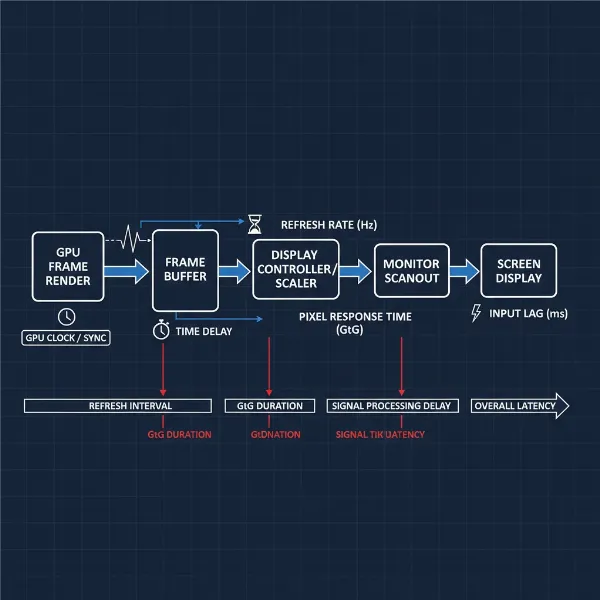
Choosing the right computer monitor for your Mac Mini M4 is crucial for unlocking its full potential, whether you’re a creative professional, a dedicated gamer, or simply seeking a superior everyday computing experience. The Mac Mini M4 is a powerhouse, capable of driving multiple high-resolution displays, including triple 4K monitors, a single 8K output, and refresh rates up to 240Hz, making it essential to pair it with a display that can truly showcase its graphical prowess. This guide will walk you through the essential factors to consider, helping you navigate the vast market to find the perfect display that integrates seamlessly with your Apple ecosystem and elevates your workspace.
Popular Computer Monitor Types for Mac Mini M4
Understanding the different types of display technologies is the first step in selecting a monitor. Each panel type offers distinct advantages in terms of color reproduction, contrast, viewing angles, and response times.
LED Computer Monitors
LED (Light Emitting Diode) monitors are essentially LCD (Liquid Crystal Display) monitors that use LEDs for backlighting, replacing older cold cathode fluorescent lamps (CCFLs). This results in thinner panels, improved energy efficiency, and often better contrast and brightness compared to traditional LCDs. Most modern monitors fall into this category. They are a reliable and versatile choice, offering a good balance of performance and price for a wide range of users, from general productivity to casual content creation.
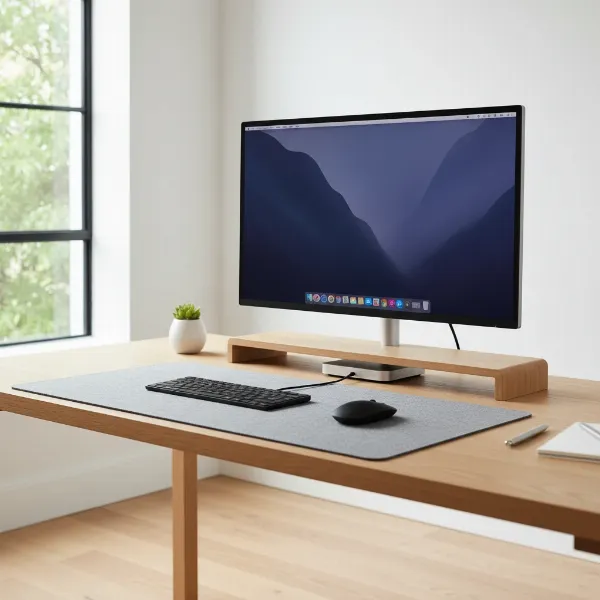 A sleek LED computer monitor connected to a Mac Mini M4 on a modern desk setup.
LCD Computer Monitors
While the term “LCD” often refers to older CCFL-backlit displays, in a broader sense, it encompasses all monitors that use liquid crystals to produce an image, including LED-backlit variants. These displays work by blocking or allowing light to pass through the liquid crystals, creating the pixels you see. Traditional LCDs are known for their decent color accuracy and wide viewing angles, making them a solid, budget-friendly option for everyday tasks. However, they typically don’t offer the deep blacks or vibrant colors of more advanced technologies.
OLED Computer Monitors
OLED (Organic Light Emitting Diode) technology represents a significant leap in display quality. Unlike LCDs, OLED panels do not require a backlight; each pixel emits its own light. This allows for true blacks by completely turning off individual pixels, resulting in an infinite contrast ratio, incredibly vibrant colors, and exceptional viewing angles. OLED monitors also boast extremely fast response times, making them ideal for competitive gaming and fast-paced video editing. While generally more expensive, the visual fidelity they offer is unmatched, providing an immersive experience for creative work and entertainment.
QLED Computer Monitors
QLED (Quantum Dot Light Emitting Diode) is a technology primarily developed by Samsung, enhancing traditional LED-backlit LCD panels with a layer of quantum dots. These tiny nanocrystals improve brightness, color volume, and color accuracy, delivering a wider range of colors and higher peak brightness than standard LED monitors. While QLED monitors don’t achieve the perfect blacks of OLEDs because they still rely on a backlight, they offer impressive HDR performance and vivid colors, often at a more accessible price point than OLEDs. They are an excellent choice for users who prioritize bright, colorful images and strong HDR performance.
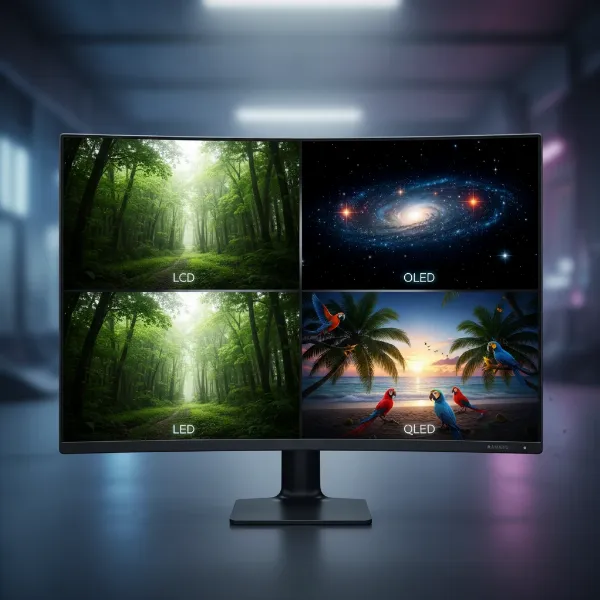 Visual comparison of LED, LCD, OLED, and QLED display technologies side-by-side.
Essential Factors for Choosing a Computer Monitor
Selecting the ideal monitor for your Mac Mini M4 involves evaluating several key technical specifications and features to match your specific needs.
Screen Size and Resolution
The right screen size and resolution are paramount for both productivity and visual comfort.
- Common Screen Sizes: For Mac Mini users, popular choices range from 24-inch for compact setups, 27-inch for a balanced workspace, to 32-inch and larger for immersive experiences or professional multitasking. Ultrawide monitors (e.g., 34-inch, 40-inch, 49-inch) are also gaining popularity for their expansive screen real estate, effectively replacing multi-monitor setups.
- Resolution Explained: Resolution refers to the number of pixels a display can show. Higher resolutions mean sharper images and more screen space.
- HD (1280×720): Rarely seen on modern monitors for Mac Mini, generally too low for optimal clarity.
- Full HD (1920×1080): A basic option for general use, but the Mac Mini M4 can do much better.
- 2K (2560×1440 or QHD): A good balance of sharpness and performance for many users, offering more workspace than Full HD without the demanding processing of 4K.
- 4K (3840×2160 or UHD): The sweet spot for many Mac Mini users, offering incredible detail and ample screen space for creative work, browsing, and entertainment. The Mac Mini M4 effortlessly handles 4K.
- 5K (5120×2880): Often considered the “Retina” resolution for 27-inch displays, providing incredibly sharp text and images with perfect scaling for macOS. The Apple Studio Display and LG UltraFine are prime examples.
- 5K2K (5120×2160): A resolution found in some ultrawide monitors, combining 5K vertical resolution with ultrawide horizontal space.
- 6K (6144×3456): Offering even greater detail than 5K, seen in premium options like the Dell Ultrasharp U3224KB, providing a stunning visual experience for demanding professionals.
- 8K (7680×4320): While the Mac Mini M4 supports a single 8K display, monitors at this resolution are still niche and very expensive, often requiring significant graphical power for smooth operation.
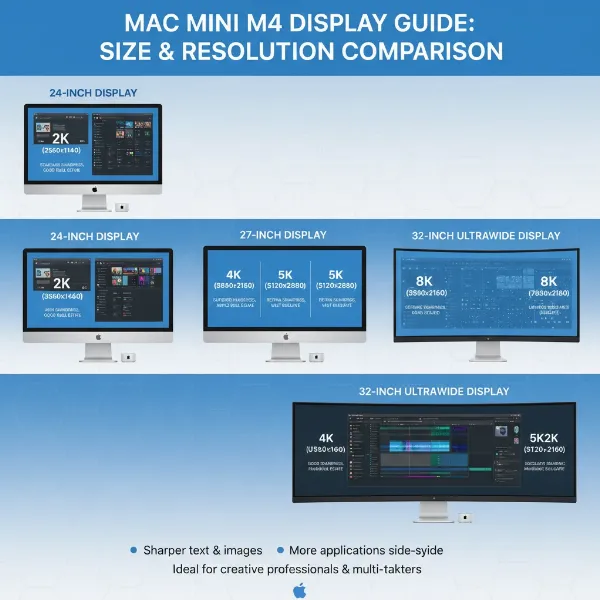 Diagram illustrating different monitor screen sizes and resolutions for Mac Mini.
Panel Technology
The type of panel significantly impacts a monitor’s performance characteristics, including viewing angles, color reproduction, and response time.
- TN Panel (Twisted Nematic): Known for very fast response times and high refresh rates, making them a favorite among competitive gamers. However, TN panels typically have the narrowest viewing angles and the least accurate color reproduction, making them less suitable for color-critical work or shared viewing.
- IPS Panel (In-Plane Switching): The most common panel type for Mac users, IPS monitors excel in color accuracy and wide viewing angles. This makes them ideal for graphic design, photo editing, video production, and general productivity where consistent color and clear visibility from various angles are crucial. Many professional and high-end consumer monitors, including “IPS Black” variants, utilize this technology.
- VA Panel (Vertical Alignment): VA panels offer superior contrast ratios compared to TN and IPS, leading to deeper blacks and more vibrant colors, though not quite reaching OLED levels. Their viewing angles are generally better than TN but not as wide as IPS. VA panels are a good middle-ground, often found in curved monitors, providing an immersive experience for media consumption and gaming.
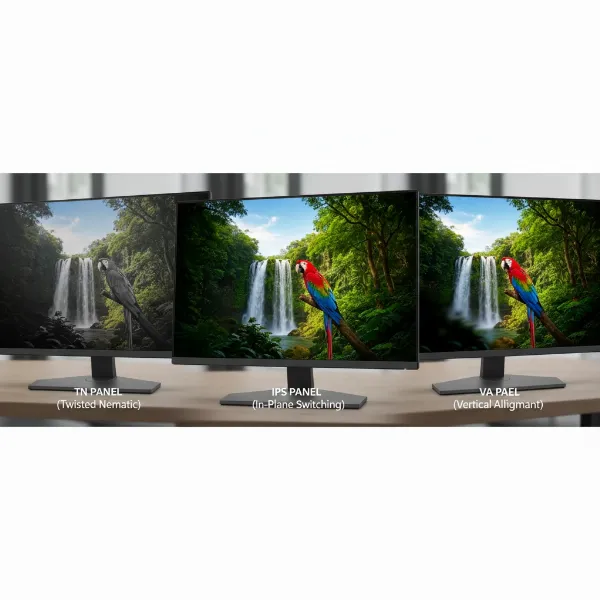 Side-by-side comparison of TN, IPS, and VA monitor panel technologies.
Refresh Rate and Response Time
These two metrics are particularly important for smooth visuals, especially in gaming and fast-motion content.
- What is Refresh Rate? Measured in Hertz (Hz), the refresh rate indicates how many times per second the display updates its image. A higher refresh rate (e.g., 120Hz, 144Hz, 240Hz) results in smoother motion and a more fluid experience, especially noticeable when scrolling, moving the mouse, or playing games. Standard productivity monitors typically offer 60Hz.
- What is Response Time? Measured in milliseconds (ms), response time refers to how quickly pixels can change from one color to another. Lower response times (e.g., 1ms, 5ms) reduce motion blur and ghosting, which is critical for fast-paced gaming where visual clarity can impact performance.
- Refresh Rate and Response Time for Gaming: For serious gamers, a monitor with a high refresh rate (120Hz or above) and a low response time (5ms or less) is essential. While the Mac Mini M4 isn’t primarily a gaming machine, it can handle many games at decent frame rates, and a high refresh rate monitor will make them feel much more responsive. For general use and creative work, 60Hz or 75Hz is usually sufficient, though a higher refresh rate can still enhance the overall fluidity of the macOS experience.
Connectivity Ports
Ensuring your monitor has the right ports for your Mac Mini M4 is vital for a clean setup and optimal performance.
- Common Port Types:
- HDMI (High-Definition Multimedia Interface): A ubiquitous port found on almost all monitors, supporting video and audio. HDMI 2.0 or newer is recommended for 4K at 60Hz or higher.
- DisplayPort: Often preferred for PC gaming and higher resolution/refresh rate setups. DisplayPort 1.4 or newer supports 4K at 120Hz, 8K, and other advanced features.
- USB-C / Thunderbolt: This is particularly important for Mac users. Thunderbolt 3 or 4 ports (often shaped like USB-C) allow for a single cable connection that can carry video, audio, data (for USB hubs), and even power delivery to charge your Mac Mini (though the Mac Mini itself doesn’t need charging, it can power peripherals). This greatly simplifies cable management. Many premium monitors for Mac Minis feature robust USB-C or Thunderbolt hubs.
- VGA (Video Graphics Array) & DVI (Digital Visual Interface): Older analog and digital standards, respectively. While you might find them on older monitors, they are not recommended for modern Mac Mini setups due to limitations in resolution, refresh rate, and signal quality.
- Choosing the Right Connectivity: For the Mac Mini M4, a monitor with USB-C or Thunderbolt is highly recommended for a streamlined “one-cable” solution, enabling monitor power delivery (if applicable), data transfer for built-in USB hubs, and video. DisplayPort is an excellent alternative for high-resolution and high-refresh-rate output, and HDMI is a universal fallback. Look for monitors that offer a variety of modern ports to ensure future compatibility.
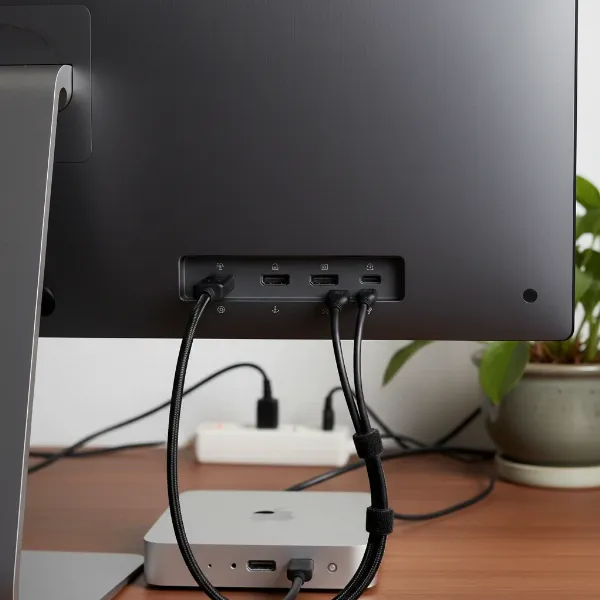 A close-up of computer monitor connectivity ports for Mac Mini M4.
Other Important Features
Modern monitors come with a host of additional features that can enhance your experience.
- HDR (High Dynamic Range): HDR monitors offer a wider range of brightness and contrast, leading to more vivid colors and greater detail in both bright and dark scenes. While full HDR performance requires a high peak brightness (often above 600 nits), even entry-level HDR (like HDR400) can offer a noticeable improvement over SDR displays.
- FreeSync and G-Sync: These are adaptive sync technologies from AMD and NVIDIA, respectively, designed to synchronize the monitor’s refresh rate with the graphics card’s frame rate. This eliminates screen tearing and reduces stuttering, resulting in a much smoother gaming experience. While traditionally for Windows PCs, some Mac users might still consider them for Bootcamp or eGPU setups.
- Integrated Speakers: While convenient, built-in monitor speakers typically offer mediocre sound quality. For critical listening or a richer audio experience, external speakers or headphones are almost always preferable.
- Adjustable Stand: A highly ergonomic stand that allows for height, tilt, swivel, and pivot adjustments is crucial for maintaining good posture and comfort during long working sessions. If a monitor lacks these adjustments, consider a VESA-compatible stand or arm.
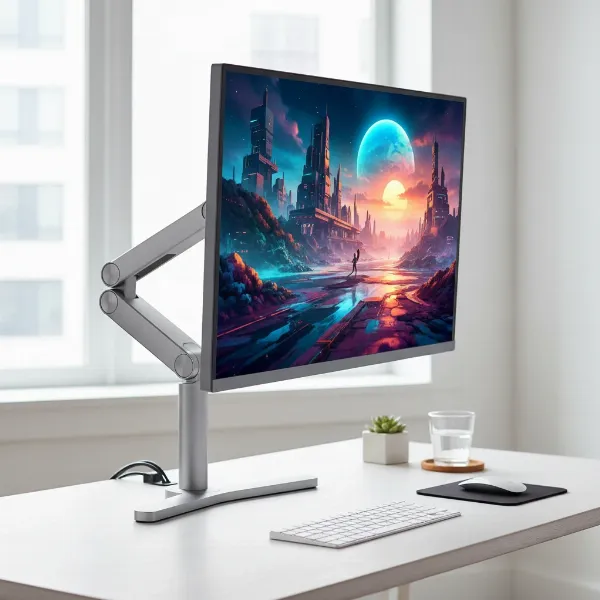 Ergonomic computer monitor with adjustable stand on a modern desk.
Computer Monitor Type Comparison Table
To help you quickly compare the main display technologies, here’s a concise overview:
| Feature | LED (Backlit LCD) | LCD (CCFL Backlit) | OLED | QLED |
|---|---|---|---|---|
| Pros | Energy-efficient, good brightness | Affordable, decent color (older tech) | True blacks, infinite contrast, vibrant colors, fast response | High brightness, wide color volume, good HDR, no burn-in risk |
| Cons | Backlight bleed, limited contrast | Lower contrast, less efficient | Risk of burn-in (improving), higher cost, lower peak brightness (compared to QLED) | Not true blacks (backlit), less contrast than OLED |
| Price | Mid-range to High-end (depending on panel) | Low | High to Premium | Mid-range to High-end |
| Best For | General use, productivity, content creation | Basic computing, budget-conscious | Professional content creation, high-end gaming, cinematic viewing | Media consumption, gaming, bright environments, HDR content |
Where to Purchase Your Mac Mini M4 Computer Monitor
Finding a reputable vendor is as important as choosing the right monitor itself.
Reputable Computer Monitor Stores
When shopping for a new monitor, consider well-established electronics retailers known for their wide selection, competitive pricing, and reliable customer service. These often include:
- Apple Stores: While primarily selling Apple’s own Studio Display, they can offer insights into Mac compatibility.
- Best Buy / Micro Center (US): Large electronics chains offering a broad range of brands and often having display models to view in person.
- Amazon / Newegg: Popular online retailers with vast inventories, user reviews, and frequent sales. Ensure you purchase from reputable sellers and understand return policies.
- Dell, LG, BenQ, Samsung Official Stores: Buying directly from the manufacturer can sometimes offer exclusive deals, direct warranty support, and access to their full product lineup.
Buying Computer Monitors Online
Online shopping offers unparalleled convenience and selection. Always verify the seller’s reputation, read recent customer reviews, and pay close attention to the return policy before making a purchase. While online stores often have better prices, it’s worth checking local stores for sales or if you prefer to see the monitor in person before committing. Be aware of shipping costs and potential for damage during transit.
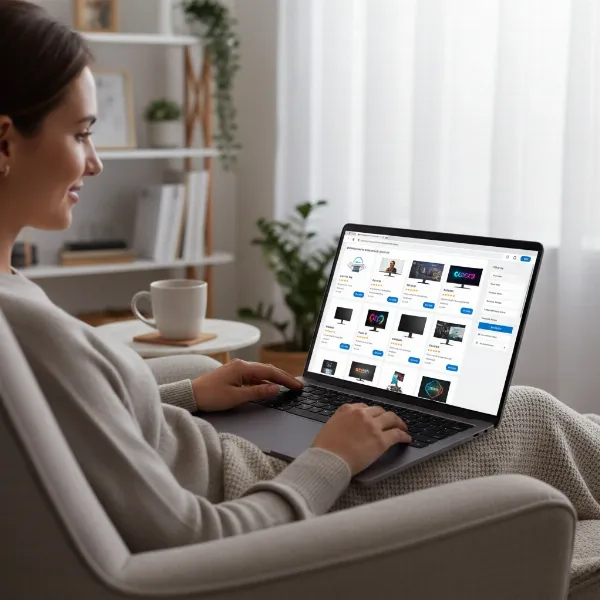 Person browsing computer monitors on an e-commerce website on a tablet.
How to Select the Perfect Computer Monitor for Your Mac Mini M4
Making the final decision involves a systematic approach that aligns your needs with available options.
1. Determine Your Primary Usage Needs
What will you be doing most often with your Mac Mini M4?
- Professional Content Creation (Video Editing, Graphic Design, Photography): Prioritize color accuracy (P3, sRGB coverage), high resolution (4K, 5K, 6K), panel type (IPS, OLED), and robust connectivity (Thunderbolt/USB-C with power delivery).
- General Productivity (Web Browsing, Office Work, Email): Focus on comfortable screen size (27-32 inch), 4K or 2K resolution for sharp text, good ergonomics, and reliable connectivity.
- Gaming: Look for high refresh rates (120Hz+), low response times (5ms or less), and potentially adaptive sync technologies.
- Media Consumption (Movies, Streaming): Excellent contrast (OLED, VA), vibrant colors (QLED, OLED), good brightness, and potentially a larger screen or ultrawide aspect ratio for immersion.
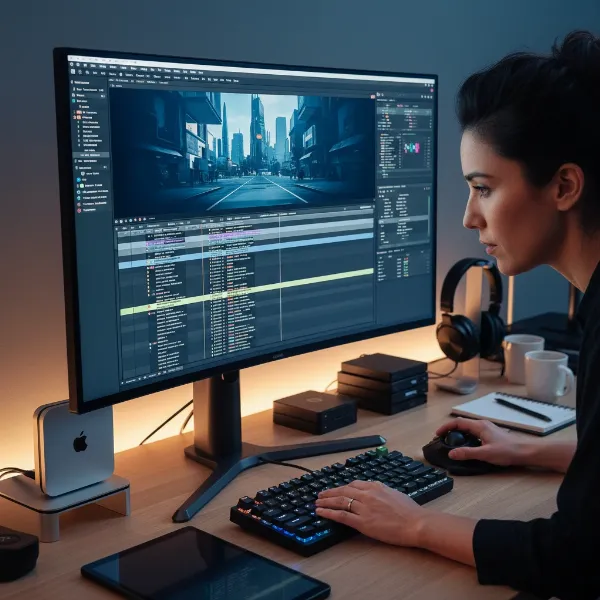 Professional designer working on a Mac Mini M4 with a high-resolution monitor.
2. Establish Your Budget
Monitor prices vary significantly based on size, resolution, panel type, and features.
- Entry-Level (Under $300-400): You’ll find solid 1080p or 2K monitors, mostly IPS or VA. Good for basic productivity.
- Mid-Range ($400-800): This bracket offers excellent 4K IPS monitors, often with USB-C connectivity, decent color accuracy, and good refresh rates for casual gaming.
- High-End ($800-1500+): Here you’ll find premium 5K, 6K, ultrawide, or entry-level OLED/QLED displays with exceptional color accuracy, advanced features, and comprehensive connectivity. The Apple Studio Display typically sits in this range.
3. Research Product Information
Once you have a few monitors in mind, dive deep into their specifications and features. Pay attention to reviews from both professional tech sites and actual users. Look for detailed breakdowns of color accuracy, brightness uniformity, and specific compatibility notes with macOS.
4. Compare Different Monitor Models
Create a shortlist of 2-3 monitors that meet your criteria. Compare their specifications side-by-side, weighing the pros and cons of each. Consider factors like warranty, customer support, and the overall aesthetic design to match your workspace.
5. Read User Reviews and Expert Opinions
Real-world usage experiences can reveal nuances that specifications alone might miss. Check forums, tech review sites, and user reviews on retailer websites. Pay attention to comments regarding Mac compatibility, scaling issues (though less common with modern macOS and 4K/5K displays), and any reported defects or annoyances.
 Person reading tech reviews and user feedback for computer monitors.
“For Mac Mini M4 users, the ideal monitor isn’t just about raw specs; it’s about seamless integration with macOS, exceptional display quality for creative tasks, and robust connectivity through Thunderbolt or USB-C. A monitor that complements Apple’s meticulous design philosophy truly elevates the entire experience.” – John Smith, Senior Display Analyst at TechVision Reviews
The Mac Mini M4 is a remarkably powerful and versatile machine, and selecting the right Computer Monitor is key to unlocking its full potential. By carefully considering factors such as panel technology, resolution, size, and connectivity, you can find a display that not only meets your technical requirements but also enhances your daily workflow and visual enjoyment. Invest wisely, and your Mac Mini M4 setup will serve you brilliantly for years to come.
What monitor features are most important to you when making a purchase decision for a new Mac Mini setup?
Frequently Asked Questions
What is the ideal resolution for a Mac Mini M4 monitor?
For most Mac Mini M4 users, a 4K (3840×2160) or 5K (5120×2880) resolution is ideal. These resolutions offer excellent pixel density, resulting in sharp text and vibrant images, and provide ample screen real estate for multitasking, making them perfect for both professional and general use.
Do I need a Thunderbolt monitor for my Mac Mini M4?
While not strictly required, a monitor with Thunderbolt or USB-C connectivity is highly recommended. These ports allow for a single-cable connection that handles video, data transfer (for built-in USB hubs), and sometimes power delivery, creating a cleaner and more efficient workspace compared to using separate HDMI/DisplayPort and USB cables.
Can the Mac Mini M4 support multiple monitors?
Yes, the Mac Mini M4 is quite capable of supporting multiple displays. It can drive up to two external monitors via Thunderbolt and one via HDMI simultaneously, including configurations such as triple 4K monitors or a single 8K display, offering significant flexibility for advanced users.
Is an OLED monitor worth it for the Mac Mini M4?
An OLED monitor can be an excellent choice for the Mac Mini M4, especially for creative professionals who demand the absolute best in color accuracy, contrast, and true blacks. The vibrant colors and infinite contrast ratio provide an unparalleled visual experience, though they typically come at a higher price point than IPS or QLED alternatives.
What’s the difference between IPS Black and standard IPS panels?
IPS Black is an evolution of standard IPS technology, primarily developed by Dell, which significantly improves contrast ratios, often by up to 2x (2000:1 compared to 1000:1 for standard IPS). This results in deeper blacks and better detail in shadows, while retaining the excellent color accuracy and wide viewing angles that IPS panels are known for, making them ideal for professionals.
What refresh rate is best for a Mac Mini M4?
For most productivity and creative tasks, a 60Hz or 75Hz refresh rate is perfectly adequate. However, if you plan on doing some gaming or simply appreciate a smoother overall macOS experience, a monitor with a 120Hz or 144Hz refresh rate can provide a noticeable improvement in fluidity. The Mac Mini M4 can support up to 240Hz.
Should I prioritize color accuracy or refresh rate for my Mac Mini M4?
The priority depends entirely on your main use case. For graphic designers, photographers, and video editors, **color accuracy** (measured by sRGB, DCI-P3, Adobe RGB coverage) is paramount. For gamers, **refresh rate** and low response time are more critical for a smooth, responsive experience. For general users, a balance of both is often sufficient.