Embarking on a journey in graphic design? One of the most critical tools in your arsenal, even before advanced software or a powerful computer, is a high-quality computer monitor. Your monitor is the window into your creative world, directly impacting color accuracy, detail perception, and overall workflow efficiency. For graphic design students, selecting the right display isn’t just about viewing your work; it’s about ensuring your designs translate accurately from screen to print or digital platforms, forming the foundation of your professional practice. This guide will walk you through everything you need to know to choose the best computer monitor that will empower your creativity and help you excel in your studies.
 A graphic design student working diligently on a high-quality computer monitor displaying creative work.
Understanding Popular Computer Monitor Types
The core technology behind a computer monitor significantly influences its performance, especially concerning color reproduction and viewing angles—factors critical for graphic design. Let’s break down the most common types you’ll encounter.
Computer Monitor LED
Light Emitting Diode (LED) technology is not a standalone panel type but rather the primary backlighting source for most modern LCD (Liquid Crystal Display) monitors. Instead of traditional cold cathode fluorescent lamps (CCFLs), LEDs offer superior energy efficiency, thinner designs, and better control over brightness and contrast. This advanced backlighting allows manufacturers to achieve improved picture quality in LCD panels.
Computer Monitor LCD (Liquid Crystal Display)
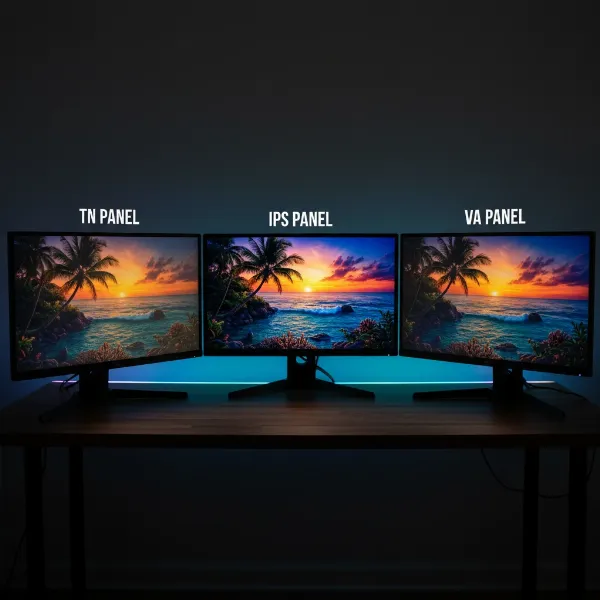
LCD monitors remain prevalent, primarily differentiated by their panel technology: TN, VA, and IPS.
- TN (Twisted Nematic) Panels: These are typically the most affordable and offer fast response times and high refresh rates, making them popular among gamers. However, TN panels suffer from poor color accuracy and narrow viewing angles, causing colors to shift when viewed from different positions. This makes them unsuitable for graphic design where consistent color is paramount.
- VA (Vertical Alignment) Panels: VA panels provide better contrast ratios and deeper blacks than TN panels, along with improved viewing angles. While they offer a good balance for general use and media consumption, their color accuracy and consistency, particularly with off-angle viewing, still fall short of the demands of professional graphic design.
- IPS (In-Plane Switching) Panels: This is the gold standard for graphic design students. IPS panels deliver exceptional color accuracy, consistent color reproduction across wide viewing angles, and generally good contrast. They are ideal for tasks where color fidelity and visual consistency are crucial, ensuring that what you see on screen is as close as possible to the final output.
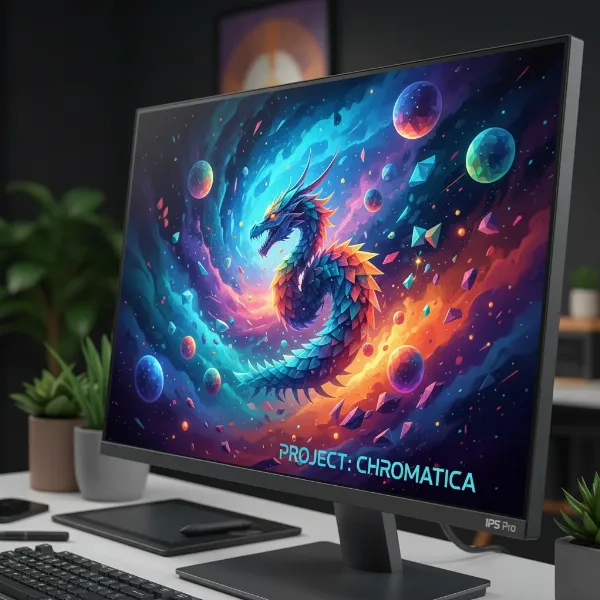 A professional-grade IPS monitor displaying highly accurate and consistent colors from wide viewing angles.
Computer Monitor OLED (Organic Light Emitting Diode)
OLED technology represents the pinnacle of display performance, offering self-emissive pixels that can turn on and off individually. This capability results in perfect blacks, infinite contrast ratios, incredibly vibrant colors, and near-instantaneous response times. For graphic design, OLED monitors provide an unparalleled visual experience with stunning color accuracy and dynamic range, especially beneficial for HDR content creation. However, OLED monitors are typically more expensive and carry a slight risk of burn-in with static images over prolonged periods, a consideration for designers who work with consistent UI elements.
Computer Monitor QLED (Quantum Dot Light Emitting Diode)
QLED technology, primarily developed by Samsung, is an enhancement of traditional LCD panels. It uses quantum dots to produce purer and more vibrant colors, as well as higher brightness levels compared to standard LED-backlit LCDs. While QLED monitors offer an expanded color gamut and impressive brightness, they still rely on backlighting, meaning they cannot achieve the perfect blacks and infinite contrast of OLED displays. For graphic design students, QLED can be a strong contender for vibrant color work and bright environments, often at a more accessible price point than OLED.
Essential Factors When Choosing Your Computer Monitor
Choosing the right computer monitor for graphic design requires careful consideration of several key specifications. Each factor plays a vital role in ensuring your work is displayed accurately and comfortably.
Screen Size and Resolution
The size and resolution of your monitor significantly impact your workspace and the clarity of your designs.
- Common Screen Sizes: For graphic design, larger screens generally enhance productivity. Monitors typically range from 24 inches to 32 inches or more. A 27-inch monitor is a popular choice, offering a good balance between screen real estate and desk space. Larger monitors, like 32-inch displays, provide ample room for multiple design applications and detailed work.
- Resolution Explained: Resolution refers to the number of pixels a screen can display horizontally and vertically.
- HD (1280×720) and Full HD (1920×1080): While common, these resolutions may not provide enough detail or screen space for intricate graphic design work, especially on larger screens where pixelation can become noticeable.
- 2K (QHD/2560×1440): A solid step up from Full HD, QHD offers significantly more pixels, resulting in sharper images and more workspace. This resolution is a great option for graphic design students on a budget, providing a good blend of detail and affordability.
- 4K (UHD/3840×2160): This is widely considered ideal for graphic design. A 4K monitor provides four times the pixels of Full HD, delivering incredibly sharp details, crisp text, and extensive screen real estate for precise editing without excessive zooming. “A 4K monitor significantly benefits graphic design projects by providing a fourfold increase in pixel count compared to standard HD displays. This higher resolution allows intricate detail work without excessive zooming, ensuring that designs appear sharp and lifelike.”
- 5K (5120×2880) and 8K (7680×4320): These ultra-high resolutions offer even more pixel density, resulting in unparalleled sharpness and detail. While powerful, 5K and 8K monitors are typically premium options and may require more powerful graphics hardware.
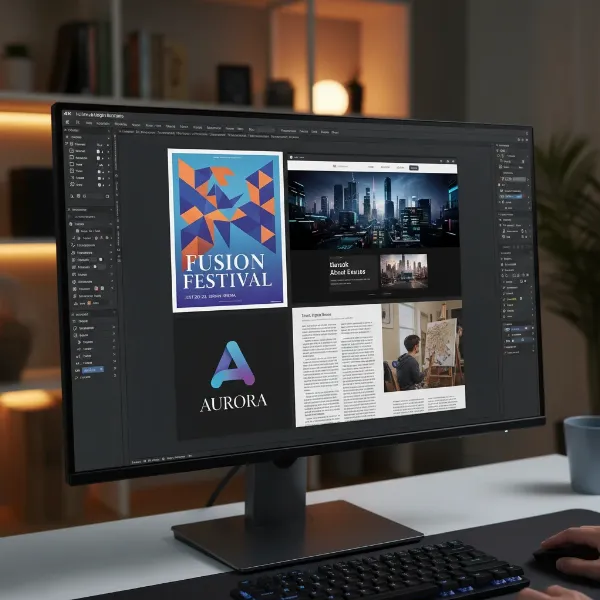 A 4K UHD computer monitor showcasing incredibly sharp details and extensive screen real estate for graphic design.
Panel Type
As discussed earlier, the panel type is paramount for color-critical work.
- TN Panels (Twisted Nematic): Avoid these for graphic design. Their poor color accuracy and narrow viewing angles will hinder your ability to produce consistent and professional work.
- IPS Panels (In-Plane Switching): Highly recommended. IPS panels offer superior color accuracy, wide viewing angles, and consistent color reproduction. This ensures that colors look uniform regardless of your viewing angle, which is essential for collaborative work and client presentations.
- VA Panels (Vertical Alignment): While offering better contrast than TN, VA panels still typically fall behind IPS in color accuracy and viewing angle consistency, making them a less ideal choice for graphic design tasks.
Refresh Rate and Response Time
These specifications are often highlighted for gaming monitors but have different implications for graphic design.
- What is Refresh Rate? Refresh rate measures how many times per second the display updates its image, expressed in Hertz (Hz). A 60Hz monitor updates 60 times per second.
- What is Response Time? Response time is the speed at which a pixel can change from one color to another, measured in milliseconds (ms).
- Refresh Rate and Response Time for Graphic Design: For most static graphic design tasks—like photo editing, illustration, or layout design—a 60Hz refresh rate is perfectly adequate. High refresh rates (120Hz or 144Hz+) are primarily beneficial for motion graphics, video editing, or UI/UX prototyping, where smooth movement is important, but not essential for static image manipulation. Similarly, ultra-low response times (1ms-5ms) are crucial for fast-paced gaming to minimize motion blur, but less critical for design work. Focus on color accuracy over extreme speed in these metrics.
Connectivity Ports
A versatile selection of ports ensures your monitor can connect seamlessly with various devices and peripherals.
- Common Port Types:
- HDMI (High-Definition Multimedia Interface): Widely used, supports both video and audio. HDMI 2.0 or higher is recommended for 4K resolutions at 60Hz.
- DisplayPort (DP): Often preferred for high-resolution and high-refresh-rate connections, especially with PCs. DisplayPort 1.4 or newer supports 4K and higher resolutions.
- VGA (Video Graphics Array) and DVI (Digital Visual Interface): Older analog and digital standards, respectively. You’ll rarely find these on modern graphic design monitors, and they are not recommended due to limitations in resolution and signal quality.
- USB-C (Universal Serial Bus Type-C): A highly versatile port that can transmit video, data, and power over a single cable. Many modern laptops, especially MacBooks, benefit greatly from USB-C connectivity with power delivery (PD), allowing you to charge your laptop directly through the monitor and reduce cable clutter.
- Thunderbolt: Similar to USB-C but offers even higher bandwidth, supporting multiple 4K displays, high-speed data transfer, and power delivery over a single connection. It’s particularly useful for creative professionals using compatible laptops.
- Choosing the Right Connectivity: Prioritize monitors with a good mix of DisplayPort and HDMI, and definitely look for USB-C with power delivery and a built-in USB hub for convenience. This allows you to connect external drives, drawing tablets, and other peripherals directly to your monitor.
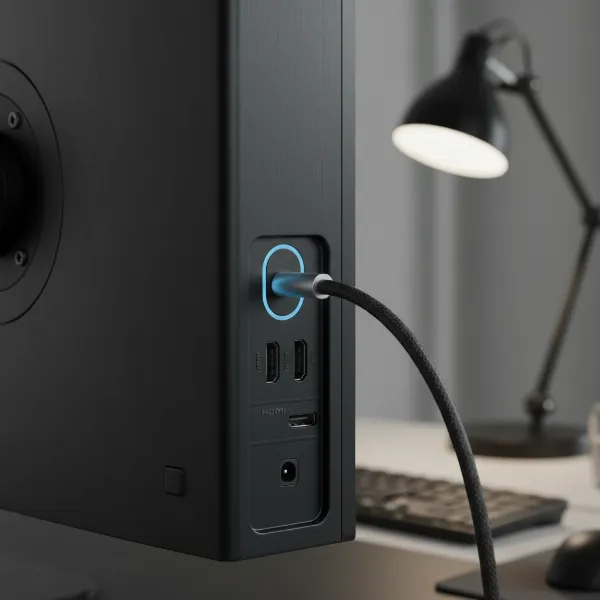 The back of a computer monitor with various connectivity ports, emphasizing a USB-C port with power delivery.
Other Important Features
Beyond the core specifications, several additional features can enhance your graphic design workflow and comfort.
- HDR (High Dynamic Range): HDR support allows a monitor to display a wider range of colors and contrast, with brighter highlights and deeper shadows. While not strictly necessary for all graphic design, it’s increasingly important for working with HDR content and can offer a more immersive visual experience.
- FreeSync and G-Sync: These are adaptive sync technologies that synchronize the monitor’s refresh rate with the graphics card’s frame rate to prevent screen tearing and stuttering. They are primarily designed for gaming and hold little to no relevance for graphic design students.
- Integrated Speakers: While some monitors include built-in speakers, their audio quality is often basic. For critical audio monitoring, separate external speakers or headphones are always recommended.
- Adjustable Stand: An ergonomic stand that allows for height, tilt, swivel, and pivot adjustments is crucial for maintaining a comfortable posture during long design sessions. The ability to pivot to portrait mode can be particularly useful for working on vertical layouts or long documents.
- Anti-Glare/Matte Coating: This feature reduces reflections from ambient light, making it easier on your eyes and allowing you to focus on your work without distractions.
- Flicker-Free Technology and Low Blue Light Mode: These features help reduce eye strain during extended use, contributing to a more comfortable and productive environment.
- Factory Calibration and Color Gamut Coverage: Look for monitors that are factory-calibrated for accuracy and specify high coverage of color spaces like 100% sRGB, high Adobe RGB, and DCI-P3. A Delta E value of less than 2 (ΔE≤2) indicates excellent color accuracy. Some professional monitors offer hardware calibration options or come with calibration software, ensuring consistent color over time.
Comparison of Monitor Types for Graphic Design
Here’s a comparison focusing on their relevance for graphic design students:
| Feature | LCD (IPS) | OLED | QLED |
|---|---|---|---|
| Pros | Excellent color accuracy, wide viewing angles, generally more affordable. Good for sustained work. | Perfect blacks, infinite contrast, vibrant colors, instantaneous response. Unparalleled visual fidelity. | Vibrant colors, high brightness, wide color gamut. Often brighter than OLED. |
| Cons | Cannot achieve true black (backlight bleed), contrast ratio inferior to OLED. | Higher cost, potential for burn-in with static UI elements over time, lower full-screen brightness in some models. | Still relies on backlighting, so not true black. Contrast not as deep as OLED. |
| Price | Mid-range to High-end | Premium | Mid-range to High-end (often a step below OLED) |
Where to Buy Computer Monitors
Finding the right computer monitor for your graphic design studies can happen through various retail channels.
Reputable Computer Monitor Stores
- Electronics Retailers: Large electronics stores (e.g., Best Buy, Micro Center) offer a wide selection, allowing you to see monitors in person, compare features, and get advice from sales associates. This is great for understanding size and panel quality firsthand.
- Specialty Photography/Design Stores: Some stores cater specifically to creative professionals and may offer higher-end, calibrated monitors with expert advice.
- Manufacturer Websites: Brands like Dell, BenQ, ASUS, and LG often sell directly from their websites, sometimes with exclusive deals or configurations.
Buying Computer Monitors Online
- Online Marketplaces: Websites like Amazon, B&H Photo, and Newegg offer an extensive range of monitors from various brands, often with competitive pricing and user reviews.
- Dell Technologies: Provides a range of monitors suitable for graphic design students, often with student discounts available.
- Lenovo: Also offers monitors that cater to graphic design needs, emphasizing resolution and color gamut.
When buying online, always read detailed product descriptions, check return policies, and consult professional and user reviews to make an informed decision.
Guide to Choosing a Computer Monitor that Fits Your Needs
Navigating the multitude of options can be overwhelming, but a structured approach will help you pinpoint the ideal computer monitor for your graphic design studies.
1. Determine Your Usage Needs
Before anything else, consider what type of graphic design work you’ll primarily be doing. Are you focused on print design, web design, illustration, photography, or motion graphics?
- For print and web design, color accuracy (sRGB, Adobe RGB) and high resolution (4K) are paramount.
- For illustration and digital painting, precise color, high resolution, and potentially a larger screen size for more canvas space are key.
- For motion graphics or video editing, while color accuracy is still vital, a slightly higher refresh rate might offer a smoother workflow.
2. Set Your Budget
Computer monitors for graphic design can range significantly in price. Establish a realistic budget from the outset. While premium OLED or 8K displays offer top-tier performance, excellent IPS 4K monitors are available at more student-friendly prices. “The Dell 27 Plus 4K S2725QS is praised as an affordable 27-inch 4K monitor that delivers professional-grade color accuracy (99% sRGB coverage) and sharp visuals, making it a strong budget-friendly option for graphic artists.”
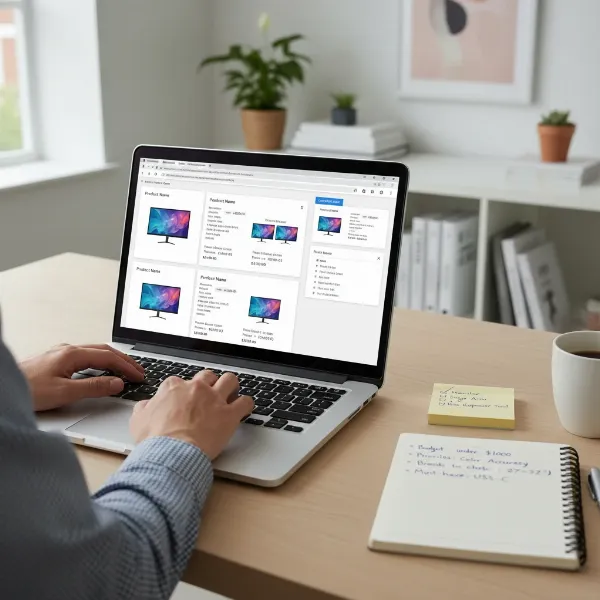 A person comparing specifications and prices of different computer monitors for graphic design on a laptop screen.
3. Research Product Information
Once you have a general idea of your needs and budget, dive into researching specific models. Look for detailed specifications regarding:
- Panel Type: Prioritize IPS for color accuracy and viewing angles.
- Resolution: Aim for 4K (UHD) if your budget allows, otherwise QHD.
- Color Gamut: Look for high percentages of sRGB, Adobe RGB, and DCI-P3 coverage, and a low Delta E value.
- Connectivity: Ensure it has the ports you need, especially USB-C with power delivery if you have a compatible laptop.
- Ergonomics: An adjustable stand is crucial for comfort during long hours of work.
4. Compare Products
Don’t settle for the first option. Compare a few shortlisted monitors side-by-side. Pay attention to expert reviews that specifically evaluate monitors for creative work, often including tests for color accuracy, uniformity, and performance in design software. Consider both the pros and cons to weigh what sacrifices, if any, you are willing to make.
5. Read Product Reviews
User reviews and professional critiques offer invaluable insights into a monitor’s real-world performance. Look for feedback regarding color accuracy, backlight bleed, screen uniformity, and overall user experience. This helps uncover any potential drawbacks not immediately apparent from the spec sheet.
Conclusion
Choosing the best computer monitor for your graphic design studies is a pivotal decision that will shape your creative output and learning experience. By prioritizing color accuracy, a high resolution (preferably 4K), an IPS panel, and essential ergonomic features, you can equip yourself with a powerful tool that accurately translates your vision from your mind to the screen. Remember to balance these critical specifications with your budget and specific design needs to find a monitor that supports your artistic growth every step of the way. Investing wisely in your display now will undoubtedly pay dividends in the quality of your portfolio and your journey as a graphic designer.
What monitor features have you found most essential in your creative workflow, and why?
Frequently Asked Questions
What monitor specs are most important for graphic design students?
For graphic design students, the most important computer monitor specifications include excellent color accuracy (high sRGB, Adobe RGB, and DCI-P3 coverage with a low Delta E value), an IPS panel for wide viewing angles and consistent colors, and a high resolution such as 4K for sharp details. Ergonomics, like an adjustable stand, are also vital for comfort during long design sessions.
Do graphic designers really need 4K monitors?
While not strictly mandatory for all graphic design, a 4K computer monitor significantly benefits designers by offering four times the pixels of Full HD. This high resolution provides incredibly sharp details and more screen real estate, making it easier to work with intricate designs, typography, and compare multiple artboards without excessive zooming. “4K UHD monitors are one of the best resolutions available, it is truly a powerhouse delivering great details, amazing color accuracy and astonishing precision.”
Is an OLED monitor suitable for graphic design?
Yes, OLED computer monitors are excellent for graphic design due to their perfect blacks, infinite contrast ratios, and vibrant color reproduction. Their self-emissive pixels offer unparalleled visual fidelity, particularly for HDR content. However, they are typically more expensive and carry a slight risk of burn-in if static elements are displayed for very long periods, which is a minor consideration for design work.
How important is refresh rate for graphic design?
For most static graphic design tasks like photo editing or illustration, a standard 60Hz refresh rate on a computer monitor is perfectly sufficient. Higher refresh rates (e.g., 120Hz or 144Hz) are more beneficial for motion graphics, video editing, or UI/UX prototyping where smooth on-screen movement is critical, but they are not a primary concern for static creative work.
What screen size is best for graphic design students?
For graphic design students, a computer monitor between 27 and 32 inches is generally recommended. A 27-inch monitor provides a good balance of screen real estate and desk space, while a 32-inch display offers ample room for complex projects and multi-application workflows. The larger size, especially when paired with 4K resolution, enhances productivity and allows for greater detail.
Should I get a monitor with USB-C for graphic design?
Yes, a Computer Monitor with USB-C connectivity, especially with power delivery (PD), is highly recommended for graphic design students. It allows you to connect a compatible laptop, transfer data, and charge your device using a single cable, significantly reducing cable clutter and streamlining your workspace. Many professional monitors now integrate USB hubs for added convenience.