In the demanding world of professional work and high-performance computing, the right monitor can be the linchpin of your productivity. For power users, a display isn’t merely an output device; it’s a central hub, a window into complex projects, and a gateway to unparalleled efficiency. This is where Thunderbolt 4 computer monitors shine, offering a sophisticated blend of blazing-fast data transfer, robust power delivery, and streamlined connectivity, all through a single cable. Whether you’re a creative professional handling massive video files, a developer managing intricate codebases across multiple screens, or a business user seeking an immaculate, clutter-free workstation, understanding the capabilities of Thunderbolt 4 displays is crucial to elevating your setup. This comprehensive guide will navigate the landscape of the best Thunderbolt 4 monitors, helping you uncover the features that truly matter and make an informed decision tailored to your needs.
Types of Computer Monitor Panels for Power Users
When exploring the best Thunderbolt 4 computer monitors, understanding the underlying panel technology is paramount, as it directly impacts visual quality, color accuracy, and overall performance. Power users, especially those in creative fields, demand exceptional image fidelity.
Computer Monitor IPS (In-Plane Switching)
IPS panels are renowned for their superior color accuracy and wide viewing angles, making them a favorite among graphic designers, video editors, and photographers. Advanced versions like IPS Black, seen in monitors such as the Dell UltraSharp U2725QE and U4025QW, significantly enhance contrast ratios compared to traditional IPS, delivering deeper blacks and more vibrant colors. This improvement addresses one of the historical drawbacks of IPS technology, offering a richer visual experience crucial for detailed work.
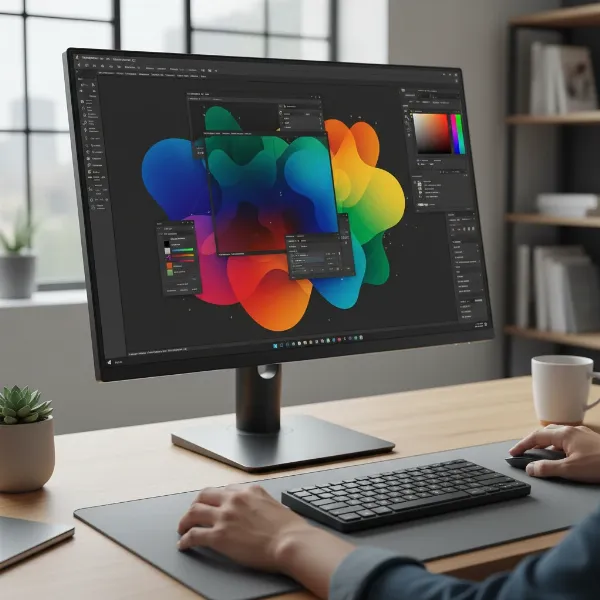 A professional working on graphic design using an IPS panel computer monitor with accurate colors.
Computer Monitor OLED (Organic Light-Emitting Diode)
OLED technology provides individual pixel control, resulting in true blacks, infinite contrast ratios, and extremely fast response times. This delivers stunning visual clarity and vibrant colors, making OLED Thunderbolt 4 monitors exceptional for content consumption, professional color grading, and even some gaming scenarios. Monitors like the Samsung Odyssey OLED G9 offer an immersive experience with breathtaking image quality. However, OLED panels can come with a higher price tag and a potential (though increasingly rare) risk of burn-in, which might be a consideration for static professional interfaces.
Computer Monitor VA (Vertical Alignment)
VA panels strike a balance between IPS and TN, offering better contrast ratios than standard IPS panels and decent color reproduction. While their viewing angles might not be as wide as IPS, they are often found in curved and ultrawide Thunderbolt 4 monitors, providing an immersive experience for multitasking and productivity. The Samsung ViewFinity S65TC, for instance, utilizes VA technology in an ultrawide format, ideal for users who need extensive screen real estate.
Factors to Consider When Buying a Thunderbolt 4 Computer Monitor
Choosing the ideal Thunderbolt 4 computer monitor requires careful consideration of several technical specifications and features. These elements directly influence your workflow efficiency and visual experience.
Screen Size and Resolution
For power users, screen size and resolution are critical for multitasking and viewing intricate details.
- Common Screen Sizes: Monitors range from 27-inch for standard professional use to 32-inch, 40-inch, or even 49-inch ultrawide displays for expansive workspaces. Larger screens enhance productivity by allowing multiple applications to be open simultaneously without constant alt-tabbing.
- Resolution:
- 4K (3840 x 2160): A popular choice, offering sharp images and ample screen real estate. Monitors like the Dell UltraSharp U2725QE deliver exceptional 4K clarity.
- 5K (5120 x 2880) / 5K2K (5120 x 2160 Ultrawide): These resolutions provide even greater pixel density and horizontal space, ideal for video editing timelines, complex spreadsheets, or detailed graphic design. LG’s 40BP95C-W, for example, offers a 5K2K ultrawide experience.
- 8K (7680 x 4320): While less common, some cutting-edge Thunderbolt 4 monitors can support a single 8K display, offering unparalleled detail for highly specialized applications. Thunderbolt 4 can support a single 8K monitor at 60Hz.
Panel Technology
As discussed, panel types like IPS (especially IPS Black), OLED, and VA each offer distinct advantages. IPS Black provides enhanced contrast and color accuracy, OLED delivers true blacks and lightning-fast response times, and VA excels in contrast for curved ultrawide setups. Your choice should align with your primary tasks, prioritizing color fidelity, speed, or immersive viewing.
Refresh Rate and Response Time
While often associated with gaming, these factors are also relevant for power users, particularly those involved in video production, animation, or even fast-paced coding environments.
- What is Refresh Rate? Measured in Hertz (Hz), it indicates how many times the screen updates per second. A higher refresh rate, such as 120Hz (seen in the Dell UltraSharp U2725QE), provides smoother motion, reducing eye strain during prolonged use and making scrolling and video playback appear more fluid.
- What is Response Time? Measured in milliseconds (ms), it refers to how quickly pixels can change from one color to another. Lower response times (e.g., 5ms for professional monitors, 0.03ms for OLED gaming displays) minimize motion blur, which is crucial for tasks requiring precise visual feedback.
- Suitable for Gaming: For power users who also dabble in gaming, a monitor with at least a 120Hz refresh rate and a 5ms or lower response time (like the Dell U2725QE’s 120Hz refresh) offers a good balance between productivity and casual gaming needs.
Connectivity Ports
Thunderbolt 4 monitors are distinguished by their exceptional connectivity, often acting as a central hub for your entire workstation.
- Thunderbolt 4: The cornerstone, providing up to 40 Gbps bidirectional bandwidth for data, video, and power delivery over a single cable. It supports daisy-chaining multiple monitors and peripherals.
- HDMI (High-Definition Multimedia Interface): Common for connecting other devices, ensuring broad compatibility. Many Thunderbolt 4 monitors include HDMI 2.0 or 2.1 ports.
- DisplayPort (DP): Often used for high-resolution and high-refresh-rate video connections. Thunderbolt 4 inherently leverages DisplayPort technology for video output.
- USB-C: While Thunderbolt 4 uses the USB-C connector, not all USB-C ports are Thunderbolt 4. Thunderbolt 4 offers significantly higher bandwidth and capabilities. Monitors often include additional USB-C downstream ports for more peripherals.
- USB Type-A: Multiple USB-A ports (e.g., 10Gbps) are typically integrated, transforming the monitor into a comprehensive USB hub for keyboards, mice, external drives, and other accessories.
- RJ45 Ethernet Port: Many professional Thunderbolt 4 monitors feature a built-in Ethernet port, allowing your connected laptop to access a wired network connection directly through the monitor, further streamlining your setup. The Dell U2725QE includes a 2.5GbE RJ45 port.
- Choosing the Right Connectivity: A monitor with a robust selection of ports, especially multiple Thunderbolt 4 and USB-C downstream ports, can effectively replace a traditional docking station, drastically reducing cable clutter.
Other Features
Advanced features can further enhance the experience for power users.
- HDR (High Dynamic Range): Provides a wider range of colors and contrast, making content look more vibrant and realistic. VESA DisplayHDR certifications (e.g., DisplayHDR 400, DisplayHDR True Black 400) indicate performance levels.
- FreeSync and G-Sync: Adaptive sync technologies from AMD and NVIDIA, respectively, synchronize the monitor’s refresh rate with your GPU’s frame rate to eliminate screen tearing and stuttering, offering smoother visuals for dynamic content or gaming.
- Integrated Speakers: While often not audiophile-grade, built-in speakers can be convenient for general audio playback, saving desk space.
- Adjustable Stand: Ergonomics are crucial for power users spending long hours at their desks. Features like height adjustment, tilt, swivel, and pivot allow for optimal viewing angles and comfort.
- KVM Switch (Keyboard, Video, Mouse): Some premium Thunderbolt 4 monitors, like the Dell UltraSharp U4025QW, include a built-in KVM switch, allowing you to control multiple computers with a single set of keyboard and mouse connected to the monitor, switching between them seamlessly.
- Power Delivery (PD): Thunderbolt 4 monitors can deliver substantial power (up to 100W, and even 140W in some Dell models) to connected laptops, charging them while you work, further simplifying cable management.
Comparison Table of Computer Monitor Panel Technologies
Choosing the right panel type for your Thunderbolt 4 computer monitor is a key decision for power users. This table highlights the primary characteristics of the most relevant panel technologies.
| Feature | IPS (In-Plane Switching) | OLED (Organic Light-Emitting Diode) | VA (Vertical Alignment) |
|---|---|---|---|
| Pros | Excellent color accuracy, wide viewing angles (178°) | True blacks, infinite contrast, fastest response (0.03ms) | High contrast ratios, good color (better than TN), often in curved displays |
| Cons | Historically lower contrast than VA/OLED (improved with IPS Black), potential for “IPS glow” | Higher cost, potential for burn-in with static images, glossy screens | Narrower viewing angles than IPS/OLED, slower response than OLED |
| Ideal For | Graphic design, video editing, photography, general productivity, professionals needing precise colors | Content consumption, professional color grading, specific high-end gaming, users prioritizing ultimate image quality | Multitasking with ultrawide displays, general office work, casual gaming, immersive viewing |
| Typical Usage with Thunderbolt 4 | High-resolution professional displays (e.g., Dell UltraSharp series) | Premium creative work, high-end gaming (e.g., Samsung Odyssey OLED G9) | Ultrawide productivity monitors (e.g., Samsung ViewFinity S65TC) |
Where to Buy Best Thunderbolt 4 Computer Monitors?
Finding the ideal Thunderbolt 4 computer monitor often means exploring a variety of reputable retailers, both online and in physical stores.
Reputable Computer Monitor Stores
For a hands-on experience and expert advice, consider visiting major electronics retailers such as Best Buy or local specialized computer stores. These establishments often have display models available, allowing you to assess image quality and build before making a purchase. However, their selection of specific Thunderbolt 4 models might be more limited.
Buying Computer Monitors Online
Online retailers offer the broadest selection and competitive pricing for Thunderbolt 4 monitors.
- Manufacturer Websites: Brands like Dell, LG, Samsung, and BenQ often sell directly from their official websites, sometimes offering exclusive deals or configurations.
- Major E-commerce Platforms: Amazon, Newegg, and B&H Photo Video are excellent sources with extensive reviews, detailed specifications, and a wide array of models from various manufacturers. For professional-grade equipment, B&H Photo Video is particularly strong.
- Specialized Tech Retailers: Websites like Adorama or even smaller, reputable tech stores online can also be good options, especially for niche or high-end professional displays.
When buying online, always check the return policy, warranty information, and customer reviews to ensure a smooth purchasing experience.
Guide to Choosing the Right Thunderbolt 4 Computer Monitor
Selecting the best Thunderbolt 4 computer monitor requires a structured approach to match your professional demands with the available technology.
Identify Your Usage Needs
Start by clearly defining your primary tasks.
- Creative Professionals (Video Editing, Graphic Design): Prioritize high resolution (4K, 5K, ultrawide), exceptional color accuracy (IPS Black, OLED, wide color gamuts like DCI-P3), and robust connectivity for external storage and peripherals. A large screen or ultrawide format will provide ample space for timelines and toolbars.
- Developers/Programmers: Look for high-resolution displays (4K, 5K2K ultrawide) to view extensive code, potentially with pivot functionality for vertical coding. Strong multi-monitor support and integrated Ethernet are also highly beneficial.
- Business/Productivity Users: Focus on resolution (4K), screen size (27-inch to 34-inch ultrawide), and comprehensive connectivity that can replace a docking station. Ergonomics and power delivery for laptop charging are key.
- Hybrid Users (Productivity & Casual Gaming): Seek monitors with a good balance of high resolution, decent color accuracy, and a higher refresh rate (e.g., 120Hz) with adaptive sync support.
Determine Your Budget
Thunderbolt 4 monitors, especially premium models, can vary significantly in price. Establish a realistic budget that aligns with the features you need. More advanced panel technologies like IPS Black and OLED, higher resolutions, larger sizes, and extensive hub features will typically command a higher price.
Research Product Information
Once you have your needs and budget defined, delve into specific product details. Read professional reviews, watch video breakdowns, and check manufacturer specifications. Pay close attention to power delivery capabilities, the number and type of downstream ports, and specific display technologies like IPS Black or color calibration reports.
Compare Products
Create a shortlist of 2-3 monitors that meet your criteria. Compare their specifications side-by-side, focusing on resolution, panel type, power delivery, port selection, and any unique features like KVM switches or advanced ergonomic stands. Consider long-term value, as a quality Thunderbolt 4 monitor is a significant investment in your productivity hub.
Read Product Reviews
User reviews can provide invaluable real-world insights into a monitor’s performance, reliability, and any potential quirks. Look for consistent feedback regarding image quality, connectivity issues, or customer support experiences.
“A Thunderbolt 4 monitor isn’t just a display; it’s the brain of a modern power user’s workstation, unifying data, video, and power into a single, elegant solution.” – Dr. Eleanor Vance, Lead Technologist at NexGen Displays
Conclusion
The pursuit of the best Thunderbolt 4 Computer Monitor for power users is a journey toward unparalleled productivity and a streamlined workspace. By consolidating high-speed data transfer, robust power delivery, and exceptional display capabilities into a single connection, these monitors redefine what’s possible at your desk. Whether your work demands pixel-perfect color accuracy, vast screen real estate for complex projects, or the sheer efficiency of a single-cable setup that eliminates clutter, a Thunderbolt 4 monitor stands ready to transform your professional environment. Making an informed choice, guided by your specific needs and an understanding of key features like advanced panel technologies, high resolutions, and comprehensive connectivity, ensures you invest in a central hub that empowers your workflow. What demanding task will you tackle next with the ultimate Thunderbolt 4 monitor at your command?
Frequently Asked Questions
What is the main advantage of a Thunderbolt 4 monitor over a regular USB-C monitor?
The main advantage is significantly higher bandwidth and versatility. Thunderbolt 4 offers 40 Gbps bidirectional bandwidth, which is up to four times faster than standard USB-C, allowing for faster data transfer, more robust multi-monitor support (up to two 4K displays or one 8K display), and superior peripheral connectivity, all while delivering power to your laptop.
Can a Thunderbolt 4 monitor charge my laptop?
Yes, most Thunderbolt 4 monitors offer substantial power delivery (PD) capabilities, typically ranging from 60W to 100W, and some premium models can even deliver up to 140W. This means you can charge your compatible laptop through the same single Thunderbolt 4 cable that connects it for video and data, reducing cable clutter.
Do I still need a docking station if I have a Thunderbolt 4 monitor?
For many power users, a well-equipped Thunderbolt 4 monitor can effectively eliminate the need for a separate docking station. These monitors often integrate multiple USB ports (Type-A and Type-C), Ethernet, and sometimes even a KVM switch, serving as a comprehensive hub for all your peripherals and network connections.
Are Thunderbolt 4 monitors compatible with Mac and Windows PCs?
Yes, Thunderbolt 4 is designed for broad compatibility. While popular among Mac users, Thunderbolt 4 monitors seamlessly integrate with high-end Windows PCs that also feature Thunderbolt 4 ports, ensuring versatile connectivity across different platforms.
What resolution should I look for in a Thunderbolt 4 monitor for professional work?
For most professional power users, a 4K (3840 x 2160) resolution offers an excellent balance of sharpness and screen real estate. Creative professionals or developers might benefit even more from 5K (5120 x 2880) or ultrawide 5K2K (5120 x 2160) monitors for expansive workspaces and intricate detail.