Waking up to a blank screen on your computer monitor, only to find your PC is humming along as usual, can be incredibly frustrating. The dreaded “No Signal” message is a common issue that can halt your productivity or gaming session dead in its tracks. But don’t panic! This comprehensive guide will walk you through a series of logical troubleshooting steps to help you identify and resolve why your computer monitor is displaying no signal while your PC is clearly powered on. We’ll cover everything from basic checks to more advanced hardware diagnostics, ensuring you have the best chance of getting your display back up and running.
Common Scenarios for “No Signal” on Your Computer Monitor
When your computer monitor flashes “No Signal,” it simply means it’s not receiving a video feed from your computer. This can stem from a variety of sources, including loose cables, incorrect input selections, faulty hardware components, or even software conflicts. The key to solving this problem is a systematic approach to eliminate potential causes one by one. Understanding the common reasons behind this message will empower you to tackle the issue effectively.
Initial Checks: The Basics First
Before diving into complex diagnostics, it’s crucial to start with the simplest and most common culprits. Many “no signal” issues are resolved by addressing these fundamental points.
Check Monitor Cables
One of the most frequent reasons for a blank screen is an improperly connected or faulty display cable. Ensure your monitor cable (HDMI, DisplayPort, DVI, or VGA) is securely plugged into both your computer’s graphics card (or motherboard’s integrated graphics port) and the monitor itself. A loose connection, even slightly, can disrupt the signal.
- Inspect Connections: Gently but firmly push both ends of the cable into their respective ports.
- Check for Damage: Examine the cable for any visible damage, bent pins, or frayed wires. A damaged cable might be the root cause.
- Try a Different Cable: If available, swap out your current cable with another one. Cables can degrade over time or become faulty, even without obvious external damage.
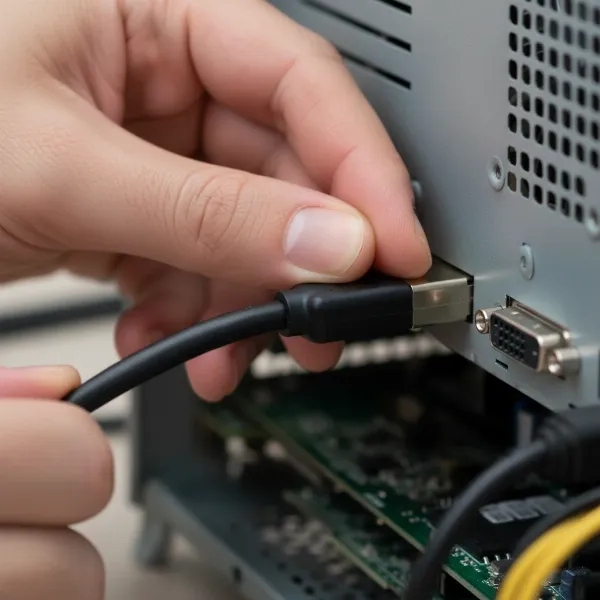 person checking monitor cable connection to computer
Verify Power Connections
It might seem obvious, but sometimes the simplest oversight can lead to a “no signal” message. Confirm that both your computer and your computer monitor are properly plugged into a working power outlet and are powered on.
- Monitor Power: Ensure the monitor’s power light is illuminated. If not, check its power cable and try a different power outlet.
- PC Power: Confirm your PC is fully powered on and not in sleep mode. Listen for fan sounds or look for indicator lights on the case.
Select Correct Input Source
Modern computer monitors often have multiple input ports (e.g., HDMI 1, HDMI 2, DisplayPort, DVI, VGA). If your monitor is set to the wrong input source, it won’t display an image even if everything else is connected correctly.
- Use Monitor Buttons: Locate the input/source button on your monitor (usually on the bezel or underside) and cycle through the available input options until the correct one is selected.
- Match PC Output: Make sure the input selected on the monitor matches the port your PC’s display cable is connected to. For instance, if you’re using an HDMI cable, ensure the monitor is set to the corresponding HDMI input.
Hardware Troubleshooting Steps
If the basic checks didn’t resolve the “no signal” issue, the problem might lie with your computer’s internal hardware. These steps involve checking and potentially re-seating components. Always power down your PC and unplug it from the wall before opening the case or handling internal components.
Restart Your Computer and Monitor
A simple restart can often resolve temporary glitches. Perform a full shutdown of both your computer and your computer monitor. Unplug their power cables from the wall, wait about 30 seconds, then plug them back in and restart. This process is often called a “power cycle” and can clear residual charges that might be causing issues.
Test with a Different Cable or Monitor
To isolate the problem, try testing your setup with known working components.
- Different Monitor: Connect your PC to another monitor or even a TV if you have one available. If the display works, your original monitor is likely the culprit.
- Different PC: If you have access to another computer, connect your primary monitor to it. If it works, the issue is with your original PC, not the monitor.
Reseat Graphics Card
The graphics card (GPU) is responsible for sending the video signal to your computer monitor. If it’s not seated correctly in its PCIe slot, it won’t function.
- Access Case: Open your PC’s side panel.
- Locate GPU: Identify your graphics card (it’s usually the largest expansion card plugged into the motherboard).
- Unplug Power: Disconnect any power cables leading to the GPU.
- Release Clip: Unclip the locking mechanism at the end of the PCIe slot.
- Carefully Remove: Gently pull the graphics card straight out of its slot.
- Reinsert: Align the card and push it firmly back into the PCIe slot until it clicks into place. Reconnect any power cables.
- Test: Close your PC case and test if the display issue is resolved.
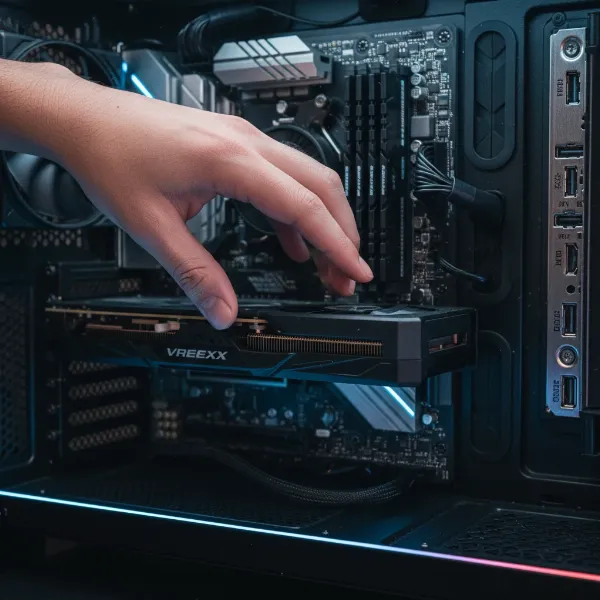 hand carefully reseating a graphics card into its PCIe slot on a motherboard
Check for RAM Issues
Believe it or not, loose or faulty RAM modules can prevent your computer from booting properly and, consequently, sending a signal to your monitor.
- Locate RAM: Find the RAM sticks (usually two or four) plugged into slots on your motherboard.
- Release Clips: Release the clips on either side of each RAM stick.
- Remove and Reinsert: Carefully remove each RAM stick, wipe the contacts with a dry, lint-free cloth, and then firmly reinsert them into their slots until the clips lock into place.
- Test: Try booting your PC again. If you have multiple RAM sticks, try booting with only one at a time to identify a potentially faulty module.
Remove Peripherals
Sometimes, conflicting peripherals can cause boot issues. Unplug all unnecessary peripherals (USB devices, external hard drives, extra sound cards, etc.) except for your keyboard and mouse. Then, try to boot your computer. If it displays a signal, plug your peripherals back in one by one to identify the problematic device.
Software and Driver Solutions
While a “no signal” issue typically points to hardware, sometimes software or driver problems can prevent a display from appearing, especially after an update or if the system boots but can’t display anything in normal mode.
Boot into Safe Mode (if possible)
If you can get any display (e.g., a BIOS screen), but the monitor goes black once Windows or macOS attempts to load, it might be a driver or resolution issue.
- Windows Safe Mode: Repeatedly press F8 or Shift+F8 during startup (for older Windows versions) or use the Windows Recovery Environment (if accessible) to boot into Safe Mode.
- Mac Safe Mode: Hold down the Shift key during startup.
- Low Resolution: In Safe Mode, your computer will use basic drivers and a low resolution. If you get a display, update your graphics drivers or revert recent display settings.
Update Graphics Drivers
Outdated or corrupted graphics drivers are a common cause of display problems. If you manage to get a display (even in Safe Mode or by switching monitors temporarily), the first thing to do is update your graphics drivers.
- Download Latest Drivers: Visit the website of your graphics card manufacturer (NVIDIA, AMD, or Intel) or your PC manufacturer’s support page.
- Install: Download and install the latest drivers for your specific graphics card model.
- Restart: Restart your computer after installation.
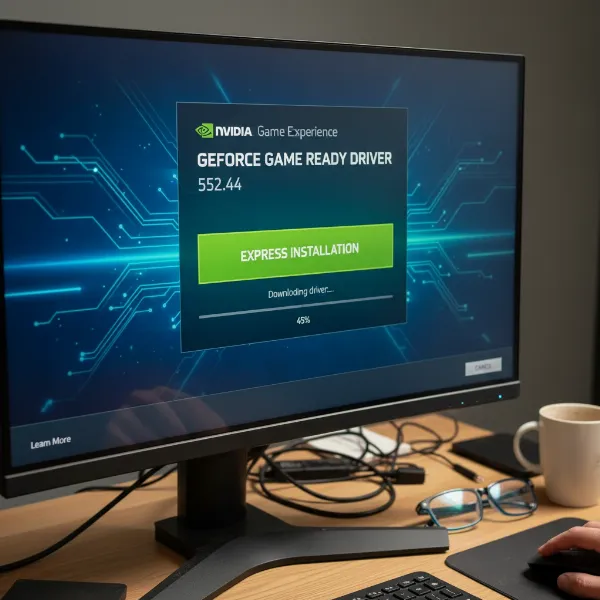 computer screen showing graphics driver update process
Check BIOS/UEFI Settings
Incorrect BIOS/UEFI settings, particularly those related to display output or integrated graphics, can sometimes cause a “no signal” problem.
- Access BIOS/UEFI: During startup, repeatedly press the designated key (often Del, F2, F10, or F12) to enter your system’s BIOS/UEFI settings.
- Integrated Graphics: If your CPU has integrated graphics and you’re using a dedicated GPU, ensure the primary video output is correctly configured to your dedicated GPU. Sometimes, the system might default to integrated graphics.
- Reset to Defaults: If you’ve recently changed BIOS settings, try loading the “Optimized Defaults” or “Factory Defaults” to rule out configuration issues.
Advanced Troubleshooting and When to Seek Professional Help
If you’ve exhausted the above troubleshooting steps and your computer monitor still says “No Signal,” the problem might be more severe, potentially indicating a failure in core components.
Power Supply Unit (PSU) Issues
While your PC might appear to be “on” (fans spinning, lights glowing), a failing Power Supply Unit might not be delivering adequate power to all components, especially the power-hungry graphics card. This can result in no video output. Diagnosing a PSU issue often requires specialized testing or swapping it with a known good unit, which can be complex.
Motherboard Failure
A faulty motherboard can manifest in various ways, including preventing video output. If the motherboard’s PCIe slot for the graphics card is damaged, or if other critical pathways are compromised, you won’t get a display. Motherboard replacement is a complex and often costly repair.
Seeking Expert Assistance
If you’ve tried all the troubleshooting steps and your computer monitor remains stubbornly dark, it’s time to consider professional help. A qualified technician can use specialized tools to diagnose component failures, such as testing individual parts like the GPU, PSU, or motherboard, or even checking for subtle circuit board issues that are beyond the scope of home troubleshooting. They can offer precise solutions and prevent further damage.
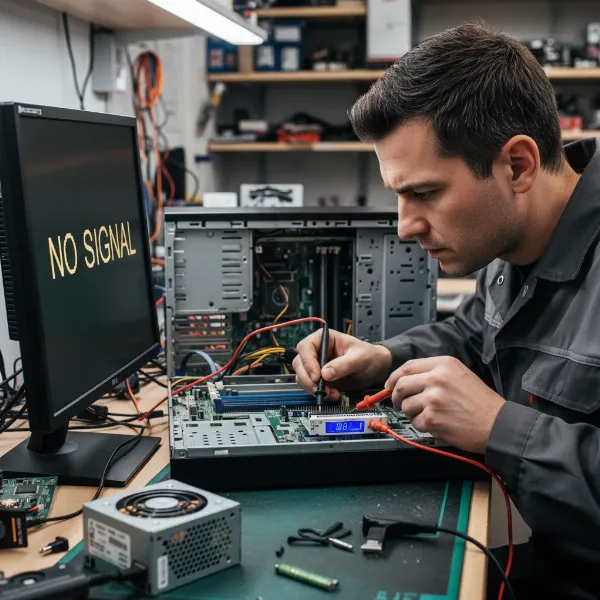 computer repair technician diagnosing PC no signal problem
“A systematic approach is your best friend when tackling display issues. Start simple, rule out the obvious, and only escalate to complex diagnostics when necessary. Patience and methodical testing often lead to a solution.” – Dr. Elena Petrova, Lead Hardware Engineer at Tech Solutions Inc.
Conclusion
The “Monitor Says No Signal But PC Is On” dilemma is a common but often resolvable issue for computer monitor users. By systematically working through basic checks like cable connections and input sources, and then moving to hardware troubleshooting such as re-seating components, many users can restore their display. Remember to always prioritize safety by disconnecting power before handling internal PC components. If the problem persists after diligent troubleshooting, don’t hesitate to seek expert advice. With the right approach, you can identify the root cause and get back to enjoying a clear, responsive Computer Monitor display. What’s the most unusual fix you’ve discovered for a “no signal” problem?
Frequently Asked Questions
My PC lights are on, but nothing is happening on the monitor. Could it be a completely dead graphics card?
Yes, if your PC powers on but provides no display, a completely dead or malfunctioning graphics card is a strong possibility. Even if the card’s fans spin, it doesn’t guarantee it’s outputting a video signal. Testing with another GPU or using integrated graphics (if available) can help confirm this.
I re-seated my RAM and GPU, but my computer monitor still shows no signal. What’s next?
If re-seating RAM and GPU didn’t work, consider testing with a different display cable and a different monitor to rule out those components. You might also try clearing the CMOS (BIOS battery removal or jumper switch) to reset BIOS settings to default, as incorrect settings can sometimes block video output.