Few things are as disruptive as a computer monitor that suddenly starts flickering on and off. This irritating visual glitch can quickly halt your productivity, ruin your gaming experience, or simply make using your PC unbearable. Whether it’s a subtle shimmer or a complete blackout and reappearance, a flickering computer monitor signals that something isn’t quite right. Fortunately, many common causes can be diagnosed and resolved with a systematic approach. This comprehensive guide will walk you through the essential steps to identify and fix the pesky problem of a flickering display, helping you restore a stable and clear image to your screen.
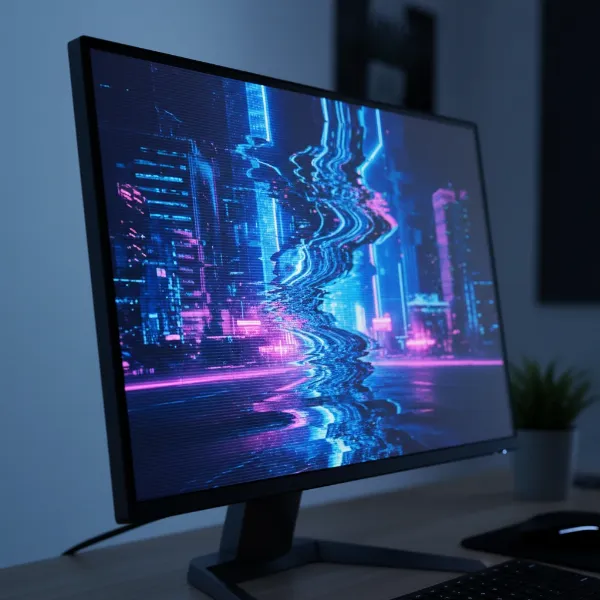 A computer monitor screen showing visual flickering, indicating a common display problem.
Understanding Why Your Computer Monitor Flickers
Before diving into solutions, it’s helpful to grasp the potential culprits behind your monitor’s erratic behavior. Flickering can stem from a variety of sources, broadly categorized into software-related issues and hardware malfunctions. Knowing the common causes can guide your troubleshooting efforts and help you pinpoint the exact problem.
Common Software-Related Causes
Often, the issue isn’t with the physical monitor itself but with the digital signals or processes governing its display.
- Outdated or Corrupt Display Drivers: Graphics drivers are essential software that allows your operating system to communicate effectively with your graphics card and, subsequently, your monitor. If these drivers are old, corrupted, or incompatible with recent updates, they can lead to display inconsistencies, including flickering.
- Incorrect Refresh Rate Settings: Every monitor has an optimal refresh rate (measured in Hertz, Hz), which is the number of times per second the screen is redrawn. Setting your monitor to a refresh rate it doesn’t natively support, or one that is unstable with your current setup, can cause noticeable flickering or blackouts.
- Incompatible Applications: Sometimes, specific software or applications, especially those that heavily utilize graphics resources or have known conflicts, can trigger screen flickering. This is often an intermittent issue, only occurring when that particular application is active.
- Adaptive Sync (FreeSync/G-Sync) Conflicts: Technologies like AMD FreeSync and NVIDIA G-Sync synchronize your monitor’s refresh rate with your graphics card’s frame rate to prevent screen tearing. While beneficial, these features can occasionally cause flickering, particularly when operating outside their optimal range or with certain driver versions or cables.
Common Hardware-Related Causes
While software issues are frequent, physical components and their connections are equally prone to causing display problems.
- Loose or Damaged Cables: The display cable connecting your monitor to your computer (HDMI, DisplayPort, DVI, VGA) carries the video signal. A loose connection at either end, or a physically damaged cable, can interrupt this signal, resulting in intermittent or constant flickering. Power cables can also contribute to this if they are not supplying stable power.
- Faulty Monitor or Graphics Card: At the heart of it, the monitor itself might be failing due. Internal components can degrade over time, leading to unstable performance. Similarly, a struggling or defective graphics card (GPU) within your computer may not be able to consistently render and send a stable video signal, causing the screen to flicker.
- Power Supply Issues: An insufficient or unstable power supply unit (PSU) in your computer might not deliver enough consistent power to your graphics card, leading to performance issues that manifest as screen flickering. External monitors also rely on their power adapters; a faulty adapter or power strip can cause problems.
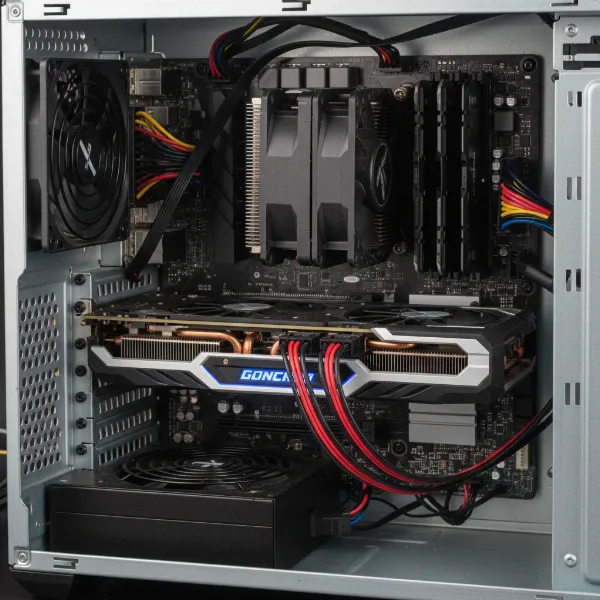 Close-up view of internal computer hardware, highlighting GPU and power supply unit.
Step-by-Step Troubleshooting for Monitor Flickering
When your computer monitor starts flickering, a methodical approach is your best friend. Start with the simplest checks and gradually move to more complex solutions. Remember to test your monitor after each step to see if the problem is resolved.
Initial Checks: Cables and Connections
Before diving into software, always start with the physical components. These are often the easiest to diagnose and fix.
- Verify All Connections: Ensure that all cables connected to your computer monitor are securely plugged in at both ends. This includes the power cable and the display cable (HDMI, DisplayPort, DVI, or VGA). A loose connection is a surprisingly common culprit for intermittent flickering.
- Try Different Cables and Ports: If re-securing connections doesn’t help, try swapping out your current display cable for a new one. Cables can become internally damaged over time, even without visible external signs. If you have multiple display output ports on your graphics card or multiple input ports on your monitor, try connecting to a different port on both devices to rule out a faulty port.
- Remove Adapters: If you are using any video adapters (e.g., HDMI to DVI, DisplayPort to VGA), try to connect the monitor directly without them, if possible. Adapters can sometimes introduce signal interference or be faulty themselves.
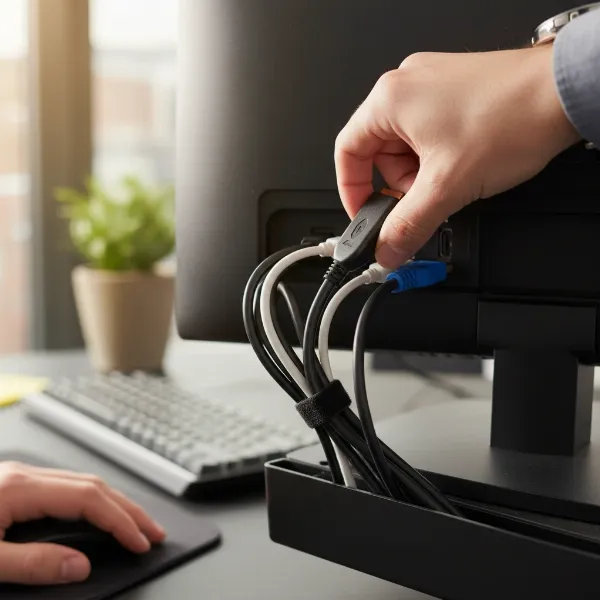 A hand connecting a display cable (HDMI or DisplayPort) to the back of a computer monitor.
Software Solutions: Drivers and Settings
Once you’ve ruled out physical connection issues, the next area to investigate is your computer’s software and settings.
- Check Task Manager for Flickering: This is a crucial diagnostic step. Press
Ctrl + Shift + Escto open Task Manager. If the Task Manager itself doesn’t flicker while the rest of the screen does, it typically points to an incompatible application causing the issue. If the entire screen, including Task Manager, flickers, the problem is likely with your display driver. - Update, Roll Back, or Clean Install Display Drivers:
- Update: Outdated drivers are a common cause. Visit your graphics card manufacturer’s website (NVIDIA, AMD, Intel) or your laptop manufacturer’s support page to download and install the latest drivers.
- Roll Back: If flickering started after a recent driver update, rolling back to a previous stable version might resolve it. You can do this via Device Manager:
Display adapters > Right-click your adapter > Properties > Driver tab > Roll Back Driver. - Clean Install: For persistent driver issues, a clean installation is best. Use a tool like Display Driver Uninstaller (DDU) in Safe Mode to completely remove existing drivers, then install the latest version from your manufacturer’s website.
- Adjust Monitor Refresh Rate: An incorrect refresh rate can cause instability.
- Right-click on your desktop and select
Display settings. - Scroll down and click
Advanced display settings. - Under
Choose a refresh rate, select the recommended or a lower stable refresh rate for your monitor (e.g., from 75Hz to 60Hz if you were pushing it).
- Right-click on your desktop and select
- Disable Adaptive Sync (FreeSync/G-Sync): If your monitor and graphics card support these features, try disabling them in your monitor’s OSD (On-Screen Display) menu or through your graphics card’s control panel (NVIDIA Control Panel or AMD Radeon Software). Some users have found this resolves flickering issues.
- Check for Windows Updates: Ensure your operating system is up to date. Sometimes, Windows updates include critical fixes for display issues or driver compatibility. Go to
Settings > Windows Updateand check for any available updates. - Scan for Malware: While less common, some malicious software can interfere with system performance, including display functions. Run a full scan with your preferred antivirus software.
- Boot into Safe Mode: If you suspect an application conflict, booting into Safe Mode will run Windows with a minimal set of drivers and programs. If the flickering stops in Safe Mode, you can be confident that a third-party application or driver is the cause. You can then identify and uninstall recently installed software.
- Disable Desktop Window Manager (DWM): In specific scenarios, disabling DWM might help. Search for
services.msc, locateDesktop Window Manager Session Manager, stop the service, and set its startup type toDisabled. Exercise caution with this step, as DWM manages visual effects and can impact system aesthetics.
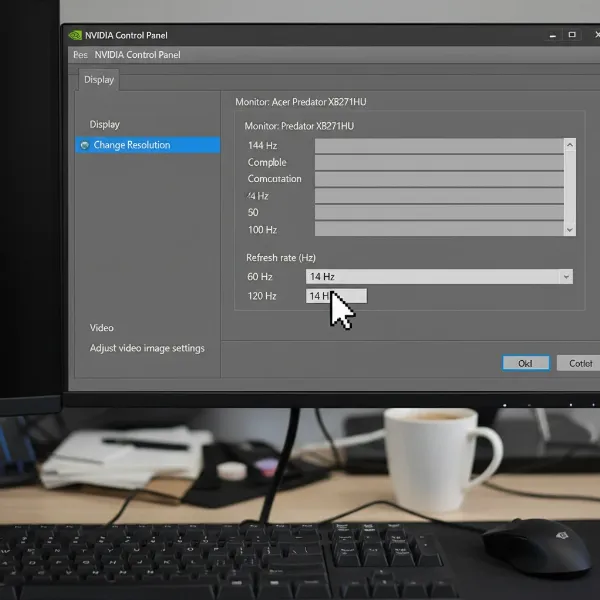 A computer screen displaying graphics driver update interface or display settings window.
Advanced Troubleshooting: Hardware & BIOS
If software solutions haven’t resolved the flickering, the problem might be deeper within your hardware or system firmware.
- Test with a Different Monitor or PC: To determine if the issue is with your monitor or your computer, try connecting your flickering monitor to another computer. If it still flickers, the monitor itself is likely faulty. Conversely, connect a different, known-working monitor to your PC. If the new monitor also flickers, the problem lies with your computer’s hardware (GPU, motherboard, PSU).
- Check in BIOS/UEFI: Access your computer’s BIOS or UEFI settings (usually by pressing a key like
Del,F2,F10, orF12during startup). If the flickering occurs even within the BIOS environment, this strongly suggests a hardware problem with your graphics card, motherboard, or the monitor itself, as the operating system and drivers are not yet loaded. - Reseat Graphics Card: If you have a desktop PC with a dedicated graphics card, safely open your computer case and carefully reseat the graphics card in its PCIe slot. Ensure it’s firmly and evenly seated. While you’re in there, double-check that its power cables are also secure.
- Consider Power Supply Unit (PSU) Issues: An aging or underpowered PSU can cause system instability, including display issues. If you have ruled out other hardware, and particularly if you experience other power-related glitches, a failing PSU could be the culprit. Diagnosing this often requires expert knowledge or testing with a known good PSU.
- Update BIOS/Firmware: In rare cases, especially with newly built systems or specific compatibility issues, a motherboard BIOS or monitor firmware update might be necessary to resolve display stability problems. Always follow manufacturer instructions carefully when updating firmware.
When to Seek Professional Help
Despite your best efforts, some computer monitor flickering issues require professional intervention. If you’ve systematically worked through all the troubleshooting steps and your monitor continues to flicker, it’s often a strong indicator of a more severe hardware failure. This could involve an internal component failure within the monitor, a critical graphics card malfunction that isn’t driver-related, or a power supply issue that’s beyond basic troubleshooting. At this point, contact the monitor or PC manufacturer’s support, especially if the device is still under warranty. They may offer further diagnostics, repair services, or suggest a replacement.
“Persistent flickering, especially after ruling out common software and cable issues, often points to an underlying hardware problem that may require specialized tools or expertise to diagnose and fix. Don’t hesitate to consult a professional before potentially causing more damage.” – John Doe, Senior PC Technician at ComputeMonitorPC.com
 A professional PC technician diagnosing or repairing a computer monitor with tools.
Bảng so sánh các loại Computer Monitor
While the core issues of flickering often cross monitor types, understanding basic differences can sometimes help contextualize problems. However, for troubleshooting flickering, the focus is more on the underlying components and connections rather than panel technology itself.
| Cause Category | Specific Issue | Primary Fixes |
|---|---|---|
| Hardware | Loose/Damaged Display Cables | Resecure, replace cables, try different ports |
| Faulty Monitor | Test with another PC, professional repair/replacement | |
| Graphics Card Issues | Update/reinstall drivers, reseat card, professional help | |
| Power Supply Unit (PSU) | Test with another PSU (expert only), professional help | |
| Software | Outdated/Corrupt Drivers | Update, rollback, clean install drivers |
| Incorrect Refresh Rate | Adjust refresh rate in display settings | |
| Incompatible Software | Identify via Task Manager/Safe Mode, uninstall/update app | |
| Adaptive Sync Conflict | Disable FreeSync/G-Sync | |
| OS Issues | Windows Updates, new user profile, malware scan |
Conclusion
A flickering Computer Monitor can be a frustrating problem, but with a patient and systematic approach, you can often pinpoint and resolve the issue. By carefully checking cables, updating drivers, adjusting display settings, and ruling out software conflicts, you stand a good chance of restoring your display to perfect working order. Remember to start with the simplest solutions and work your way up to more complex diagnostics. While some problems might indicate a need for professional repair or even a replacement, many common causes of monitor flickering are within your power to fix.
What was the most challenging monitor flickering issue you ever faced, and how did you ultimately resolve it?
Frequently Asked Questions
Why does my monitor flicker only sometimes?
Intermittent flickering often suggests a loose connection, a software conflict that only activates under certain conditions (like specific applications or games), or an unstable refresh rate. It could also point to an incipient hardware failure that hasn’t become constant yet, such as a struggling graphics card or a dying monitor.
Can a faulty cable cause computer monitor flickering?
Absolutely. A damaged or poorly connected display cable (HDMI, DisplayPort, DVI, VGA) is one of the most common causes of monitor flickering. The signal can be interrupted, leading to brief blackouts or persistent instability. Always start your troubleshooting by checking and potentially replacing your cables.
Does monitor refresh rate affect flickering?
Yes, an incorrect or unsupported refresh rate can definitely cause flickering. If your monitor is set to a refresh rate higher than it can stably handle, or if there’s a mismatch with your graphics card, it can lead to display instability. Adjusting the refresh rate in your display settings to its native or a slightly lower value can often resolve this.
How do I know if my GPU or computer monitor is causing the flicker?
To determine if it’s your GPU or monitor, first check if Task Manager flickers. If it does, it’s likely a driver or GPU issue. Then, test your monitor with another computer. If it still flickers, the monitor is the problem. If it works fine, connect a different monitor to your PC. If that monitor flickers, your GPU or PC hardware is the likely culprit.
My computer monitor flickers when gaming, what should I do?
Flickering during gaming often points to graphics driver issues, adaptive sync conflicts (FreeSync/G-Sync), or an unstable graphics card overclock. Ensure your GPU drivers are up-to-date, try disabling adaptive sync in your monitor and GPU settings, and check if your graphics card is overheating or has an unstable overclock.