A clear, vibrant computer monitor is crucial for everything from immersive gaming and efficient work to enjoying your favorite movies. Over time, however, dust, fingerprints, and smudges inevitably accumulate, degrading your viewing experience and potentially causing eye strain. The good news is that cleaning your monitor screen doesn’t have to be a daunting task, nor does it require harsh chemicals or risky techniques. With the right approach, you can restore your display to its original clarity safely and effectively, without any fear of scratching its delicate surface.
Why a Clean Monitor Screen Matters
Beyond mere aesthetics, maintaining a clean computer monitor screen offers tangible benefits that enhance your overall digital experience. A pristine display provides optimal visual clarity, making text sharper and images more vivid, which directly contributes to reduced eye strain during extended use. When your screen is free from distracting smudges and grime, your eyes don’t have to work harder to process information, leading to less fatigue and discomfort. Furthermore, regular, gentle cleaning helps to preserve the integrity of your monitor’s anti-glare or protective coatings, potentially extending its lifespan and maintaining its peak performance for years to come.
What NOT to Use: Common Mistakes and Harmful Agents
Before diving into the safe cleaning methods, it’s essential to understand what you should never use on your monitor screen. Many common household cleaning products and materials contain harsh chemicals or abrasive textures that can cause irreparable damage to modern display panels and their specialized coatings.
Avoid these materials at all costs:
- Abrasive Materials: Paper towels, tissues, old t-shirts, or any rough cloths can scratch the delicate surface of your screen, leaving behind permanent marks or lint. Their coarse fibers are simply too aggressive for sensitive display technology.
- Harsh Chemicals: Window cleaners like Windex, ammonia-based solutions, alcohol-based cleaners (including undiluted isopropyl alcohol), acetone, hand sanitizers, Clorox wipes, or any general household cleaning solutions are strictly off-limits. These powerful chemicals can strip away anti-glare coatings, cause discoloration, or even dissolve certain plastic components, leading to irreversible damage.
- Direct Spraying: Never spray any liquid directly onto your monitor screen. Liquid can easily seep into the edges of the display or internal components, potentially causing electrical shorts or permanent damage that even a warranty might not cover. Always apply cleaning solutions to a cloth first.
The Essential Toolkit for Scratch-Free Cleaning
Equipping yourself with the right tools is the first step toward a safely cleaned monitor screen. Fortunately, the items you need are simple, affordable, and readily available.
Your primary weapon against dirt and smudges will be high-quality microfiber cloths. These lint-free, ultra-soft cloths are specifically designed to trap dust and absorb liquids without scratching sensitive surfaces. It’s often beneficial to have at least two or three: one for dry dusting, one for applying a damp solution, and another clean, dry one for buffing away streaks.
For tackling more stubborn marks, distilled water is your safest bet. Unlike tap water, which contains minerals that can leave behind streaks or residue, distilled water is purified and won’t harm your screen. Some users also find a 50/50 mixture of distilled water and white vinegar effective for greasy fingerprints, but always test on an inconspicuous area first and use sparingly.
Additionally, you might consider screen-specific cleaning solutions or pre-moistened wipes designed explicitly for electronics. If you opt for these, always verify that they are alcohol-free, ammonia-free, and recommended by your monitor’s manufacturer. For dislodging dust from crevices, a soft-bristled brush (like a clean, new paintbrush or a camera lens brush) or a can of compressed air (held upright and at a safe distance) can be incredibly useful.
Step-by-Step Guide: How to Clean Your Monitor Screen Safely
Cleaning your computer monitor screen doesn’t have to be a high-stakes operation. By following these simple, sequential steps, you can ensure a gleaming, scratch-free display every time.
Step 1: Power Down and Prepare
|
Our Picks for the Best Computer Monitor in 2026
As an Amazon Associate I earn from qualifying purchases.
|
||
| Num | Product | Action |
|---|---|---|
| 1 | Samsung 32-Inch Flat Computer Monitor, 75Hz, Borderless Display, AMD FreeSync, Game Mode, Advanced Eye Care, HDMI and DisplayPort, LS32B304NWNXGO, 2024 |

|
| 2 | acer 27 Inch Monitor- KB272-27 Inch FHD IPS (1920 x 1080) Display, Up to 120Hz Refresh Rate, 99% sRGB, Tilt, Adaptive-Sync Support (FreeSync Compatible) 1ms (VRB), HDMI & VGA Ports |
|
| 3 | LG 24U411A-B 24-inch Full HD (1920 x 1080) IPS Computer Monitor, 120Hz, HDR10, Reader Mode, Flicker Safe, HDMI, Slim Stand Base, Black |
|
| 4 | MNN Portable Monitor 15.6inch FHD 1080P USB C HDMI Gaming Ultra-Slim IPS Display w/Smart Cover & Speakers,HDR Plug&Play, External Monitor for Laptop PC Phone Mac (15.6\'\' 1080P) |
|
| 5 | New! Sceptre 27-inch Gaming Monitor 100Hz 1ms DisplayPort HDMI x2 100% sRGB AMD FreeSync Build-in Speakers, Eye Care Frameless Machine Black 2025 (E275W-FW100T Series) |
|
| 6 | Philips 221V8LB 22 inch Class Thin Full HD (1920 x 1080) Monitor, 100Hz Refresh Rate, VESA, HDMI x1, VGA x1, LowBlue Mode, Adaptive Sync, 4 Year Advance Replacement Warranty |
|
| 7 | KOORUI 22 Inch Computer Monitor Full HD 1080P 100Hz PC Gaming Screen VA Panel Ultra-Slim Display 3000:1 Contrast Ratio with Adpitive Sync (HDMI/VGA/VESA Compatible 100x100mm/Audio Out), Tilt, Black |
|
| 8 | Amazon Basics 24 Inch (23.8 inch viewable) Monitor, FHD 1080P, Max 100Hz, VESA Compatible, Built-in Speakers, Black |
|
| 9 | KOORUI 24-inch Computer Monitor Full HD 1920 x 1080p 100Hz VA Display 4000:1 Contrast Ratio with HDMI VGA, TÜV Rheinland Certified, 100 x 100 mm VESA Mountable, Ultra-Slim Design, Tilt, Black, E2412F |
|
| 10 | Samsung 27\" Essential S3 (S36GD) Series FHD 1800R Curved Computer Monitor, 100Hz, Game Mode, Advanced Eye Comfort, HDMI and D-sub Ports, LS27D366GANXZA, 2024 |
|
Before touching your monitor, ensure it’s completely safe to clean. First, turn off your monitor and then unplug it from the power outlet. This not only eliminates the risk of electrical shock but also makes dust and smudges more visible against a dark screen. Allow the monitor to cool down completely if it has been on for an extended period, especially for older display technologies.
Step 2: Gentle Dusting
Start with a dry, clean microfiber cloth. Gently wipe the entire screen surface, moving in broad, circular motions. The goal here is to remove any loose dust, dirt particles, or pet hair that could potentially scratch the screen if rubbed with moisture. For tricky corners or the edges of the bezel, a soft-bristled brush or a quick burst of compressed air can help dislodge stubborn dust without physical contact. Avoid pressing down hard during this step; simply let the cloth glide over the surface.
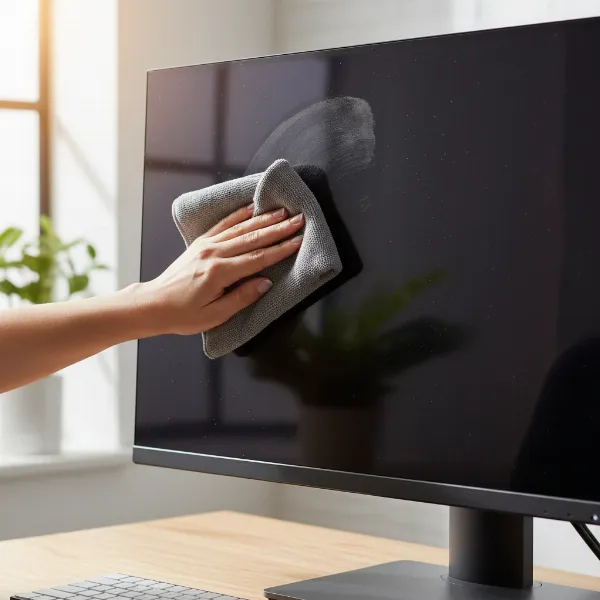 A hand gently wiping a computer monitor screen with a microfiber cloth, showing a streak-free clean result in a bright home office setting.
Step 3: Tackling Stubborn Smudges (If Needed)
If your screen still has fingerprints, grease marks, or sticky residue after dry dusting, it’s time for a slightly damp approach. Lightly dampen a separate, clean microfiber cloth with distilled water. The cloth should be just barely moist, not dripping wet. Wring out any excess liquid rigorously to prevent moisture from seeping into the monitor’s delicate internal components.
Gently wipe the affected areas of the screen with the damp cloth, again using light, circular motions. Avoid scrubbing vigorously or applying excessive pressure, as this can still damage the screen’s surface or underlying pixels. For extremely stubborn spots, a 50/50 mixture of distilled water and white vinegar, applied to the cloth, can be used cautiously, but always prioritize distilled water first.
Step 4: Streak-Free Drying
To achieve a perfectly clear, streak-free finish, immediately follow the damp wipe with a third, clean, and completely dry microfiber cloth. Gently buff the screen to absorb any remaining moisture and remove potential streaks. Ensure the screen is thoroughly dry before plugging it back in and turning it on. Air drying alone can sometimes lead to water spots or streaks, so a dedicated dry wipe is key for a flawless result.
Step 5: Don’t Forget the Frame
While the screen requires the most delicate touch, the monitor’s frame, stand, and base also accumulate dust and grime. These parts are less sensitive and can usually withstand a slightly more robust cleaning. You can use a mild, all-purpose cleaner on a damp cloth (not a microfiber cloth used for the screen) to wipe down the plastic or metal surfaces. However, be extremely careful not to let any of this cleaning solution come into contact with the actual screen, as it may contain chemicals harmful to the display panel. Always apply the cleaner to the cloth first, never directly to the monitor’s casing.
Special Considerations for Different Monitor Types
While the general principles of cleaning a computer monitor remain consistent, some specific display technologies and features warrant a bit of extra attention.
Touchscreens naturally gather more fingerprints and smudges due to direct interaction. They require more frequent cleaning but demand the same gentle approach. Always use a microfiber cloth and distilled water. Be especially light-handed to avoid any potential impact on the touch sensors.
For matte screens, which often feature an anti-glare coating, extreme caution is paramount. Harsh chemicals, even mild alcohol solutions, can easily damage this coating, leading to shiny spots or uneven textures. Always start with a dry microfiber cloth and resort to distilled water only if absolutely necessary, applied very sparingly to the cloth.
Modern displays like IPS, VA, and OLED panels also benefit from these gentle cleaning practices. While the underlying panel technologies differ, the protective top layer is consistently sensitive. Always follow the manufacturer’s specific guidelines, if available, but generally, a dry microfiber cloth and distilled water will be safe and effective for these advanced display types.
Maintaining a Pristine Display: Prevention Tips
The best way to keep your computer monitor screen immaculate is to adopt preventative habits that minimize dust and grime buildup.
- Regular Dusting: Make it a habit to lightly dust your monitor with a dry microfiber cloth a few times a week, or even daily, to prevent significant accumulation of airborne particles.
- Monitor Covers: When your desktop monitor isn’t in use, consider covering it with a dedicated dust cover. For laptops, placing a thin microfiber cloth on the keyboard before closing the lid can prevent oils and debris from transferring to the screen.
- Clean Workspace: A tidy workspace reduces the amount of dust and debris that can settle on your screen. Regularly wipe down your desk, keyboard, and mouse. Avoid eating or drinking directly over your monitor.
- Optimal Placement: Position your monitor away from open windows, vents, or other sources of dust and circulating air to reduce particle accumulation.
“A monitor is an investment. Treating its screen with care ensures not only a clear view but also prolongs its life and maintains its value.” – Tech Advisor, Computermonitorpc.com
Conclusion
Keeping your Computer Monitor screen clean and clear is a simple yet impactful way to enhance your digital experience, reduce eye strain, and protect your valuable equipment. By understanding the critical difference between safe and harmful cleaning agents and adopting a gentle, methodical approach, you can easily banish smudges and dust without the risk of scratches or damage. Remember to always power down, use only soft microfiber cloths and distilled water, and avoid abrasive materials or harsh chemicals. Incorporating regular, gentle cleaning into your routine, along with preventative measures, will ensure your monitor always presents a sharp, vivid, and enjoyable display.
What are your go-to tips for maintaining a spotless monitor screen, and how has a clean display improved your daily computing?
Frequently Asked Questions
How often should I clean my monitor screen?
For optimal clarity and hygiene, aim to clean your monitor screen once every one to two weeks. If you work in a dusty environment or notice frequent smudges and fingerprints, you may clean it more often as needed. Regular light dusting can prevent heavier cleaning sessions.
Can I use eyeglass cleaner on my monitor?
It is generally not recommended to use eyeglass cleaner on your monitor screen. While some formulations might seem gentle, many contain chemicals that could potentially harm the specialized anti-glare or protective coatings on computer displays, leading to discoloration or damage. Stick to distilled water or screen-specific solutions.
What if my screen has streaks after cleaning?
Streaks typically occur if the cloth was too wet, contained mineral deposits from tap water, or if residue from a cleaning solution was left behind. To avoid streaks, use only distilled water, wring out your microfiber cloth thoroughly, and always follow up with a clean, dry microfiber cloth to buff the screen until it’s completely dry.
Is compressed air safe for cleaning screens?
Yes, compressed air can be safe and effective for removing loose dust and debris from your monitor screen, especially from corners and edges. However, always hold the can upright and at least 6 inches away from the screen to prevent moisture or propellant from being expelled onto the display, which can cause damage.
What’s the difference between distilled water and tap water for cleaning?
The primary difference is purity. Tap water contains minerals, chlorine, and other impurities that can leave behind streaks, spots, or even corrosive residue on sensitive electronic screens. Distilled water, on the other hand, has had these impurities removed, making it the safest liquid choice for cleaning your monitor without leaving unwanted marks.