Waking up to a crisp, clear display, only to find text appears blurry or pixelated on your high-resolution monitor, can be incredibly frustrating. This common issue plagues many users, turning the joy of a sharp 4K or 1440p screen into an eye-straining experience. Whether you’re a seasoned professional spending hours in front of code or a casual user browsing the web, clear text is paramount for comfort and productivity. This comprehensive guide will walk you through the most effective solutions to resolve blurry text on high-resolution computer monitors, ensuring your display delivers the crystal-clear visuals it was designed for.
Understanding Blurry Text on High-Resolution Screens
When text appears blurry on a high-resolution monitor, it’s often a sign that something is amiss with how your operating system or applications are rendering the display. High-resolution screens pack more pixels into the same physical space, leading to a much higher pixel density (DPI – Dots Per Inch). If your operating system isn’t scaling elements correctly for this density, text can look tiny, forcing you to use scaling, which, if improperly configured, can introduce blurriness.
Several factors contribute to this visual distortion. Incorrect display scaling, where the system attempts to stretch or shrink text without proper anti-aliasing, is a prime culprit. Running your monitor at a resolution other than its native setting can also cause the image to be scaled and interpolated, making everything, especially text, look soft. Outdated graphics drivers, suboptimal font smoothing technologies like ClearType in Windows, and even simple issues like a faulty video cable can play a significant role. Understanding these underlying causes is the first step towards achieving a perfectly sharp display.
Essential Settings to Check for Blurry Text
Before diving into complex troubleshooting, start by verifying these fundamental display settings. Often, the solution is simpler than you might expect.
Native Resolution and Refresh Rate
Every monitor has a “native resolution,” which is the physical number of pixels on its screen (e.g., 3840×2160 for a 4K display). Running your monitor at this native resolution ensures that each pixel of the image directly corresponds to a physical pixel on the display, preventing any scaling or interpolation that can cause blurriness. Similarly, setting the correct refresh rate (often 60Hz or higher) can also contribute to overall image clarity and responsiveness.
To adjust these settings:
- Windows: Right-click on your desktop, select “Display settings,” and then under “Display resolution,” choose the “Recommended” (native) resolution. For refresh rate, click “Advanced display settings” and select the highest available refresh rate.
- macOS: Go to “System Settings” (or “System Preferences” on older versions), then “Displays.” Select your monitor and ensure “Default for display” or the highest resolution option is chosen.
|
Our Picks for the Best Computer Monitor in 2026
As an Amazon Associate I earn from qualifying purchases.
|
||
| Num | Product | Action |
|---|---|---|
| 1 | KOORUI 24-inch Computer Monitor Full HD 1920 x 1080p 100Hz VA Display 4000:1 Contrast Ratio with HDMI VGA, TÜV Rheinland Certified, 100 x 100 mm VESA Mountable, Ultra-Slim Design, Tilt, Black, E2412F |

|
| 2 | Amazon Basics 24 Inch (23.8 inch viewable) Monitor, FHD 1080P, Max 100Hz, VESA Compatible, Built-in Speakers, Black |
|
| 3 | Samsung 27\" Essential S3 (S36GD) Series FHD 1800R Curved Computer Monitor, 100Hz, Game Mode, Advanced Eye Comfort, HDMI and D-sub Ports, LS27D366GANXZA, 2024 |
|
| 4 | KOORUI 22 Inch Computer Monitor Full HD 1080P 100Hz PC Gaming Screen VA Panel Ultra-Slim Display 3000:1 Contrast Ratio with Adpitive Sync (HDMI/VGA/VESA Compatible 100x100mm/Audio Out), Tilt, Black |
|
| 5 | LG 24U411A-B 24-inch Full HD (1920 x 1080) IPS Computer Monitor, 120Hz, HDR10, Reader Mode, Flicker Safe, HDMI, Slim Stand Base, Black |
|
| 6 | Philips 221V8LB 22 inch Class Thin Full HD (1920 x 1080) Monitor, 100Hz Refresh Rate, VESA, HDMI x1, VGA x1, LowBlue Mode, Adaptive Sync, 4 Year Advance Replacement Warranty |
|
| 7 | MNN Portable Monitor 15.6inch FHD 1080P USB C HDMI Gaming Ultra-Slim IPS Display w/Smart Cover & Speakers,HDR Plug&Play, External Monitor for Laptop PC Phone Mac (15.6\'\' 1080P) |
|
| 8 | acer 27 Inch Monitor- KB272-27 Inch FHD IPS (1920 x 1080) Display, Up to 120Hz Refresh Rate, 99% sRGB, Tilt, Adaptive-Sync Support (FreeSync Compatible) 1ms (VRB), HDMI & VGA Ports |
|
| 9 | Samsung 32-Inch Flat Computer Monitor, 75Hz, Borderless Display, AMD FreeSync, Game Mode, Advanced Eye Care, HDMI and DisplayPort, LS32B304NWNXGO, 2024 |
|
| 10 | New! Sceptre 27-inch Gaming Monitor 100Hz 1ms DisplayPort HDMI x2 100% sRGB AMD FreeSync Build-in Speakers, Eye Care Frameless Machine Black 2025 (E275W-FW100T Series) |
|
Display Scaling Settings (Windows & macOS)
High-resolution monitors often require scaling to make text and icons readable. However, incorrect scaling can lead to blurriness. The goal is to find a scaling percentage that is comfortable without sacrificing sharpness.
- Windows:
- Open “Display settings.”
- Under “Scale & layout,” you’ll see a “Change the size of text, apps, and other items” dropdown.
- Start with the “Recommended” scaling percentage. If text is still blurry, try adjusting it to different percentages (e.g., 100%, 125%, 150%) to see which provides the best clarity.
- If the issue persists, go to “Advanced scaling settings.” Ensure “Let Windows try to fix apps so they’re not blurry” is enabled.
- macOS:
- Navigate to “System Settings” (or “System Preferences”) > “Displays.”
- Under “Resolution,” choose “Scaled” and experiment with different scaled resolutions. macOS generally handles scaling quite well, but some external monitors might benefit from specific adjustments.
ClearType Text Tuner (Windows) and Font Smoothing (macOS)
These features are designed to improve text readability on LCD screens by smoothing out the edges of fonts, making them appear less jagged. If text is blurry, tweaking these settings can often make a significant difference.
- Windows (ClearType):
- Search for “Adjust ClearType text” in the Windows search bar and open the ClearType Text Tuner.
- Ensure “Turn on ClearType” is checked.
- Follow the on-screen prompts to select the text samples that look best to your eyes. This calibration can dramatically improve text sharpness and readability.
- macOS (LCD Font Smoothing):
- In “System Settings” (or “System Preferences”), go to “Appearance” (or “General” on older versions).
- Look for “Use font smoothing when available” or “LCD font smoothing” and toggle it on or off to see which setting yields clearer text.
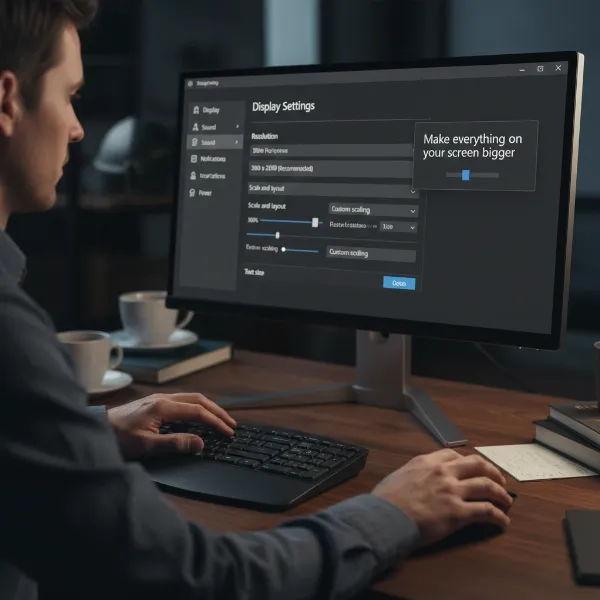 A person adjusting display settings on a computer monitor to fix blurry text, focusing on clarity.
Troubleshooting Steps for Blurry Text Issues
If basic settings don’t resolve the blurriness, it’s time to investigate further with these troubleshooting steps.
Updating Graphics Drivers
Outdated or corrupted graphics drivers are a common cause of various display issues, including blurry text. Your graphics card driver is responsible for how your computer communicates with your monitor, and an old driver might not fully support the monitor’s capabilities, especially at high resolutions.
To update your graphics drivers:
- Identify your graphics card: Check your system information or Device Manager.
- Download latest drivers: Visit the official website of your graphics card manufacturer (NVIDIA, AMD, Intel) and download the latest drivers for your specific model and operating system.
- Install drivers: Follow the installation instructions. A clean install (removing old drivers first) is often recommended.
- Restart your computer: This ensures the new drivers are fully loaded.
Inspecting Video Cables
A seemingly minor issue like a loose or low-quality video cable can degrade signal quality, leading to blurry or distorted images, including text.
- Check connections: Ensure your HDMI, DisplayPort, DVI, or VGA cable is securely plugged into both your computer and your monitor. Disconnect and reconnect it firmly.
- Replace cable: If the issue persists, try replacing the cable with a new, high-quality one. For high-resolution displays, HDMI 2.0/2.1 or DisplayPort 1.2/1.4 are recommended to handle the bandwidth required for clear visuals. Using a cable that is too long or of poor quality can also introduce signal degradation.
Application Compatibility Adjustments
Sometimes, blurriness only occurs in specific applications, especially older ones not optimized for high DPI displays.
- Windows Application Scaling:
- Right-click the problematic application’s shortcut or executable file.
- Select “Properties” > “Compatibility” tab.
- Click “Change high DPI settings.”
- Under “High DPI scaling override,” check “Override high DPI scaling behavior” and try different “Scaling performed by” options (Application, System, System (Enhanced)). “System (Enhanced)” often works well for older apps.
HDR Settings and Their Impact
While High Dynamic Range (HDR) can offer vibrant colors and contrast, it can sometimes interfere with text rendering or cause unexpected blurriness if not correctly implemented or supported by both your monitor and graphics card.
- Toggle HDR: In Windows “Display settings,” you can toggle “Use HDR” on or off to see if it affects text clarity. If text sharpens after disabling HDR, you might need to update drivers or check for specific monitor settings related to HDR.
Monitor’s Internal Settings
Your monitor itself has an On-Screen Display (OSD) menu with various settings. If the monitor’s OSD menu itself appears blurry, it might indicate a hardware issue with the monitor rather than your computer.
- Check OSD clarity: Access your monitor’s OSD menu (usually via buttons on the monitor). If the menu text is sharp, the monitor hardware is likely fine.
- Reset monitor settings: Look for an option to “Reset to Factory Defaults” within the OSD menu. This can sometimes clear up any custom settings that might be causing the blurriness.
Advanced Solutions for Persistent Blurriness
If the standard fixes haven’t yielded results, these more advanced methods might be necessary.
Custom Scaling and Manifest Files
For very specific scenarios, especially with older applications, creating custom scaling manifests can force an application to scale correctly. This is an advanced technique and requires some technical comfort. You would typically create an .exe.manifest file next to the application’s executable to define DPI awareness settings. However, for most users, the compatibility settings mentioned above are sufficient.
Resetting Display Settings
If you’ve made numerous changes to display settings and aren’t sure what caused the problem, a full reset can be a viable option.
- Windows: You can try a system restore to a point before the blurriness started, or for display settings specifically, ensure all scaling and resolution options are set to their “Recommended” defaults.
- Graphics Control Panel: Your graphics card’s control panel (NVIDIA Control Panel, AMD Radeon Software, Intel Graphics Command Center) also has display settings that might override Windows settings. Check these panels for any unusual scaling, sharpening, or resolution settings.
“Many blurry text issues stem from the fundamental mismatch between an application’s DPI awareness and the high pixel density of modern displays. Resolving this often requires a multi-pronged approach, from system-wide scaling to application-specific overrides.” – Dr. Eleanor Vance, Display Technology Specialist
Comparison Table: Common Blurry Text Issues & Solutions
| Issue Category | Common Symptoms | Quick Solutions | Advanced/Specific Solutions |
|---|---|---|---|
| Scaling & Resolution | Text too small/large, slightly fuzzy | Set to Native Resolution; Adjust Windows/macOS Scaling (Recommended) | Try custom scaling percentages; Use ClearType Tuner |
| Software-Related | Blurry only in certain apps | Adjust application compatibility settings (Windows) | Create custom manifest files for legacy applications |
| Hardware & Connectivity | Universal blurriness, flickering | Check/replace video cables (HDMI/DP); Update graphics drivers | Check monitor OSD for internal issues; Test with another monitor |
| Font Rendering | Jagged or uneven text | Calibrate ClearType (Windows); Toggle Font Smoothing (macOS) | Experiment with different font rendering settings in OS |
Maintaining Optimal Text Clarity
Preventing blurry text is easier than fixing it. By adopting a few best practices, you can ensure your high-resolution computer monitor always delivers sharp, readable text.
- Regular Driver Updates: Keep your graphics drivers updated. Manufacturers frequently release updates that improve compatibility, performance, and resolve display issues.
- Use Native Resolution: Always operate your monitor at its native resolution to avoid interpolation and scaling artifacts.
- Periodic ClearType Tuning: Rerun the ClearType Text Tuner every so often, especially after major system updates or if you notice slight changes in text clarity. Your perception of “clear” can subtly change over time, and a fresh calibration helps.
- Invest in Quality Cables: High-resolution displays demand high-quality cables. Don’t skimp on a cheap cable that might not meet the bandwidth requirements.
- Verify Application Compatibility: When installing new software, especially older programs, check if they have specific high-DPI compatibility settings or updates.
Achieving perfectly crisp text on your high-resolution Computer Monitor is absolutely within reach. By systematically checking your display settings, optimizing scaling, ensuring your drivers are up-to-date, and inspecting your hardware, you can eliminate frustrating blurriness. A clear display not only enhances your visual experience but also reduces eye strain, making your time in front of the screen more enjoyable and productive. Don’t let blurry text diminish the potential of your powerful monitor—take these steps to unlock its full clarity.
What steps have you found most effective in maintaining text clarity on your high-resolution setup?
Frequently Asked Questions
Why does text look blurry on my new 4K monitor?
Text often appears blurry on new 4K monitors due to incorrect display scaling or not running the monitor at its native resolution. Windows or macOS might default to a scaling percentage that causes some elements to be improperly rendered, making text appear soft rather than sharp. Adjusting the display settings to your monitor’s native resolution and optimizing scaling are typically the first steps to fix this.
How do I fix blurry text after a Windows update?
After a Windows update, blurry text can often be resolved by re-running the ClearType Text Tuner, checking your display scaling settings for any unexpected changes, and updating your graphics drivers. Sometimes, updates can reset or alter display configurations, requiring you to re-calibrate for optimal clarity.
Can a bad HDMI cable cause blurry text on my monitor?
Yes, a defective or low-quality HDMI or DisplayPort cable can absolutely cause blurry text. These cables transmit video signals, and if the signal is degraded due to poor shielding, damage, or insufficient bandwidth for high resolutions, the display, including text, can appear distorted or blurry. Always ensure you’re using a quality cable appropriate for your monitor’s resolution.
What is ClearType and how does it help with blurry text?
ClearType is a software technology developed by Microsoft to improve the readability of text on LCD screens, particularly on high-resolution displays. It works by adjusting the individual color components (red, green, blue subpixels) of each pixel to smooth the edges of fonts, making text appear sharper and less jagged. Running the ClearType Text Tuner allows you to customize this rendering to best suit your eyes and display hardware.
Should I use 100% scaling on a high-resolution monitor?
While 100% scaling provides the sharpest text as it avoids any interpolation, it often makes text and icons incredibly tiny on high-resolution monitors (like 4K). For most users, a higher scaling percentage (e.g., 125%, 150%) is necessary for readability. The key is to find the “sweet spot” where text is legible without becoming blurry due to improper scaling, often starting with the “Recommended” setting.